Home Blog Page 394

Why Your Garmin Speed and Distance Don’t Match Zwift’s

garmin-edge510-01

One popular question from wheel-on trainer users in the Zwift Riders Facebook group is:

“Why don’t my Garmin computer’s distance/speed numbers match Zwift’s?”

The answer to this is quite simple, although it can be hard to wrap your head around if you’re new to virtual cycling.

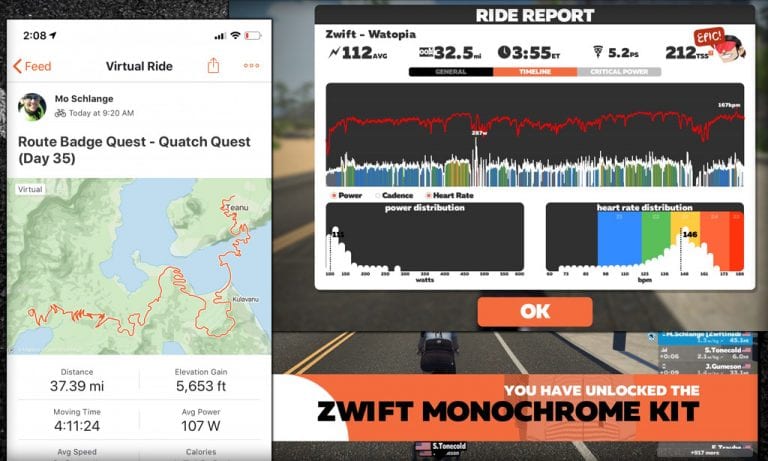
Simply put, Zwift calculates speed (and therefore distance) based on power, while your Garmin calculates speed based on wheel revolutions. Because of this, your numbers will never match. And that’s OK!

More Details

Let’s imagine you have your Garmin turned on while Zwifting. Here’s how distance computation is happening on your Garmin and Zwift:

  • Your Garmin is picking up each wheel revolution via the speed sensor on your back wheel and multiplying the number of revolutions by your tire circumference to compute speed and distance.
  • Zwift is taking the power you’re putting into the pedals and feeding that into its algorithm to determine how fast you go in the Zwift environment given your weight, height, virtual equipment, current road gradient, drafting status, and more. Read “How Does Zwift Calculate My Speed?” for more info >

Note: if you don’t have a smart trainer or power meter, Zwift is estimating your power based on known power curves for particular trainers (we call this “zPower” or “virtual power”). In this case, Zwift does use your speed sensor, but it is converting that wheel revolution data into power numbers. Read more about Zwift’s virtual power calculations >

Tour of London 2019 Announced

22

Tour of London 2019 Announced

Zwift has just announced its third annual Tour of London. Like prior years, this is a 5-stage event showcasing all of Zwift’s London map. But Zwift has made a few changes for 2019:

  • More climbing: we’ve got three climbing stages instead of just two
  • No Double Draft mode this year
  • New “E” race category: a “elite” category has been added for anyone wanting to race the stage. Zwift says groups A, B, and C are not races–just a personal challenge against the clock. But E is for racing, and will presumably be managed by Zwift on ZwiftPower. Zwift says, “Recommended w/kg is 3.5-5.0. If going anaerobic out of the pen is your cup of English tea then is the group for you.”
  • Scheduling: each stage happens across two days, giving people more chances to ride.

Read below for more details on what will certainly be a popular series of events!

Schedule

Each stage is scheduled across two days, with different times for each day. This gives Zwifters maximum opportunity to find a ride time that fits their schedule for each stage.

If you miss one or more stages, makeups stages will be scheduled December 21-22.

Kit Unlock

Complete all five stages to unlock the Tour of London kit. Note: it appears from Zwift’s messaging that this kit is the same as last year’s, which could be a bummer for anyone who already has the kit. Hopefully Zwift has something new in store for us!

Groups

Each time you sign up to ride a stage, you can select which group you want to join:

  • A Group (Long Distance) = The A Group rides the long-distance event. It’s not a faster group. Just a group that wants to ride a longer stage. Men and women can join this group.
  • B Group (Short Distance) = The B Group rides the short-distance event. It’s not a slower group. Just a group that wants to ride a shorter stage. Men and women can join this group.
  • C Group (Women Only) = The C Group is just for women.
  • E Group (Elite Racers) = New for 2019! The E Group is the race group averaging 3.7-5.0 w/kg. Separate races for men and women.

Stage Details

Stage 1: Greater London Flat, Dec 9-10

We start the Tour on Greater London Flat, a popular flat route through the streets of downtown London and along the Thames.

  • A Group (Long Distance): 3 laps
    Total distance with lead-in: 40.2km (25.1 miles)
    Total elevation gain with lead-in: 176m (577′)
  • B Group (Short Distance): 1 lap
    Total distance with lead-in: 16.8km (10.4 miles)
    Total elevation gain with lead-in: 82m (269′)
  • C Group (Women Only): 2 laps
    Total distance with lead-in: 28.4km ( 17.6 miles)
    Total elevation gain with lead-in: 127m (416′)
  • E Group (Elite Racers): 2 laps
    Total distance with lead-in: 16.8km (10.4 miles)
    Total elevation gain with lead-in: 127m (416′)

Learn more about the Greater London Flat route >
See event schedule/sign up >

Stage 2: London 8, Dec 11-12

This stage’s London 8 route covers the entire original London course by combining the “London Loop” and “Classique”. There’s one climb in this stage, the legendary Box Hill. It’s the same climb used in the 2012 Olympic Road Race!

  • A Group (Long Distance): 2 laps
    Total distance with lead-in: 40.6km (25.2 miles)
    Total elevation gain with lead-in: 476m (1561′)
  • B Group (Short Distance), C Group (Women Only), E Group (Elite Racers): 1 lap
    Total distance with lead-in: 20.3km (12.6 miles)
    Total elevation gain with lead-in: 238m (780′)

Learn more about the London 8 route >
See event schedule/sign up >

Stage 3: London Triple Loops, Dec 14-15

The action moves to the Surrey Hills for Stage 3. The London Triple Loops route begins flat, but includes both the Leith Hill and Box Hill climbs. All groups ride one lap for this stage so there’s no B group.

  • All Groups: 1 lap
  • Total distance with lead-in: 40.8km (25.4 miles)
    Total elevation gain with lead-in: 544m (1785′)

Learn more about the London Triple Loops route >
See event schedule/sign up >

Stage 4: Greatest London Flat, Dec 16-17

After two climbing stages, your legs get a break with the Greatest London Flat course.

  • A Group (Long Distance): 2 laps
    Total distance with lead-in: 54.6km (33.9 miles)
    Total elevation gain with lead-in: 476m (1561′)
  • B Group (Short Distance), C Group (Women Only), E Group (Elite Racers): 1 lap
    Total distance with lead-in: 31km (19.3miles)
    Total elevation gain with lead-in: 294m (968′)

Learn more about the Greatest London Flat route >
See event schedule/sign up >

Stage 5: Keith Hill After Party, Dec 18-19

We end the Tour with a mostly flat stage that ends atop the Keith Hill climb, meaning more than half the overall elevation gain is completed in the final 4.1km! All groups ride one lap for this stage so there’s no B group.

  • All Groups: 1 lap
  • Total distance with lead-in: 36.2km (22.5 miles)
    Total elevation gain with lead-in: 407m (1335′)

Learn more about the Keith Hill After Party route >
See event schedule/sign up >


Enhance Your Zwift Sessions with Philips Hue Smart Lighting

Enhance Your Zwift Sessions with Philips Hue Smart Lighting

Most of us have seen and used smart LED lighting by now–you may even use it in your own home. But have you ever thought of how it could be used to enhance the Zwift experience?

Almost two years ago, Jon Mayfield posted a demo video of a weekend project created using Nanoleaf panels, some code he wrote, and (unfortunately for the rest of us) a level of access to Zwift’s game data that none of us have.

Unlike Jon, we can’t easily make our lights respond to things like gradient, watts, and weather at this time… but there are some simple, affordable setups that can really make your Zwift sessions more immersive while making the pain cave setup look seriously cool.

Here’s a walkthru of one simple smart lighting setup which was recently implemented in the Zwift Insider Lab.

Getting Started

Required Hardware

First, realize this particular solution only works if you’re running Zwift on a Mac or PC. If you are running Zwift on a phone or tablet connected via HDMI to a big screen, or running Zwift on AppleTV, the pricey Hue Play HDMI Sync Box will sync the Hue lights to your screen.

Products Used

Step-By-Step Setup

I went from opening the boxes to basic lighting functionality in 15 minutes. It took another 15 to dial in the syncing and brightness the way I liked. Simples! Here’s the process…

Bridge Setup

The Bridge must be plugged into your local network–it does not work on WiFi. Fortunately, the Hue lights connect to the Bridge wirelessly, so even if the Bridge is plugged in across the house from your pain cave, the Bridge can do its job.

I installed the Hue app on my iPhone, plugged the Bridge into power and my network switch, then opened the app to get the Bridge set up. Easy! It found the Bridge and prompted me to update the Bridge’s software, which I did.

Lights Setup

The lights were also easy to get going–just plug them into the power supply, click “Add Light” in the app, and the lights were quickly found. Once they were linked in the app I could control them using my phone, which is pretty fun in itself. But the real magic comes next!

Setting the Sync

At this point, the two lights were just sitting on a tray in front of my big screen TV. I wasn’t sure where I wanted to mount them–I wanted to experiment a bit before doing anything more permanent.

So I downloaded the Hue Sync app to my Zwift PC. This is the app which “sees” what is happening on your screen and uses that to determine what color each of your lights will be. It also has lots of options in it–more on that in a bit.

The Hue Sync software prompted me to set up an “Entertainment area” in the phone app. This was easily done: I added my two lights to the area, then slid them around to position them on the edges of my virtual TV.

The position of your lights here on the setup screen dictates which on-screen colors will be emulated–position the light to the right, and it will emulate the colors on the right of your screen.

Dialing It In

Since I hadn’t installed the lights yet, I could test out different locations to find one that suited my setup best. Although the Play lights include mounting materials for a variety of setup situations, I decided to use some adhesive-backed velcro I had sitting around, since it allows me to easily move the lights later if desired.

The most important change I made was to slide the brightness setting in the Hue Sync app on my computer to max. This took the lighting from a sort of “is that all there is?” to “Yesssss!”

I also changed the effect level from Moderate to Intense, which seemed to make the lights respond more quickly to on-screen changes.

In the end, I mounted the lights to the back of my TV, near the top, and just out of eyesight when on my bike.

The Results

To begin a Zwift session I now turn on the TV, click “Start light sync” on the Hue Sync app which remains open on the desktop, and boot up Zwift.

Here’s a video showing the results, on a lap of Volcano Flat:

Is it a game-changer? I wouldn’t go that far. A bit of environmental lighting like this definitely makes things more immersive, though. And you’ve got to admit that it looks pretty cool.

The two Hue Play lights aren’t massively bright, so the effect is most pronounced when your room is dark–perfect for my early winter morning sessions. Adding more lights would make it work better in brighter rooms.

Upgrade Ideas

There are several ways that this simple setup could be enhanced:

  1. Overhead lighting: if I had an overhead light which accepted normal bulbs, I could buy a Hue bulb to place in that light, and have it fill the room with screen-emulating color. Unfortunately, my overhead light is an LED lamp that doesn’t use standard bulbs, so that’s not going to happen any time soon.
  2. More TV lights: I could add more lights behind the TV to make the effect even more striking, especially when riding in daylight hours. Perhaps a Hue LightStrip along the top?
  3. Jon Mayfield could open up Zwift data a bit more so we could have our lights respond to workout effort, Ride Ons, and more! What do you say, Jon?

What About You?

Are you using smart lights to enhance your Zwifting experience? Share some tips below!


Watopia “Jungle Circuit Route” Details

12

Watopia “Jungle Circuit Route” Details

Watopia’s “Jungle Circuit” was added with the Mayan jungle expansion in late October 2017. This is a lollipop route, meaning you start with a lead-in then remain on the circuit portion until your legs fall off.

Start Point(s)

If you choose this route for a free ride or workout you will spawn on the road to the Mayan jungle, several hundred meters before the jungle start pens. Ride into the circuit portion, then remain on the circuit for the rest of your ride.

Event riders begin at the Jungle start pens, giving you a short lead-in down to the bottom of the jungle before starting the first circuit lap. (See Strava lead-in segments below.)

Route Description

The jungle loop itself is almost 8km in length. In the forward direction, you roll through the lap banner at the loop’s lowest elevation, then ride a gradual climb (~3%) to cross the dizzying heights of the rope bridge. Soon enough you are zipping downhill to the bottom of the valley for another lap.

The entire circuit is dirt, and while this was only a visual change when the Jungle was first released, Zwift modified the rolling resistance of dirt in October 2019. Now, different bike wheels perform differently in the Jungle, making your wheel choice especially strategic when racing!

Route details:
Distance: 7.9km (4.9 miles)
Elevation Gain: 79m (259′)
Strava Jungle Circuit Forward (lead-in)Strava Jungle Circuit Forward
Strava Jungle Circuit Reverse (lead-in)Strava Jungle Circuit Reverse

Level Requirement

You must be level 10 or higher to access this or any other jungle routes. Want to get in anyway? Here’s how to do it.

Leaders Jersey

Jungle Circuit laps are timed in both directions, with leaders awarded a Mayan-themed lap leader jersey.

Pro tip: want to grab your first lap leader jersey? Flip a u-turn and hit the circuit in reverse. Not much traffic in this direction!

Here’s what the jersey looks like:

Event-Only Reverse Version

There is a reverse version of the Jungle Circuit route, but it is available for events only.

Changelog

  • Dec 3, 2019: changed segments and description since Zwift has changed the start points for this route. For events, this route now begins in the new jungle start pen.

Zwiftcast Episode 72 – Special from DC Rainmaker’s Pain Cave in Amsterdam

Zwiftcast Episode 72 – Special from DC Rainmaker’s Pain Cave in Amsterdam

Simon, Shane, and special guest co-host Ray Maker, also known as DC Rainmaker, are together in person in Amsterdam to discuss all the latest Zwiftiness.

The three podcasters are gathered for Ray’s annual Winter Open House event where sports tech geeks get together over a few beers to discuss what’s hot and have fun.

Simon spends some time amongst this well-informed and enthusiastic crowd asking two questions: What’s Zwift doing well and where could it improve?

Elsewhere in this episode there’s a nice long chat with The Girl, Ray’s life partner and now business partner, on how the family and the blog is settling into life in Amsterdam.

Simon, Shane, and Ray discuss the implications of Ray’s scoop story about Zwift starting its own hardware division and Ray gets to join the Zwiftcast’s Guessing Club on Peak Zwift.

The trio discuss just how much work remains to be done for eSports on Zwift to be successful and, after an interview with Peter Lago from Elite on whether the Italian company is a bit behind the pack in the Smart Bike race, the episode wraps up with Simon talking about his recent big decision: to get an e-Gravel Bike.

We hope you enjoy listening.


Video: Cheating in eSports: How to Cheat at Virtual Cycling (from DEF CON)

1

Video: Cheating in eSports: How to Cheat at Virtual Cycling (from DEF CON)

DEF CON is one of the world’s largest and most popular hacker conventions. It happens in Las Vegas each year in late July/early August, and Zwift was featured at this year’s conference in a presentation by Brad Dixon titled “Cheating in eSports: How to Cheat at Virtual Cycling Using USB Hacks”.

Should We Even Talk About Hacking Zwift?

Let’s start here.

Hacking isn’t always a bad thing. Sure, some hackers are are malicious, breaking into systems to do damage, hold data for ransom, or perform other nefarious acts. But other hackers are actually paid to breach security systems so holes can be found and fixed. And others just do it for fun, enjoying the challenge of making a system do something it wasn’t designed to do.

I would put Brad in the third category. And perhaps the second as well. He includes this line at the end of his talk: “Winners never cheat. Cheaters never win. Hackers sometimes cheat for fun.”

The point of Brad’s presentation is to demonstrate the security flaws inherent in systems like Zwift, with the idea that such a demonstration may push Zwift and others to develop more secure systems.

We’re featuring Brad’s presentation here for the very same reason. If Zwift wants to be taken seriously on the eSports level, more needs to be done to mitigate cheating.

Of course, this isn’t news to Zwift. They, more than anyone, know the holes in their system and what it will take to be ready for the world stage (think 2020 UCI championships and the Olympics.)

Presentation Summary

Brad’s presentation begins with a look at the growth of eSports, and in particular the “sweaty eSports”, where Zwift is leading the way. He briefly touches on the colorful history of doping in cycling, then digs into the basics of how Zwift functions.

Things get really technical next as Brad explains the details of the tools he’s developed to hack Zwift, but here’s a simple explanation.

USBQ is a tool Brad helped develop commercially, then repurposed for the task of hacking Zwift sensor data. It’s basically a “man-in-the-middle” tool for manipulating data flowing through the USB bus.

He then wrote a plugin that runs on top of USBQ. In a nod to Lance Armstrong it’s dubbed ELANCE: eSports Leet Automatic Network Cheating Enhancement. ELANCE is used to decode the ANT+ data coming in, manipulate it, then send it back out. It has two modes:

  • EPO Mode: boost your power with a multiplier, and set all grades to flat
  • Slacker Mode: no work required. Use a game controller trigger to set power levels!

Brad demonstrates his tool in a recorded Zwift session, then discusses the possibilities of using the tool to cheat in actual Zwift races. He says it’s plausible, but you’d have to be careful about it–creating an IRL track record on Strava, using multiple accounts to test the limits of Zwift’s performance verification, etc.

Watch his entire presentation:

Brad’s work on this project, along with related links, can be found at his edope.bike website.

My Thoughts

In his wrapup, Brad makes two key points:

  1. Indoor cycling’s overall system was not designed for high-stakes competition. Insecure sensor networks and untrusted hardware are not a good foundation for security.
  2. Electronics and software are part of cycling, now more than ever. These are new domains for cheaters to exploit, and organizations governing cycling need to look at how this affects competition.

Both of these points are obviously valid. But what can be done at this stage to deal with the problem of insecure sensors and other hardware, not to mention the ease of weight or height doping?

To date, Zwift has always held real-world events for their high-stakes races–it makes for more exciting race streams, but it also makes for secure racing! (You can’t cheat weight, height, or power numbers in real-life settings.) Is this the way forward? Will the vast majority of Zwift races be open to edoping, while only a few top events per year are held in the real-world?

I think we can do better.

My hope is that Zwift’s new Fitness Tech division can lead the way in pushing for more secure communication protocols and hardware to help reduce or eliminate edoping. Because if Zwift racing is going to explode on the world stage, it must first be more cheat-proof for everyday races in our homes. A more trustworthy system will ignite a stronger spirit of competition and fair play which will raise the stakes and competition levels of all races, including the big ones.

Your Thoughts

Do you race on Zwift? How concerned are you about cheating in these competitions, and what solutions (if any) can you propose? Share your thoughts below!


Does Zwift make your feet stink? Try this.

1

Does Zwift make your feet stink? Try this.

shoe-fan

Early on, my Zwift addiction coupled with manly sweat glands created a stinky situation. My shoes weren’t drying completely, so stinky odor-causing bacteria threw a party with odoriferous results.

When riding outside, much of my foot sweat evaporates thanks to nicely-ventilated shoes and socks. But that doesn’t happen with Zwift, plus I find myself riding more than once a day on occasion.

Putting on sweaty shoes is unpleasant. And shoes that never dry get stinky. Quickly.

So here’s my redneck PEET Dryer. Just bend a clothes hanger so the ends hook onto your shoes and the hook grabs your fan. Done!

(Got an extra $40? The PEET is a brilliant solution as well.)

I leave the hanger there all the time, then after each ride, I hang my shoes and let the fan keep running for an hour or two. The shoes dry out quickly, and don’t get overly smelly.

Other Solutions

  • Stuff your shoes with material that soaks up moisture. Newspaper is commonly used. A sock full of cedar wood chips (the kind used pet cages) also works great and prevents bacterial growth.
  • Place them over another wind/heat source. On top of an AC great, in front of the AC inlet, or purchase something like a PEET dryer.
  • Two pairs of shoes. Swap ’em out!

Peter Kennaugh and Dr. David Spindler on Mental Health in Pro Cycling (Zwift PowerUp Cycling Podcast #40)

0

Peter Kennaugh and Dr. David Spindler on Mental Health in Pro Cycling (Zwift PowerUp Cycling Podcast #40)

Matt and Kev talk to Dr. David Spindler and Peter Kennaugh about that taboo subject–Mental Health. What it is, common misconceptions, and the role of a Psychological Scientist within World Tour Cycling Teams.

Dr. David Spindler is a Sports Psychologist who works with Team Dimension Data, while Olympic gold medalist Peter Kennaugh draws from personal experience after recently stepping away indefinitely from cycling to focus on his own mental health.


About the Podcast

The Zwift PowerUp Cycling Podcast features host Matt Rowe (Rowe & King), with regular co-hosts Greg Henderson (Coach Hendy) and Kev Poulton (Powerhouse Cycling). The hosts share tips on how road races can get faster in-game and outdoors.


Using the “Trainer Difficulty” Setting in Zwift

144

Using the “Trainer Difficulty” Setting in Zwift

“Trainer Difficulty” is absolutely the most misunderstood Zwift setting (Menu>Settings). Zwift has said:

This adjustment won’t change how far or fast you ride, but it will change how climbs feel…

but that doesn’t really explain how the setting works. Hopefully, this post will help you wrap your head around Trainer Difficulty on Zwift.

Here’s the best way to understand it: this setting is really “gradient feel scaling.” Zwift is constantly sending current gradient numbers to your smart trainer, and the trainer adjusts its resistance to match the gradient you are riding. The Trainer Difficulty setting simply scales the gradients sent to your trainer. Nothing more, nothing less.

Trainer Difficulty is set to 50% by default, which is why Zwift says it “treats the gradient as half of the true grade.” So when you hit a 10% climb in Zwift, your trainer is only giving you the resistance of a 5% climb.

Bump your Trainer Difficulty up to 100% and you’ll feel the full gradient. Set it to 0% and you won’t feel gradient changes at all!

How Trainer Difficulty Affects Your Ride

Lowering your Trainer Difficulty decreases resistance changes on hills. You still have to put in the same amount of power to get up (and down) the hill, but you will “feel” the hill less.

Another way to look at it: Trainer Difficulty determines how much shifting you will need to do. Where you might typically use ~7 of your gears when riding at the default 50% setting, lowering it to 25% would let you ride and only use ~4 gears, since the incline changes are less dramatic.

Increasing your trainer difficulty, on the other hand, will force you to use more gears. So instead of 7, you may use 10 or 12, since the hills will feel steeper and you will need to shift more to maintain a healthy cadence.

What It Does Not Do

Changing Trainer Difficulty does not change the power needed to get up the hill. You still have to put out the same watts to move the same distance as before… you’ll just be doing it in a different gear.

That’s why we think “Trainer Difficulty” really is a misleading name for the setting. Perhaps “Gradient Feel” or “Trainer Realism” would be better.

Frequently Asked Questions

Doesn’t a higher Trainer Difficulty make racing harder? Am I “difficulty doping” by running it lower?

A higher Trainer Difficulty will typically result in a higher variability index (VI) due to more resistance fluctuation. For many riders this may result in an overall effort which feels more difficult since maintaining steady power is easier than doing intervals.

But this isn’t true for everyone, and skilled shifting can reduce or eliminate the effect of resistance fluctuations.

In the end, watts are watts, and your Trainer Difficulty setting doesn’t change the power needed to cover any particular stretch of Zwift tarmac. So set it wherever you’d like!

I’m spinning out on descents. Can Trainer Difficulty help me here?

One common complaint from smart trainer owners is that they get dropped by other riders on downhills. Especially if you’re running Trainer Difficulty at 75% or more, steep gradients simply won’t offer the resistance needed to put power into the pedals.(Note: the same can happen outside!)

The problem comes when you’re racing against others who have their Trainer Difficulty set low, or perhaps are riding dumb trainers with a constant resistance. These riders will have the resistance needed to go hard on the descents, while you’re spinning out.

Trainer Difficulty can help here. Try lowering it to 25-40% when racing. This will allow you to put more power into the downhills without spinning out. Give it a try and tweak the setting until it feels good to you.

For more on this topic, read Trainer Difficulty On Descents: Did You Know? and Hanging with the Group Over Gradient Changes. Also–don’t forget the Supertuck!

I have a KICKR Climb, but it doesn’t respond to gradients because I’ve lowered my Trainer Difficulty. Is there a workaround?

There’s a pretty simple hack for this – see KICKR Climb Wheelsbase Hack for details.

Why don’t I see “Trainer Difficulty” in my settings?

The slider is only visible once you’ve paired a smart trainer in the “Resistance” box in the pairing screen.

Should I Change My Trainer Difficulty Setting?

No need to change the setting if you are happy with the “feel” of your rides and aren’t struggling with yo-yoing in and out of the pack on group rides. If you think you’d like to adjust it, though, go ahead and give it a try–you can always set it back to 50%.


Watopia “Road to Sky” Route Details

13

Watopia “Road to Sky” Route Details

Watopia’s “Road to Sky” route is the shortest route which includes Alpe du Zwift, a massive climb modeled after the iconic Alp d’Huez.

About the Alpe

Zwift created this route using GPS data to perfectly match the incline and distance of the storied climb with its 21 hairpin turns. The climb to Alp d’Huez actually has two different finish points: the “tourist version” and the Tour de France version. Alpe du Zwift matches the tourist version, which is ~2km shorter with 40 meters less climbing than the TdF. In all, Alpe du Zwift is 12.24km (7.6 miles) long, with a total elevation gain of over 1000 meters (3400′)! Read more >

Looking to get your fastest time up the Alpe? Check out Fastest Bike Frame and Wheelset for Climbing Alpe du Zwift.

Route Description

If you choose this route for a freeride you’ll begin just a few hundred yards before the jungle start pens. Events on Road to Sky now begin in the jungle start pens.

So whatever type of ride you’re doing, you’ll drop into the jungle, wave to the sloth and enjoy a little gravel riding before you hang a right and head up the Alpe.

The route ends at the KOM banner atop Alpe du Zwift.

Level Restriction

Like all Alpe routes, Road to Sky is restricted to Zwifters level 12 and up unless you access it through an official group ride.

Want to ride it anyway? Here are a few ways to make that happen.

Route details:
Distance: 17.3 km (10.7 miles)
Elevation Gain: 1045m (3430′)
Strava Forward Segment

Changelog

  • 11/29/19: updated to reflect the new spawn point. Zwift changed it from beginning on the pier near the seaplane to beginning a few hundred meters before the new jungle start pens.