Home Blog Page 403

Zwift Update 1.0.40555 Released

0

Zwift Update 1.0.40555 Released

Zwift released an update late Tuesday night which includes FutureWorks:Steering and several other interesting and fun changes. Here are the details!

FutureWorks:Steering

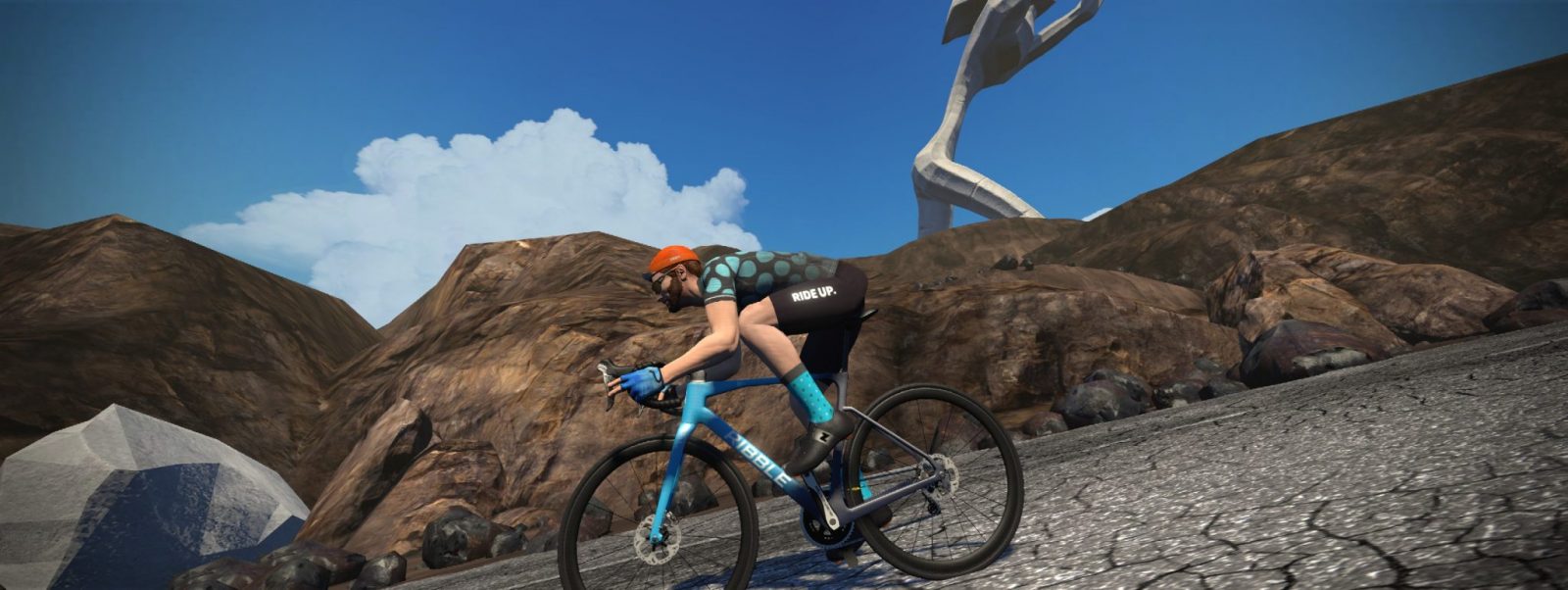
The biggest news in this update, Zwifters are now able to steer their rider over a mountain bike singletrack. And it works really well!

Read all about Zwift Steering here >

Route Achievement Badges

1 down… 24 to go!

25 routes have been selected from the big list of 100+ as “route achievements.” Finish the route, get the badge. That’s the kind of carrot we like!

In our limited tests, it appears you get credit for finishing the route whether you do it as a free ride or a group event.

Looking for more “route completion” achievements? Check out our new Route Hunter Leaderboards, p/b VeloViewer >

Wheel/Tire Rolling Resistance

Jon Mayfield’s update notes included this very interesting item:

Various wheels and tires now have different rolling resistance based on the surface they are rolling on. IE, a mountain bike or gravel tire may be the best on the Jungle circuit, while a road/TT bike is fastest on the tarmac. More to come here in a future update.

Interesting! I’ve got an email to ZwiftHQ trying to get more clarification on what (if anything) has already changed in terms of wheelset performance, but I like the idea of adding another layer of gamification, requiring riders to know their virtual equipment and race route if they want to be as fast as possible.

We’ll certainly publish more speed tests once we know more about what has changed. Watch this space.

New Kona Heat It Up Mission

A new Ironman KONA-related mission has been added, but won’t be live until October 5th. We’ll publish a post all about it at that time.

Read all the mission details on Zwift.com >

More Changes

As always, the update comes bundled with lots of smaller changes. Here’s the rest of the list from Jon:

  • Added beginner 5k run training plan
  • Enabled running on new off-road section in Titans Grove (watch out for MTB’ers!)
  • Started building out new paddocks near the Jungle Circuit for future events
  • Low memory desktop machines (ie, 2-4gb of ram) will now use slightly reduced texture detail in order to fit into memory more reliably
  • Tweaked graphics for iPad Air 3, iPad Mini 5, and iPhone 11 (which now gets full shadows!)
  • Various bug fixes

Read Jon Mayfield’s release notes >


Join Us Tomorrow for the First-Ever Repack Redux MTB Race!

0

Join Us Tomorrow for the First-Ever Repack Redux MTB Race!

Announcing Repack Redux: an informal mountain bike race on Zwift’s new Repack Ridge singletrack.

About the Race

This is an informal mountain bike race on Zwift, a virtual remake of the Repack races in Marin County, CA, where mountain biking was birthed in the ’70s. It’s all about having fun doing something new, since we’ll all be testing out Zwift’s new FutureWorks:Steering capabilities.

How the Start Works

The race will begin promptly from the Repack Ridge trailhead at 11am PDT.

Getting to the trailhead: you will want to choose the “Dust In the Wind“, “Muir and the Mountain” or “Quatch Quest” Watopia routes then ride to the trailhead well before that time, to be safe. You will have to have Zwift Companion running and connected to your ride. For further instructions on how to get onto the Repack Ridge trail, read this post.

Don’t pass the fence until the race begins. Wait for the race leader (Eric Schlange) to message “GO REPACK REDUX, GO!” then go for it! You will be stopped and prompted to center your bars before you cross the line–make it fast, then go go go!

Race Rules

Have fun. Go hard. Extra unicorn points if you give your rider a funny name and/or look.

Everyone wins because we have fun getting a good workout. But the first rider through the finish banner really wins!

We may even do a second lap.

Discord Voice Chat

Race leader will be on the Zwift Insider Discord channel. Join the audio chat for fun banter and a more personal experience.

How to use Discord on Zwift >

Link to join Zwift Insider server: https://discord.gg/ceTPdDt

About the Course

Distance: 3.1km (1.9 miles)
Elevation Gain: 94m (308′)

Strava Segment

Questions or Comments?

Post below!


Setting Up Your Front Wheel and Phone For Zwift Steering

So Zwift has launched steering, if only in FutureWorks testing. And while it’s easy to give it a quick spin, you may find that dialing in the ideal setup for Zwift steering takes a little doing. Here are some quick tips and recommendations...

Steering Setups for Zwifting

At first, it may seem that turning your front wheel on your indoor setup would be easy. But it’s actually a surprisingly challenging setup to get right, for two reasons:

  • Your steering pivot point isn’t where your front tire touches the floor–it’s a few inches in front of that. This causes your bike/trainer to “walk” forward as you steer.
  • Your tire’s friction will wear a hole through any foam/rubber mat it sits on, if you do enough steering.

So a solution is needed which allows us to turn our handlebars without putting force on our entire bike/trainer setup, while also saving our floor from wear and tear.

Here are a few solutions we’ve come across:

Shane’s Turntable

Our buddy Shane Miller released another quality “first look” video last night, all about Zwift steering. In it he shows how he used a basic lazy susan/turntable, with a little something underneath to make the angle match his front fork. Looks like it works great!

Looking for a turntable? Here’s a heavy-duty two-pack on Amazon for less than $13, or another for $7.

Kinetic Turntable

Kinetic has been in the indoor training game for a long time, and their Turntable Riser Ring has been around for a while. At less then $40 it doesn’t cost much more than most risers, but it lets your wheel turn quite freely.

It doesn’t solve the problem of the pivot point being in front of the floor contact points, but a few Zwifters have told us that it seems to work well enough for Zwift steering.

Budget Approach

One simple (and perhaps temporary) approach is to place something below your front tire which will reduce friction as much as possible. A spare piece of laminate flooring, perhaps.

This coupled with a trainer sitting firmly in place may be enough to let you ride Repack Ridge quite a bit without inching forward or stressing your bike.

Other Solutions

Zwifters are a smart bunch, and we’re already seeing community members coming up with novel solutions to this steering challenge. Got one of your own? Share it in the comments!


Phone Mounts for Zwifting

If you don’t already have your phone mounted to your handlebars, you’ll need to do that for Zwift steering to work. There are many phone mount solutions on the market, and you’ll need to pick one that fits your preferences and needs.

Remember to consider where you want your phone mounted on your handlebars, whether you want it to be used outside as well, and how much of the mount you’re willing to carry around attached to your phone throughout the day.

Here are a few of our favorites.

Quad Lock

A proven leader in this industry, Quad Lock is a solid, quality solution.

You’ll need to use the Quad Lock case, or attach their universal adaptor stuck on your case or phone.

Get it on Amazon >

Roam Mount

Not the prettiest thing, but it does the job, and cheap!

For only $17 on Amazon, this mount holds a variety of phone sizes, doesn’t require sticking anything on your phone or case, and fits a wide variety of handlebar widths.

Once you’ve set the width where you want it, just strap your phone in quickly to get going.

Note: the straps may get in the way of some Zwift Companion buttons along the bottom of your phone, although they are flexible enough to allow you to move them out of the way to tap buttons.

Get it on Amazon >

KOM Cycling Garmin Mount

We actually reviewed this product last year. The little $13 disc sticks on your phone or case, adding only 7 grams and 6mm of height to your phone.

This allows you to click your phone into your Garmin mount, providing for a solid connection safe to use outside.

Get it on Amazon >

iOmounts Convert

Zwift has been selling this little gadget for a while now, and it’s sleek. A slim steel disc sticks on the back of your phone, and this attaches to the magnet in the Garmin adapter.

So you can use your existing Garmin mount, and your phone doesn’t have a big mount stuck to it. All for $30.

Keep in mind this is for indoor use only.

Buy at Zwift.com >

Share Your Ideas!

These are our ideas for ideal steering and phone mounting. What about yours? Share them below!

Steering Launched on Zwift’s FutureWorks

Steering Launched on Zwift’s FutureWorks

Zwift rolled out steering tonight, a beta feature which is the first release under Zwift’s new FutureWorks platform. Never before have Zwifters been able to control the direction of their avatar… but that all changes today!

How To Start Steering

Want to give it a go? Here’s how to do it:

  • Make sure your Zwift install is up to date
  • Make sure Zwift Companion is installed and running on your phone, and your phone is mounted to your handlebars
  • You’ll want to have your front wheel set up in a way where it can be easily turned (perhaps a tilted lazy susan) and/or allow your entire bike to lean (perhaps using a rocker plate)
  • Choose “Dust In the Wind“, “Muir and the Mountain” or “Quatch Quest” Watopia routes for the most direct line to the new trail
  • When you begin riding, make sure Zwift Companion is paired up and showing your location on the map. You will not receive the steering prompt unless Zwift Companion is connected to your Zwift session.
  • When you reach the fork in the road with a right turn marked by a question mark–take the right turn!
  • Follow the instructions to start steering

Once you finish riding Repack Ridge, you can ride down the paved road, flip a u-turn after passing the trailhead, then turn right onto the singletrack again if you’d like. Repack Ridge is a one-way road for now, so you can only enter from one direction.

Need more specific directions? Check out this thorough support page on Zwift’s site.

Unlocking Your MTB

According to Zwift, if you finish the course is under 12:30 with all 10 stars and you’ll unlock the Zwift mountain bike frame and wheels. (I finished with just 9 stars and still unlocked the bike and wheels.)

The mountain bike can be ridden anywhere in Zwift. Prepare to see some fat tires on the tarmac!

About the New Course (Repack Ridge)

The new singletrack section is named “Repack Ridge”, a shoutout to the Repack course in Marin County, CA which played a crucial role in the early development of mountain biking between 1976-1984.

Why was it called Repack? Because the bikes’ old hub coaster brakes would get so hot the heat would vaporize, and riders would have to repack the hub with new grease after a run or two!

Zwift’s course is a bit like Repack–similar in length, and both courses finish with a tough climb containing multiple hairpins.

Here’s a Strava segment details for Zwift’s Repack Ridge:

Distance: 3.1km (1.9 miles)
Elevation Gain: 94m (308′)

Strava Segment

Skeptical?

Steering not for you? Jon Mayfield says there’s no reason to be concerned:

For those that are skeptical, don’t worry. Steering will most likely never be mandatory for just riding around, training, or even most event formats – but we do see an opportunity for some new modes as well as enhancing existing experiences for those who want it. For now, we’re simply testing whether the phone is a workable solution.

What Do You Think?

Be sure to share your feedback in the popup Zwift gives you after finishing Repack Ridge–after all, that’s what FutureWorks is all about! But feel free to share your thoughts below as well!


Giving Multiple Ride Ons via Zwift Companion

Giving Multiple Ride Ons via Zwift Companion

Everyone loves a Ride On. Did you know there are two easy ways to give multiple Ride Ons with a single tap using Zwift Companion?

Give Ride Ons to Active Followees

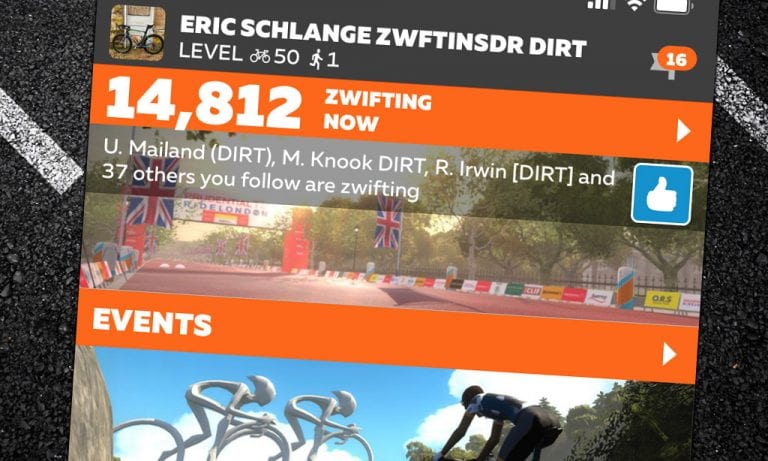
A recent Zwift Companion update made it easy to give a Ride On to everyone you follow who is currently zwifting. Just tap the Ride On icon at the top-right of the app’s homepage, and you’re done!

To Nearby Zwifters

If you are actively zwifting, Zwift Companion lets you tap your location arrow and give a Ride On to up to 5 nearby Zwifters.

After you tap, you must wait a few seconds before you can tap again and give out 5 more.

Other Zwifters must be quite close to you for this to work, but it’s a fun way to show random Zwifters some love as you ride or run around, or to say “thanks” to riders you’re working with in a race or group ride. Sometimes I use this functionality to distract myself during long or difficult rides, making it my personal goal to hand out as many Ride Ons as I can!

Not seeing the tappable white circle on your arrow in Companion? Try zooming in a bit.

What About You?

Do you use the multiple Ride On features?


Announcing Zwift Route Hunter Leaderboards, p/b VeloViewer

After seeing the new Master List of Zwift Routes, many Zwifters told me they were amazed at the sheer number of routes available–over 100! They (like me) realized there are many routes they have yet to complete. But how do you keep track of which ones you’ve ridden?

Enter Ben from VeloViewer, who approached me with an idea: what if we created a leaderboard which tracked your progress in completing all Zwift routes?

Better yet: what if that leaderboard could rank Zwifters based on how many routes they had completed, and their performance on each route?

One week later, here we are, introducing the Zwift Insider Route Hunter Leaderboards, available at veloviewer.com/zwift-insider

How It Works

There are 9 different leaderboards, each containing their own Zwift routes:

Leaderboard rankings are based on points. You receive points for

  1. Completing a particular route/segment (20 points for each), and
  2. How quickly you completed the route

These two numbers are then added together for your total points count for each leaderboard.

Getting Started

Getting your data into the leaderboards is easy! It’s probably easier on a large screen than a smartphone, but it can be done with either.

Start by visiting the Zwift Insider Route Hunter homepage on VeloViewer.

  1. Click “Connect with Strava”. (If you’re already signed into your Strava account in your browser, skip to step 3.)
  2. Log into your Strava account. You will be redirected back to the leaderboards homepage.
  3. Click “View” beneath one of the leaderboard titles.
  4. If you are not yet a member of the Zwift club on Strava, click the link to join the club, click “Join Club”, then return to the leaderboard page and click “Recheck Club Membership”. (If you are already a member of the Zwift club on Strava, skip to step 5.)
  5. Click “Check Your Times” to import your Strava rides into this leaderboard.

You will need to visit each leaderboard and click “Check Your Times” whenever you want to update your data.

Using the Leaderboards

Here are a few tips for using the leaderboards:

  • While they will work just fine on a smartphone, the leaderboards are much easier to browse on a large screen.
  • Click any column title in a leaderboard to sort by that column.
  • Click “View” next to the route title to view that segment’s details in VeloViewer. It’s not always clear where particular segments may stop and start, so looking at the actual Strava info is helpful if you’re chasing segment times.
  • Filter by gender using the buttons at the top-right.
  • Clicking a rider’s time for a particular route will take you to their Strava activity, where you can look for reasons to rationalize them beating your segment time 😄

Who Will Be the First?

My guess is there are already Zwifters who have ridden every official route available. But I bet nobody has ridden every route, including the Rebel Routes! Let’s see who can tick off all 71 routes first. I’ve got 27 to go!

Shout Out to VeloViewer

Ben over at VeloViewer is giving us this functionality free of charge. But if you find it useful, I’d encourage you to upgrade your VeloViewer account to a Pro or Pro+ account. Cost is only £10-£20 per year, and you get lots of premium features–read more about those here.

Zwiftcast Episode 69 – Esports Unleashed

Zwiftcast Episode 69 – Esports Unleashed

Simon, Shane, and Nathan analyse what is the biggest development for Zwift since the platform launched almost five years ago – the reveal of the strategy for making eSports a reality.

The partnership with the UCI, unveiled at the World Championships, grabbed the headlines, but the fascination is in the detail. And the detail is on the Zwiftcast. Simon conducts a lengthy and searching interview with Zwift’s CEO of eSport, Craig Edmondson and the three Zwiftcasters subject his answers to scrutiny and analysis. It would be wrong to think that this development only affects racers on Zwift. As Craig reveals, the platform itself is likely to change to accommodate the huge ambition of eSport.

Elsewhere in the episode, there’s a peek behind the curtain of the Draft House – the place that turned out to be the coolest place to hang during the rain-sodden World Champs in Harrogate.

And there’s a look at how successful Zwift’s huge marketing push over the summer has been.

We hope you enjoy listening.


World Championship Special #5 with Ben Swift, Quinn Simmons and Max Walker (Zwift PowerUp Cycling Podcast)

0

World Championship Special #5 with Ben Swift, Quinn Simmons and Max Walker (Zwift PowerUp Cycling Podcast)

As the World Championships start to wind down Matt, Kev, and Dani are joined by some of the most successful Juniors of the day.

Quinn Simmons (Junior Men’s Road Race winner) and Max Walker (Men’s U23 Yorkshire Challenge winner, held at the Zwift Draft House) join our hosts, as well as British hopeful Ben Swift.

All the hard questions are covered–how will the rain affect race day, who is going to which teams next year, and how much Five Guys can you eat post-race. 

Photo credit: Léon van Bon

About the Podcast

The Zwift PowerUp Cycling Podcast features host Matt Rowe (Rowe & King), with regular co-hosts Greg Henderson (Coach Hendy) and Kev Poulton (Powerhouse Cycling). The hosts share tips on how road races can get faster in-game and outdoors.


World Championship Special #4 with Geraint Thomas, Luke Rowe, Ella Harris, Julie Leth and Audrey Cordon-Ragot (Zwift PowerUp Cycling Podcast)

0

World Championship Special #4 with Geraint Thomas, Luke Rowe, Ella Harris, Julie Leth and Audrey Cordon-Ragot (Zwift PowerUp Cycling Podcast)

The 4th episode of the World Championship Specials brings the best of Zwift and pro tour athletes to the podcast as Geraint Thomas, Luke Rowe, Ella Harris, Julie Leth, and Audrey Cordon-Ragot join the hosts to talk about Zwift Academy, juggling fatherhood with the pro-tour, and their top picks for the upcoming events.

It’s a jam-packed episode but it doesn’t stop there, there’s a 10-minute exerpt from the latest Watts Occurring podcast which was recorded live in the Zwift Draft House in Yorkshire by our very own Matt Rowe. 

Photo credit: Léon van Bon

About the Podcast

The Zwift PowerUp Cycling Podcast features host Matt Rowe (Rowe & King), with regular co-hosts Greg Henderson (Coach Hendy) and Kev Poulton (Powerhouse Cycling). The hosts share tips on how road races can get faster in-game and outdoors.


How to Adjust Your FTP on Zwift

How to Adjust Your FTP on Zwift

Since Zwift workout intervals are generally based on percentages of your FTP, it is important to have your FTP set correctly so your workouts will have the proper level of difficulty.

Set your FTP too high, and your workout will be too tough. Set it too low, and it will be too easy!

There are actually several ways to change your FTP in Zwift. Here’s how each method works.

Method 1: Setting Your FTP via a Test (Preferred)

Testing is the most accurate way to determine your current FTP. But be warned: FTP tests require a maximal effort, which is always a challenge!

Zwift’s FTP tests can be found under Workouts>FTP Tests. You can get to the workouts screen by clicking “Training” from the startup screen, or hitting the “E” key on your keyboard in game.

There are three tests available. The first two (“FTP Test” and FTP Test shorter”) are “traditional” FTP tests in which you will put out a maximal 20-minute effort after warming up.

The third (“Ramp Test”) is a shorter effort which starts easy then ramps up in 20-watt increments every minute. The challenging portion of this test is typically 4-8 minutes long. Learn more about taking a ramp test >

Whatever test you choose, the game will prompt you to save your newly-tested FTP value once the test is complete.

Method 2: Manually Setting Your FTP

You can easily change your FTP to any number you’d like. This can be done in two different places, both only available from within the Zwift game.

The first place you can adjust your FTP is under your profile. To get there, click “Menu” while in game, then click the edit icon next to your profile info at the top-right. Adjust your FTP, then click to save.

The other place your FTP can be adjusted is from the workout picker. Select any workout, then change the FTP number at the bottom-left. As soon as you change the number, your new FTP value will be saved.

Method 3: Setting Your FTP via Zwift’s Auto-Detection

Zwift automatically tests your FTP on every ride, prompting you if an increase is detected. Your FTP value is calculated at the end of your ride as 95% of your highest 20-minute average power.

Example: if your FTP is set to 270 watts, and you averaged 307 watts for 20 minutes in a Zwift race, the game would prompt you with the screen below when you finished your ride:

Just hit “Oh Yeah” to save your new FTP. And of course, hit F10 to take a screenshot so you can share your new FTP on Zwift Riders Facebook and other social media. 😃