If you’ve noticed that downhills on Zwift can sometimes be pretty challenging, you’re not alone. In this week’s top video, one Zwifter breaks down why downhills can sometimes feel much more challenging than they should.
This week’s top picks also include videos about the top Zwift workouts, Zwift Racing League, FTP tests, and virtual Everesting.
Downhills Are Completely Broken In Zwift!
Ever since Pack Dynamics 4.1, Michael from Zwift Analysis Network has noticed that downhills have become incredibly hard. In his latest video, he breaks down why this happens and how riders can prevent it.
Zwift Workout Roast: Best and Worst – Brutally Honest Review
Trying to figure out which Zwift workout to tackle next? Sarah from Everything is Photogenic analyzes several Zwift workouts and shares her best and worst workouts.
Zwift Race | Do you need a coach?
Max from The Watt Life shares his experience with having a cycling coach before hopping on Zwift for round 3 of the Zwift Racing League.
Did I Redeem Myself?! The Zwift FTP Ramp Test Lite, Take 2
After a couple of months of inconsistent riding, Jessica gives the Ramp Test Lite another go to see where her fitness is at. Can she set a new FTP?
The Everesting Challenge – Climbing The Height Of Everest In One Ride
Andy, aka, The Road Provides, tackles a virtual Everest (climbing the height of Mt. Everest in one ride) as part of his training for several ultra-endurance events later on in 2025. Watch as he gives viewers an inside look at what it takes to complete this challenge.
Got a Great Zwift Video?
Share the link below and we may feature it in an upcoming post!
Browser Extensions for Zwifters: ZwiftCharts (Performance and Demographics Charts for ZwiftPower)
Recently while riding around Watopia, I noticed another rider named “Max (ZwiftCharts.com)”. Always curious about new zwifty websites, I pulled up zwiftcharts.com and discovered yet another useful Zwift community project.
What is ZwiftCharts? It’s a browser extension that interacts with ZwiftPower.com to provide post-event demographic and performance charts. It also interacts with WhatsOnZwift.com, but to a lesser degree.
While it’s been around for at least a few years, I hadn’t heard of it until recently, so I’m guessing many of you haven’t either. Let’s change that!
Installing the ZwiftCharts Extension
To install ZwiftCharts, pull up the extension homepage and click “Add to Chrome”. (You can also install the extension on Microsoft Edge.) Done!
Using ZwiftCharts on ZwiftPower
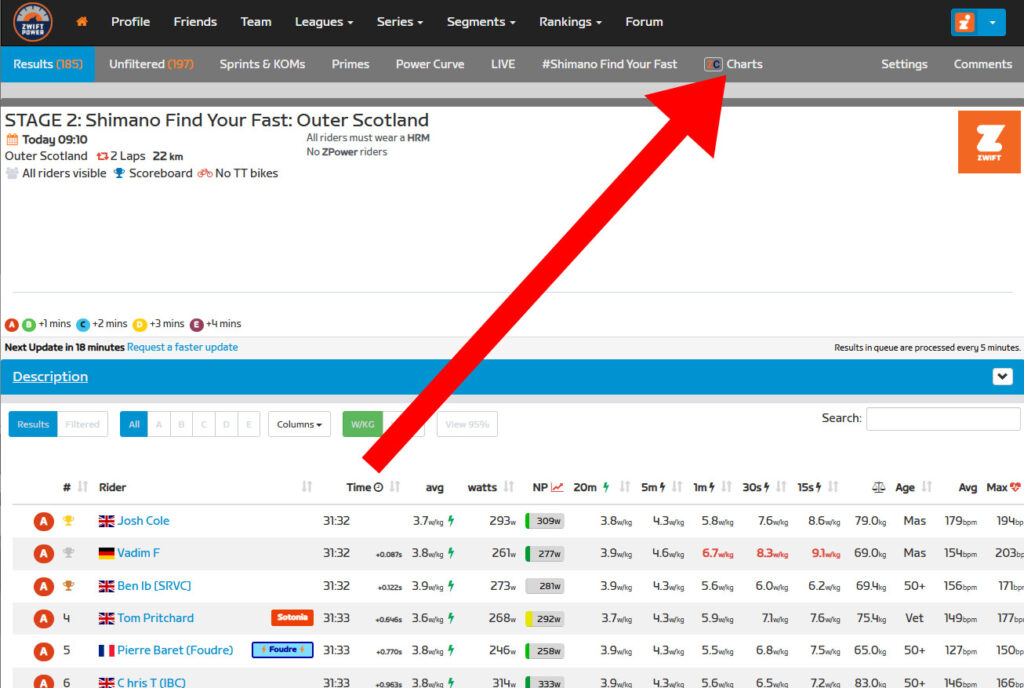
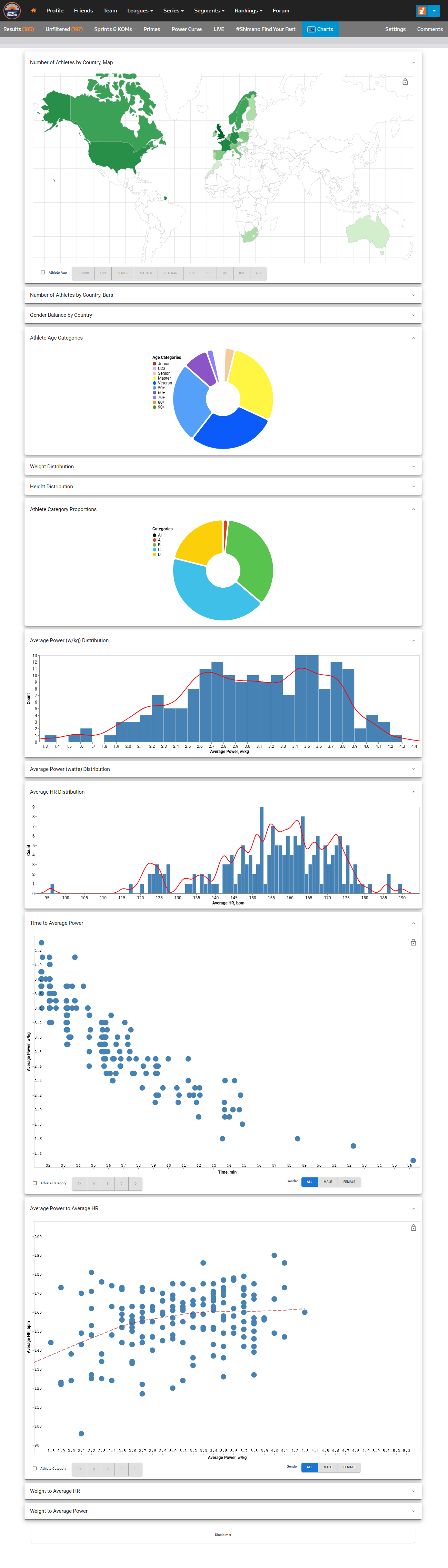
The extension simply pulls from the data already available in ZwiftPower’s event results, but displays it in useful charts. Accessing these charts is easy. Just log into ZwiftPower.com and click to view the results of a completed event. At the top of the results sheet you’ll see the ZwiftCharts button (shown below). Click that button to see all of the extension’s charts.
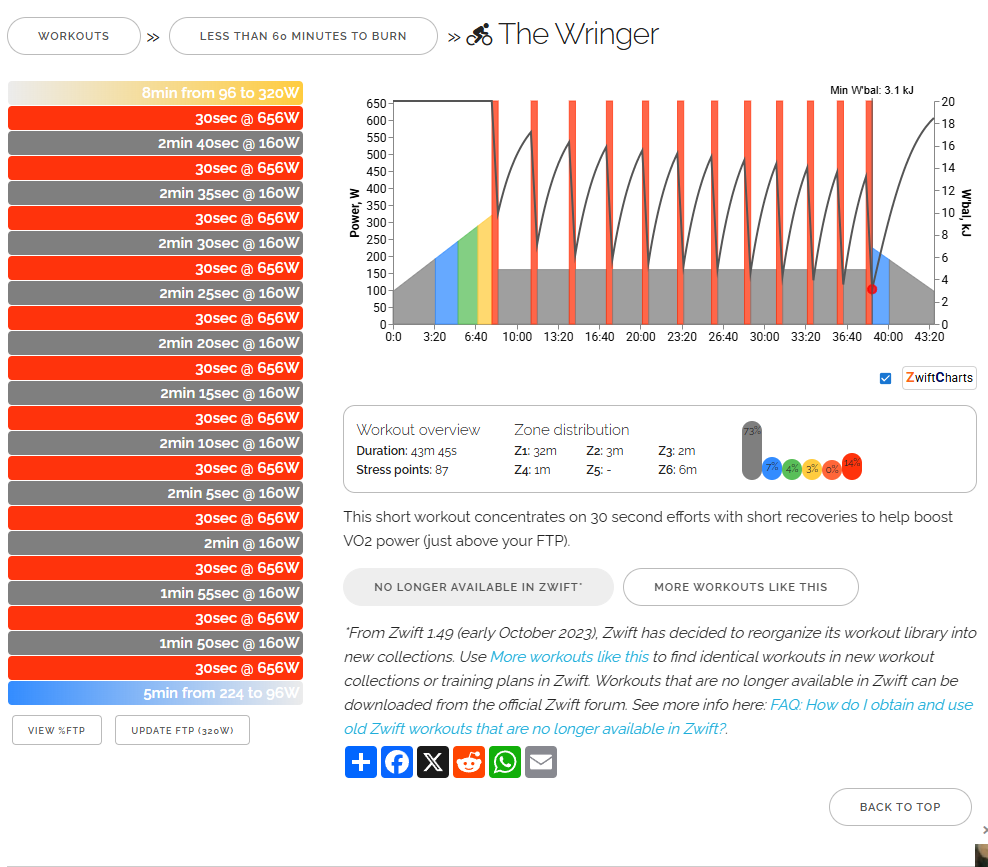
ZwiftCharts also interacts with WhatsOnZwift to add data and interactivity to their workout charts. Simply pull up an individual workout on WhatsOnZwift, enter your FTP if needed, then click the ZwiftCharts button. You’ll see something like below, pulled from WhatsOnZwift’s “The Wringer” page:
ZwiftCharts does a few things to these workout charts:
Replaces the default workout chart with an interactive one (mouse over the bars to see watts targets and Kj)
Overlays a W’bal chart
Reveals the minimum W’bal value specific to each workout
As Max at ZwiftCharts says, “Understanding W’bal data is crucial for estimating the feasibility of a workout (assuming your FTP is correctly set).” It also helps to tell you just how deep you’ll be digging to complete the workout!
Questions or Comments?
Like many browser extensions, ZwiftCharts simply takes available information from a page but presents it in more useful ways. I’m keeping it installed, because I love the ZwiftPower graphs! Nice work, Max.
What about you? Do you use ZwiftCharts? How have you found it useful? Share below!
Zwift on PC: The Ultimate Guide to Running Zwift at Its Very Best
From February 2025, M4 Apple Macs receive Ultra profile in Zwift, as do the high end variants of prior generation M chips. In base specification, the M4 Mac Mini represents a reasonable option if you want an off-the-shelf purchase in a tiny package requiring no effort to build, and don’t mind paying over the odds versus a PC of similar performance.
This guide is intended for those who don’t want to buy an M-based Mac, because otherwise a Windows PC is required to experience Zwift at maximum visual quality and performance. The information here is not intended to provide a comparison between the pros and cons of the various available platforms, but rather to offer advice on running Zwift at its very best, which means at the highest levels of detail, resolution and frame rate.
Whilst there are many people who happily run Zwift on their mobile phone, tablet, Apple TV or regular laptop, some may be considering ways to improve their experience. There are many misconceptions addressed here – primarily that Zwift is all about the graphics card (not the whole story), that the CPU doesn’t matter (inaccurate), that you need an ‘expensive high end gaming rig’ (incorrect) and that PCs inherently aren’t as stable as other platforms for running Zwift (codswallop). PCs certainly require additional effort to set up versus other platforms, but I firmly believe the results are worth it.
The information here is based on having personally put together over 100 dedicated Zwift PCs for members of the community, and hundreds of hours of testing and discussion with fellow nerds enthusiasts. At this point my own PC has been rebuilt and changed at least ten times…
A warning: if you’re already happy or content with a lower level of detail and/or a low frame rate, this article is not intended for you! A better-looking, smoother Zwift will not make you faster or stronger (unless it gets you on the bike more often), it’s just nicer. We’re all paying to stare at Zwift, so why wouldn’t we want it at its best?
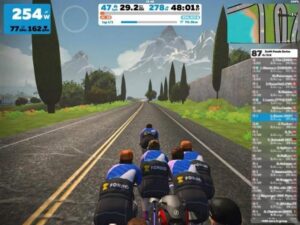
This at 30fps or less… …versus this at 60fps or more?
It’s important to note that almost all of what follows is NOT particularly good advice for PC gaming in general, because Zwift is different to most other modern games and there are diminishing returns beyond a certain point of investment. You don’t need the latest and most expensive parts. This guide is primarily aimed at those who want to use their PC solely or mainly for Zwift and want a great experience without wasting money unnecessarily. As a result, all of the CPU and GPU recommendations are based on desktop versions of the parts mentioned. I wouldn’t really recommend buying a gaming laptop for Zwift, on the basis of poor value for money. If you absolutely must have portability then the same guidance applies, just be aware that mobile components are universally less powerful than their desktop counterparts with the same or similar model name – sometimes significantly so.
Changelog
This is the fifth and final revision of the Ultimate Guide, first published in 2020. It reflects changes to M-based Macs, provides updated specification guidance and addresses the end of formal support for Windows 10 in October 2025.
TL;DR – Key Components for Best Performance in Zwift
Processor: Ideally use a CPU with strong raw (single thread) performance, to combat the frame rate drops when it’s busy. Zwift doesn’t take advantage of high end CPUs with many cores, so don’t waste your money on an expensive, high tier model. Large performance improvements brought about by Intel’s 12th generation Alder Lake architecture mean the choice is more simple than you may expect: if you want 60fps as often as possible then go for an i3-12100F. I own this quad core CPU and it’s superb at keeping frame rates high in Zwift, only ever dropping below 60fps in extreme circumstances. Consider an i5-12400F if you will be doing lots of other things at the same time as running Zwift, but beyond that (in model and generation) the returns diminish hugely. If you don’t mind frame rate dips as long as it stays over 30fps, then just save the money and build with a 4th generation Haswell CPU. Whilst the dual core i3-41X0 range represents by far the best outright value for money for Zwift, the game works better on a quad core CPU, so a 4th gen i5 or Xeon is a better idea. Notwithstanding bargain deals, virtually every CPU in between ends up poor value because they’re either not as good as 12th gen, or too expensive compared to 4th gen. The only additional consideration is Windows 11 support, which officially requires 8th gen or newer. This is addressed later.
Graphics card: For Ultra profile, look for a mid-range Nvidia graphics card of GTX 900 series or newer with at least 4GB of VRAM. Remember that without a strong CPU as mentioned above then you’ll probably see the same frame rate dips no matter what graphics card you have, so don’t waste money on something really expensive if your CPU will just hold it back a lot of the time anyway. Don’t even bother with the 1080p Game Resolution setting, all the graphics cards mentioned here are capable of at least 1440p which looks better on a 1080p display. In fact the 1440p Game Resolution setting is the sweet spot for Zwift. Running the game in 4K does look a bit sharper but requires a far stronger graphics card to hold a consistent 60fps everywhere, and the return on investment isn’t worthwhile.
Ultra profile, 1440p resolution: Nvidia GeForce GTX 970, 1050 Ti or 1650
Ultra profile, 2160p (4K) resolution: Nvidia GeForce GTX 980, 1060, 1650 SUPER or higher
Display: To ensure the smoothest experience in all circumstances, an adaptive sync display (with compatible graphics card) works best to iron out frame rate swings. Using a large or ultrawide display is most immersive, but you’ll almost certainly encounter stuttering at some point on any fixed refresh rate screen unless your CPU and graphics card are both strong enough to keep the frame rate consistently high.
Smoothest: Freesync, G-Sync Compatible or G-Sync monitor
Most immersive: Big TV or ultrawide monitor
Ultimate: 120Hz 4K adaptive sync (VRR) TV with HDMI 2.1 and RTX 3000 series graphics card onwards
Memory:8GB of DDR4 (or DDR3, depending on the CPU platform chosen) is the minimum requirement for system RAM in Zwift and more capacity than this doesn’t improve anything. In fact the game typically uses less than 3GB during a ride. You do not need 16GB or more, as most other modern games demand, though it’s worth having at least 12GB if you plan to multitask or run something like Sauce alongside the game. RAM speed and latency doesn’t matter much to Zwift, so just grab the best value deal you can find. This may well be a 16GB kit if you are buying new.
Storage: A 120GB SSD is easily enough storage for a PC with Windows and Zwift, which together take up around 40GB of space. The game can take a while to apply updates and load worlds, so be sure your system is running entirely on an SSD rather than a mechanical HDD. In normal usage, starting the PC, loading Zwift and getting to the pairing screen should take a minute or less – even on budget hardware.
Operating system: At the time of writing, Windows 10 remains the easiest operating system to recommend overall, ideally clean installed onto the SSD from scratch because installing as little extra software as possible ensures maximum stability. However, whilst there is no performance or stability benefit to running the game on Windows 11, formal support from Microsoft for Windows 10 ends in October 2025. Older CPU platforms are not officially compatible with Windows 11, which requires at least an 8th generation Intel or 2nd generation Ryzen CPU (or newer). You will therefore need to consider your options at that point. If building with modern components, you can obviously just update to Windows 11 or install it to begin with. It can also be installed onto unsupported platforms with relative ease and works as normal, but you need to understand and accept the limitations of doing so.
Settings: For smoothest performance it’s important to enable triple buffering and threaded optimisation in the Nvidia Control Panel, and disable video screenshotsin the Zwift settings menu, should they be available for you.
Note that whilst AMD graphics cards perform far better at OpenGL (which Zwift runs on) these days, it’s still much easier to recommend Nvidia. AMD and Intel graphics cards will certainly work and offer good value for other games, but Nvidia is a known and stable route for Zwift. You will be able to use adaptive sync with whichever brand you buy.
Further Reading – The Basics
Graphics in Zwift are determined by just two variables; the profile and the Game Resolution. Beyond manually tweaking some aspects of the configuration files which can introduce instability, only the Game Resolution is determined by the user, via the in-game settings menu.
The PROFILE is the level of detail determining polygon count – foliage, depth of field, texture resolution, reflections, lighting and shadows, and environmental elements such as water effects and wildlife seen – and the profile is assigned automatically by the game. What you see is based on your computer’s graphical ability and cannot be changed. For computers such as normal laptops using integrated graphics (without a dedicated/discrete GPU), you will almost always see the Basic detail profile. This is the lowest tier of graphics in Zwift and is the same as phones, most tablets and all Apple TV models to date. The profile any given piece of hardware receives is chosen by Zwift HQ.
These profiles increase through Medium and High (as assigned to base model M1, M2 and M3 Apple Macs), up to Ultra for mid-range graphics cards and above. Zwift HQ assesses every graphics card and decides on a profile for it, hence the reason why some people with newly released graphics cards sometimes see less detail than they are expecting for a while. Almost all consumer graphics cards from 2015 onwards receive Ultra profile, so in this respect there’s literally no difference between a GTX 960 and an RTX 4090 despite the latter being vastly more powerful and costing many times as much. What’s actually on screen in terms of features and detail is exactly the same.
The GAME RESOLUTION determines how sharp the game appears on screen, and is accessed via the in-game settings menu. It’s not affected by your physical output resolution, it’s the internal render resolution within the game itself. This ranges from 576p through to 2160p (4K). Rather unhelpfully, these options use the same naming scheme so it’s understandable why some people get confused between the two, for example when considering the capabilities of the Apple M devices which are presently assigned High profile, not Ultra. Selecting the higher resolution options and hoping to maintain 60fps+ in the most demanding areas will require a stronger graphics card, but it won’t change the graphics you see – that’s based on the profile which is automatically determined.
Higher resolutions are increasingly sharper and cleaner in terms of reduced jaggies. Note that you’re not limited to the physical resolution of your display – for example with a 1080p TV or monitor, the 1440p in-game setting is ideal because it looks better with negligible impact on performance – just be aware that going up to 2160p (4K) has significantly higher demands to hold high frame rates. This is most notable in areas of dense foliage such as the Watopia jungle, Titans Grove, New York and the Yumezi section of Makuri Islands. Dust clouds when following a large group are particularly taxing, and can bring even the highest end graphics cards to their knees.
To recap, profile and resolution in Zwift are two totally separate things. To see the Ultra PROFILE you will simply need any mid-range Nvidia graphics card from 2015 or newer in your PC. To use the highest RESOLUTIONS in the game’s settings menu and maintain 60fps as often as possible, the demands on the graphics card increase, particularly in areas of dense foliage.
Which Graphics Card?
Choosing a graphics card is easier to determine than it may appear, given that the profile is automatically selected and almost all models from the last decade get the highest amount of detail with Ultra profile. All you really need to consider – aside from your budget of course – is the resolution you want to use, and whether you want to use adaptive sync (more on that later). The resolution you choose from the in-game settings menu doesn’t change what you see on screen, in terms of features and visual effects. It just looks sharper, that’s literally it.
Assuming Ultra profile at 60fps is the target, then for the 1440p Game Resolution setting an Nvidia GeForce GTX 970, 1050 Ti or 1650 is typically fine. These graphics cards are from three different generations but all are good for 1440p which looks great on a 1080p TV or monitor. If you want to hold 60fps at all times in 1440p, you will need to step up to a GTX 980, 1060 or 1650 SUPER to cope with the most demanding spots in the game.
For the 2160p (4K) Game Resolution setting you’ll want at least an Nvidia GeForce GTX 980, 1060 or 1650 SUPER. Again, these are all different generations, and are broadly similar in terms of Zwift performance at 4K. Anything higher, including any RTX model, just provides more headroom. The higher up each range you go, the more likely it is that your frame rate will stay at 60fps in the most graphically demanding areas. For example a GTX 1070 would stay at 60fps more often than a GTX 1060, and an RTX 2060 even more often. There are diminishing returns of course, so be sensible. Spending more and more money on a graphics card doesn’t make sense if your CPU is going to hold it back regularly – say if big group events are your favourite thing to do on Zwift. Don’t worry about VRAM capacity, there’s no noticeable benefit in Zwift to having more. If you want to hold 60fps at all times in 4K, you will need at least a GTX 1080 Ti, or RTX 2070, 3060 or 4060 to cope with the most demanding spots in the game. Most of the time this tier of graphics card won’t be doing much work so I would strongly recommend you DON’T buy any of them purely for Zwift, but it typifies the absurd variances in demand throughout the game’s many worlds and areas.
Bear in mind that most of the graphics cards mentioned above are out of production, so ideally you will consult the used market. Keep your eyes peeled and try to grab something to suit your needs at a reasonable price, because there’s really no need to buy any brand new graphics card for Zwift. Though the supply situation returned to normal after a period of crazy pricing around the COVID-19 pandemic, the market for low and mid-range graphics cards essentially disappeared as manufacturers realised just how much people would pay. New and current cards are either overpowered, overpriced, or both. You should almost certainly buy used for Zwift, if you don’t want to waste a lot of money.
If you wish to use adaptive sync for the smoothest experience, you can get the best from an affordable Freesync or G-Sync Compatible monitor with a GTX 1000 series or newer graphics card, with DisplayPort. Using adaptive sync on older generations of Nvidia graphics cards such as the GTX 900 series requires an expensive dedicated G-Sync monitor. If you want to utilise adaptive sync (VRR) on a modern 4K TV with HDMI 2.1, then you’ll need an RTX 3000 series card onwards.
It’s worth noting at this point that whilst AMD and Intel graphics cards can offer really good value for regular gaming, they don’t perform any better at Zwift than the Nvidia equivalents. If you only have AMD graphics cards to choose from, then an RX 580 or above/newer should be okay and you will be able to utilise adaptive sync with a Freesync monitor. On the Intel side an A750 or above/newer should be fine. But overall it’s much easier to stick to Nvidia for known, stable results in Zwift.
The CPU Bottleneck
Here’s where it gets a bit more complicated. In a solo ride, in a relatively quiet area of say Watopia or London, virtually any decent graphics card will be able to hold 60fps in Ultra profile without much bother at all. However in a big group ride, following a popular RoboPacer or around busy spawn points, the frame rate tanks and for most setups this means the experience starts to stutter.
This is irrespective of the graphics profile assigned, and resolution selected. The impact can vary in significance, from being barely noticeable right down to making Zwift an expensive slideshow. The unfortunate truth is that this behaviour happens to everyone and it’s not the graphics card which is struggling. It happens because Zwift is very limited in how effectively it utilises the CPU in a system. Constantly redrawing lots of riders with all their combinations of bike, avatar and jerseys etc is inefficient and very many calculations are performed constantly on the CPU. This process doesn’t take advantage of modern CPUs with many cores and hyperthreading. It all relies on raw processing power; how much work the CPU can do in the shortest time possible.
What helps to prevent the frame rate dropping in these circumstances is not a stronger graphics card as many believe, but a CPU that can process the rider data and send it to the graphics card more quickly. This is almost always an Intel CPU; whilst AMD’s Ryzen series of CPUs are often good value and provide a great upgrade path because most Zen generations can normally be installed in the same motherboard, up until the the 5000 series CPUs, their single thread performance has trailed behind the Intel equivalents. In addition, because Zwift doesn’t benefit in any way from high core and thread counts, there’s no real benefit to buying more than a quad core CPU.
This unique combination of requirements means the 12th generation Alder Lake Intel Core i3-12100F (or i3-14100F if similarly priced) is the standout option for anyone looking to build with new parts. It’s relatively cheap and runs Zwift brilliantly, keeping the frame rate at 60fps in all but the most extreme of circumstances, such as the start of huge group events. It works perfectly well on a lowest tier H610 chipset motherboard, and there’s no need to spend more. Ryzen CPUs have been excellent for value over the last few years and a lot of what you’ll see online will recommend them for gaming PC builds, but for Zwift in particular, the 12th gen Intel CPUs are outstanding. The i3-12100F beats even flagship i7 and i9 CPUs from previous Intel generations and many of the very best Ryzen models when it comes to single thread performance, making it the obvious choice if you’re looking to build or upgrade a PC for Zwift without wasting money unnecessarily.
As the game gets more popular with more riders online at once, and popular features such as RoboPacers meaning there are large groups active in the worlds at all times, the benefit of a strong CPU increases. This is irrespective of the graphics card you use, whereas even the best graphics card will always be held back in Zwift by a weaker CPU when it’s busy. If you plan to do heavy multitasking on your PC at the same time as Zwift, consider an i5-12400F, but I wouldn’t go any higher or newer than this. If you’re wanting to go down the AMD route, a Ryzen 5 5600 with B550 chipset motherboard is a good value option.
If you want to ensure higher frame rates higher than 60fps, say with a 120Hz VRR TV, consider an i5-12600KF. Though getting the very best from this CPU typically involves using an expensive enthusiast-tier motherboard and adequate cooling (as well as needing the patience to find stable overclock settings), even in standard trim without any overclocking it is a beast. Paired with a B660 chipset motherboard, the frame rate will always stay high in Zwift when CPU is the limiting factor. For most people however, there’s simply no need to go down this route over an i3-12100F for Zwift. Higher tier 12th gen models exist but the returns diminish rapidly. Likewise 13th and 14th gen CPUs exist but with the exception of the i3-14100F (which is the same underlying architecture as 12th gen), they simply aren’t worth spending more money on.
Note that the i3-12100F, i3-14100F, i5-12400F and i5-12600KF need to be used with a dedicated graphics card (denoted by the ‘F’ suffix); they do not have integrated graphics which makes them cheaper to buy. If the 12th gen CPUs are too expensive, more budget-friendly options are detailed later in the guide.
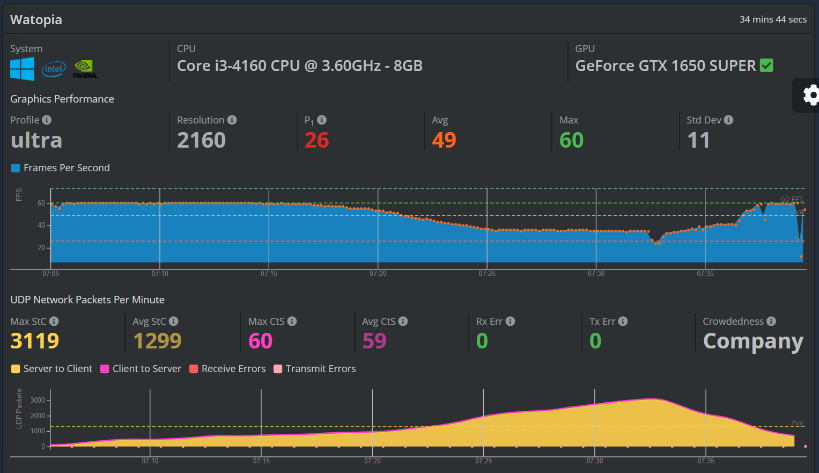
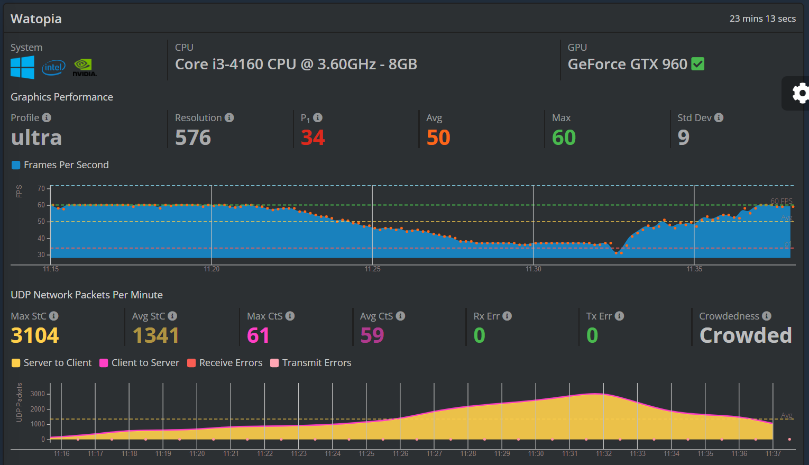
To help demonstrate the impact of being CPU limited, and with analysis courtesy of the excellent Zwiftalizer.com, here are two examples from popular Tour de Zwift group events. It can be clearly seen that as the number of riders nearby (and therefore data transferred, represented in yellow) increases, the frame rate in blue decreases:
In both examples the frame rate drops down from the desired 60fps as the pen populates and the event begins, before recovering back to 60fps once the field becomes suitably stretched. Despite the frame rate becoming lower than desired, the GPU utilisation during this period is much lower than expected, because it’s being limited by the CPU. Only 100 of the nearest rider avatars are ever rendered on screen in Zwift but the additional calculations continue anyway, doubly confirming that the low frame rate is not being caused by too much load on the GPU.
Note that there are two distinct differences between these PC configurations – in the second screenshot a substantially weaker graphics card is used and the resolution setting has been dropped from the very highest (4K) to the very lowest (576p). Despite these changes, the behaviour is exactly the same on both examples, because the CPU used for the tests is the same and so the limiting factor is unchanged.
The game needs to visualise the constantly changing live positions, speeds and drafting physics of potentially thousands of other riders at the same time, and most of these calculations are done at the client end – on our systems. The graphics card’s GPU becomes severely under-utilised whilst this is going on because it’s waiting for instructions from the CPU, and so the frame rate drops. It may seem counterintuitive but it’s preferable for a GPU to be working at a high utilisation in games, that way you’re getting the maximum out of it. Utilisation being low means it’s being stopped from working its hardest by some other aspect of the system – a bottleneck. Or to put it the other way around, if GPU utilisation was at 100% (the graphics card trying its best) and the resultant frames rates were lower than desired then it would be clear that upgrading to a stronger graphics card would improve performance, but that’s often not the case in Zwift. Likewise, reducing the Game Resolution setting does not help when the CPU is the limiting factor. So you should be careful not to spend too much money on a graphics card, because that’s not necessarily where the bottleneck is in a given situation in Zwift.
It’s worth noting here that since its launch and to date, the whole of Makuri Islands and particularly Neokyo is inexplicably CPU limited at all times, even when there are no other riders around. This behaviour is different to every other world on Zwift. So if the frame rate is much lower than you are expecting on Neokyo, it’s almost certainly because your CPU isn’t strong enough, not your graphics card.
Also worth mentioning is the video screenshots feature, which has been rolled out to many systems (based on their age) and adds a lot of extra CPU load at all times. To ensure best frame rate performance, I highly recommend you disable video screenshots in the game settings menu. The clips produced by this feature are of questionable quality anyway, and specialist screen capturing software such as OBS is far superior for this purpose.
Mitigation with Adaptive Sync
Whilst there have been promising comments made suggesting this fundamental behaviour of Zwift performance may improve in future, all we can do is mitigate it for now. The only ways to retain a smooth performance are to have a CPU and graphics card that are both strong enough to prevent the frame rate dropping too far, or to accept that the performance will always suffer in certain circumstances and use your display to address it with adaptive sync technology.
For several years, Freesync support has been available on Nvidia graphics cards for its GTX 1000 series graphics cards onwards, when using a DisplayPort cable (this feature won’t work over HDMI). Previously you needed to buy a high end dedicated G-Sync monitor but this is no longer the case with more recent graphics card generations. Likewise, if you want to run Zwift on a big screen and always have the smoothest experience, HDMI 2.1 TVs are becoming more affordable and can usually utilise adaptive sync technology (often referred to as VRR). This feature requires an RTX 3000 series graphics card onwards.
Adaptive sync allows you to smooth out frame rate drops at the other end of your system, by ironing out the stuttering associated with mismatched frame rates and refresh rates. When adaptive sync is operating, a display automatically adjusts its refresh rate in real time to match your frame rate – smoothing out all the fluctuations. On a typical TV or fixed refresh rate monitor, a drop in frame rate results in a mismatch which introduces stuttering.
This makes adaptive sync a great solution for a game ‘on rails’ like Zwift, where the frame rate can change by a large amount purely due to the circumstances of the ride. It removes the stutter, and there’s no tearing. Ideally you want a wide enough adaptive sync range to allow for every eventuality you will encounter, so check the specifications of any monitor you are considering using. On 144Hz gaming monitors you’re basically covered no matter what, because even below the adaptive sync range, Low Framerate Compensation (LFC) kicks in to avoid stuttering.
Whilst Freesync now works with Nvidia graphics cards in addition to those from AMD, unless a Freesync monitor is officially certified as ‘G-Sync Compatible’, then you won’t know if adaptive sync will work correctly with an Nvidia graphics card until you try it. So be sure to check online reviews or Reddit and the likes to see how other people got on; you’ll normally find someone somewhere has tried the particular monitor model and reported back.
Most of them work just fine even without certification, but it’s worth checking before spending your money. High end dedicated G-Sync monitors will always work perfectly, even with older graphics card models such as the GTX 900 series.
Overall Summary
The frame rate your system is capable of always suffers when it’s busy with other riders around you, and how severely this impacts the experience depends on the strength of the CPU, not the GPU.
A 12th generation Intel i3-12100F is good enough to maintain 60fps in all but the most extreme of circumstances.
It’s not necessary to buy the latest and greatest graphics card, and there are hugely diminishing returns.
Any components more modern than those mentioned in this guide will deal with Zwift easily, but they aren’t required so you’d just be wasting money by purchasing them.
Depending on pricing and availability, an older system can typically be put together for under £120/$150. A modern 4K60+ system should cost no more than £400/$500, and is usually less. It may take some effort, but you DO NOT need to spend a lot on a gaming PC to get a fantastic experience in Zwift, so don’t!
Spend wisely if you want to mitigate stuttering issues caused by frame rate drops. This is easily done with an adaptive sync monitor, but is also possible with modern TVs and the right GPU.
If you don’t want a PC or the hassle of building anything, then consider an M4 Mac Mini.
Nvidia Driver Settings
There are very few options in the Nvidia Control Panel which improve the Zwift experience, and the most important one is to enable triple buffering which is disabled by default. This setting allows the frame rate in Zwift to be truly variable, rather than dropping hard to 50% refresh rate – usually 30fps on a typical TV or monitor – and sometimes being stuck there. This hard drop behaviour is caused by Vsync, which Zwift uses as standard. Disabling Vsync introduces tearing, so keep it enabled in tandem with triple buffering for the best results. The other thing to change from default is to enable threaded optimisation, which is vital on older dual core CPUs for ensuring best performance. It’s worth noting that I have seen no evidence whatsoever that the Nvidia driver version used has any bearing on stability or performance when it comes to Zwift. So just let Windows manage updates and don’t worry about it.
System RAM and Storage
Zwift requires 8GB of system RAM, and typically uses less than 3GB when you’re riding. If you’re streaming and/or heavily multitasking then 16GB may be more suitable, but it’s absolutely not necessary for Zwift alone, and adding more RAM doesn’t help performance. Likewise, RAM generation, speed and latency doesn’t affect much in Zwift so just go for the best value deal you can find. You will need DDR3 for a 4th gen system, and DDR4 for anything newer. Don’t bother with newer platforms that require DDR5, save the money.
Nobody likes waiting for updates or the game to load, so be sure to install both Windows and Zwift on an SSD. These are extremely good value because they absolutely transform the general performance of any computer. If your system will only be used for Zwift, a 120GB SSD is plenty of space. With an SSD, Windows typically starts up in around 15 seconds, Zwift updates take a few minutes at most and the game loads to the pairing screen in under a minute even on the lowest end hardware mentioned in this guide. If you’re usually waiting longer than this and don’t already have an SSD, I strongly recommend buying one to replace your HDD.
Whichever storage type you use, ideally you should clean install Windows from scratch before downloading Zwift. All in this should take less than an hour, depending on your internet connection speed. I would also recommend allowing Windows to install and manage the Nvidia driver and Control Panel, because there’s no benefit to doing so manually. Uninstall OneDrive and don’t be tempted to add extra antivirus software, which will only slow the PC down and provide no advantage over the built in security features which are excellent and free. The less software you can have on your Zwift PC, the more likely it is to be stable, and it makes troubleshooting easier.
Building on a Budget
If you’re not willing or able to stretch to a modern 12th generation CPU for Zwift, then the next best option is to drop down to 4th generation Haswell architecture. This isn’t to say that the CPU generations in between the two don’t show any improvement, it’s just that the incremental steps up in performance are nowhere near enough to justify the extra cost versus just going straight to 12th gen. Even flagship CPUs from previous generations aren’t as good at Zwift as the i3-12100F, despite often costing many times as much and normally requiring expensive motherboards and enhanced cooling solutions to get the most from them through overclocking. So if 12th gen is too expensive then you’re better off accepting the frame rates will drop when it’s busy and go for something older at the best price to performance ratio. If you’re using an adaptive sync display then the impact is far less obtrusive anyway.
With this in mind, by far and away the best value option remains the 4th gen platform. Whilst dual core CPUs with hyperthreading such as the i3-41X0 range are still good enough to keep frame rates above 30fps at worst, changes to the game in 2023 mean it does benefit from having a quad core CPU. Look to buy (or upgrade to) an Intel Core i5-4XX0, or 4th gen Xeon E3-12XX V3 which fit in the same motherboards without issue and are usually cheaper than their equivalent consumer counterparts whilst performing just as well. With any of these 4th gen CPUs, the frame rate will drop to 30fps at worst when there are a lot of other riders around. When you consider how cheap and readily available the 4th gen platform parts are, this is outstanding value for money and being prudent on the CPU may allow you to buy a better graphics card.
To save even more money, look for an ex-office desktop PC with any of the aforementioned CPUs already installed and ready to go, or upgrade one accordingly. There are loads of these systems available cheaply on the likes of eBay. Ideally get one without proprietary power connectors inside, which makes upgrading the power supply much easier if required. Good examples are the HP ProDesk 400 G1 MT, Dell Inspiron 3847 and Acer Veriton M2631G. Bring it up to spec in accordance with the rest of this guide – 8GB+ of system RAM, 120GB SSD and clean install Windows – then add a suitable graphics card based on the resolution and frame rate targets you’re looking for. I find repurposing cheap old PCs like this for Zwift particularly satisfying; PCs that may have been otherwise destined for landfill. Helping to reduce e-waste whilst getting fantastic results on this platform at low cost feels like a win for everyone.
The only additional consideration when using an older platform is the end of formal Windows 10 support in October 2025. This is because Windows 11 officially requires an 8th gen CPU or newer. Windows 10 won’t just stop working at that point though, nor will Zwift stop supporting Windows 10 for several years to come. You do have options, such as installing other editions of Windows 10 with support, or simply using Windows 11 unofficially which is free and easy.
Whatever you decide to go for, I hope this guide has helped in some way and you manage to put together a PC which makes your Zwift experience more enjoyable. Cheers, and Ride On!
Acknowledgments
Huge thanks to J.Levie, M.Hanney, S.Louvet, M.Wozniak, S.Norman, S.Clogg, C.Peerman, and many others on the ZPCMR Facebook group for their input and help when compiling this guide.
Appendix
zwiftalizer.com – to check PC performance from your rides and troubleshoot device dropouts
This week Josh and Dustin are joined by Chris from ProECycling.com – a source for Virtual Cycling stats and rankings. Josh and Dustin cover many topics from how it all got started to how the ranking points are determined and which races are covered.
Approximate times:
00:00:00 Intro
00:02:44 Weekly Catch Up
00:16:20 ProECycling.com Interview
00:22:00 Genesis of the website
00:26:00 Points and how racers are ranked
00:29:53 Seinfeld deviation
00:30:34 Covering the Races
00:34:35 Messi vs. Ronaldo
00:36:30 Zwift and MyWoosh
00:43:00 Criteria for Coverage
00:49:00 Team Integrations
00:54:00 Remembering the Blogs
00:57:00 Closing the episode
About the Podcast
Each week Dustin and Josh get together to talk about Zwift, life, and everything else. Watopian Weekly is available on Spotify, Amazon Music, YouTube, and iHeartRadio. Please e-mail any feedback or questions to: [email protected]
TrainerRoad Announces Zwift Training API Integration
Today, TrainerRoad announced their integration with Zwift’s Training API, making it easier than ever to execute TrainerRoad workouts directly in Zwift.
TrainerRoad tops the list of training platform integrations Zwifters have been requesting ever since the Training API was announced months ago. It’s no mystery why: TrainerRoad is the leader in structured workouts and training programs for cyclists, with an estimated 150-350k subscribers. (That’s why we published a post on how to run TrainerRoad and Zwift side-by-side, a hacky solution that Zwifters have been doing since Zwift’s early days.)
Read on to learn more about what TrainerRoad offers, how to connect your TrainerRoad and Zwift accounts, what it’s like to execute TrainerRoad workouts in Zwift, and more…
About TrainerRoad
TrainerRoad launched in 2011, before Zwift was even a glimmer in creator Jon Mayfield’s eye. And TrainerRoad has continued to innovate and grow even as the indoor training landscape radically changed beneath them.
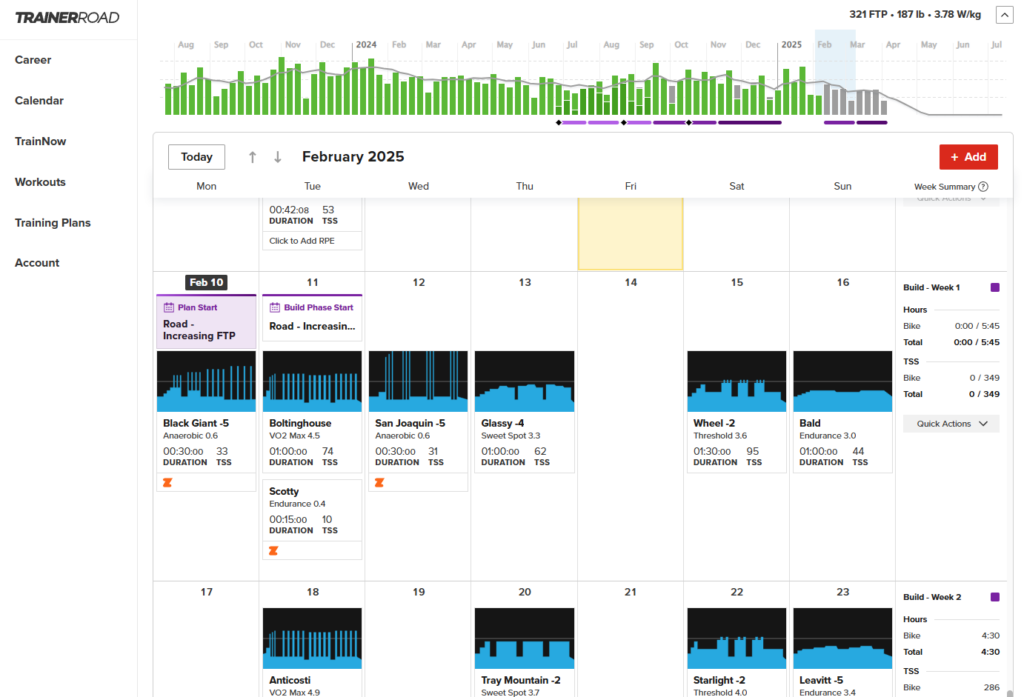
Today, TrainerRoad is regarded by many as the top source of effective, personalized structured training plans. Backed by the power of AI, TrainerRoad’s “adaptive training” features continually modify your training calendar based on your indoor and outdoor sessions. You also get access to their entire library of proven workouts (over 4800 as of February 2025), which you can execute at any time without setting up a full training plan.
To date, over 30 million TrainerRoad workouts have been completed, and they have achieved a 4.9-star rating from over 25,000 app reviews. Impressive. And if that doesn’t convince you, give a listen to the Ask a Cycling Coach podcast and learn about the minds and experience behind TrainerRoad’s training plans!
Pricing
You’ll need to pay for TrainerRoad in order to access their training plans. Cost is $21.99/month, or 209.99/year. Signup includes a 30-day money back guarantee. Sign up here >
Connecting TrainerRoad + Zwift
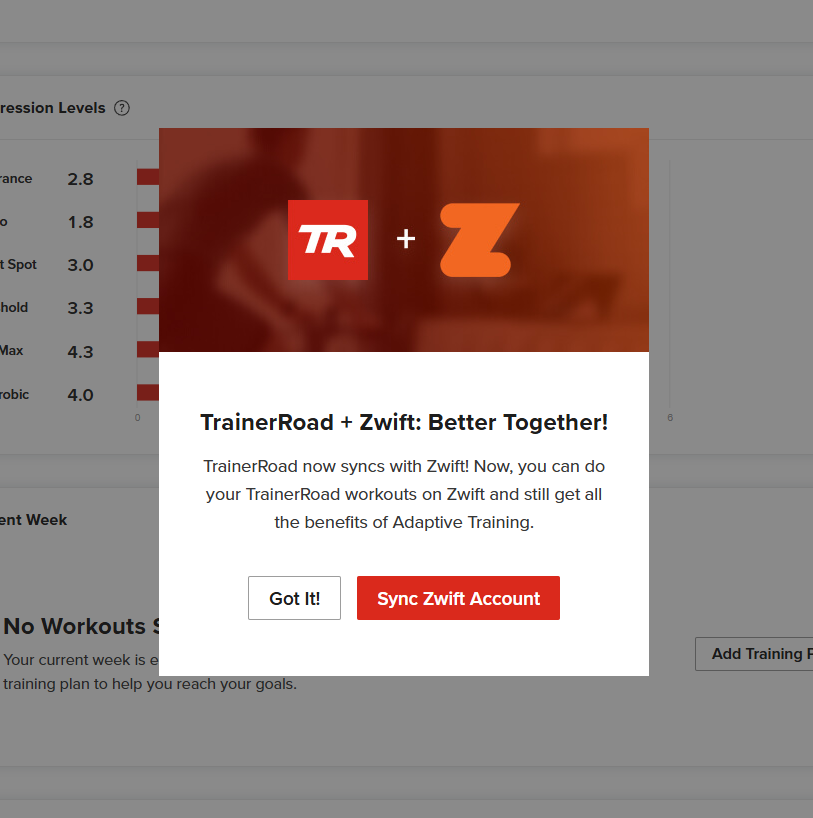
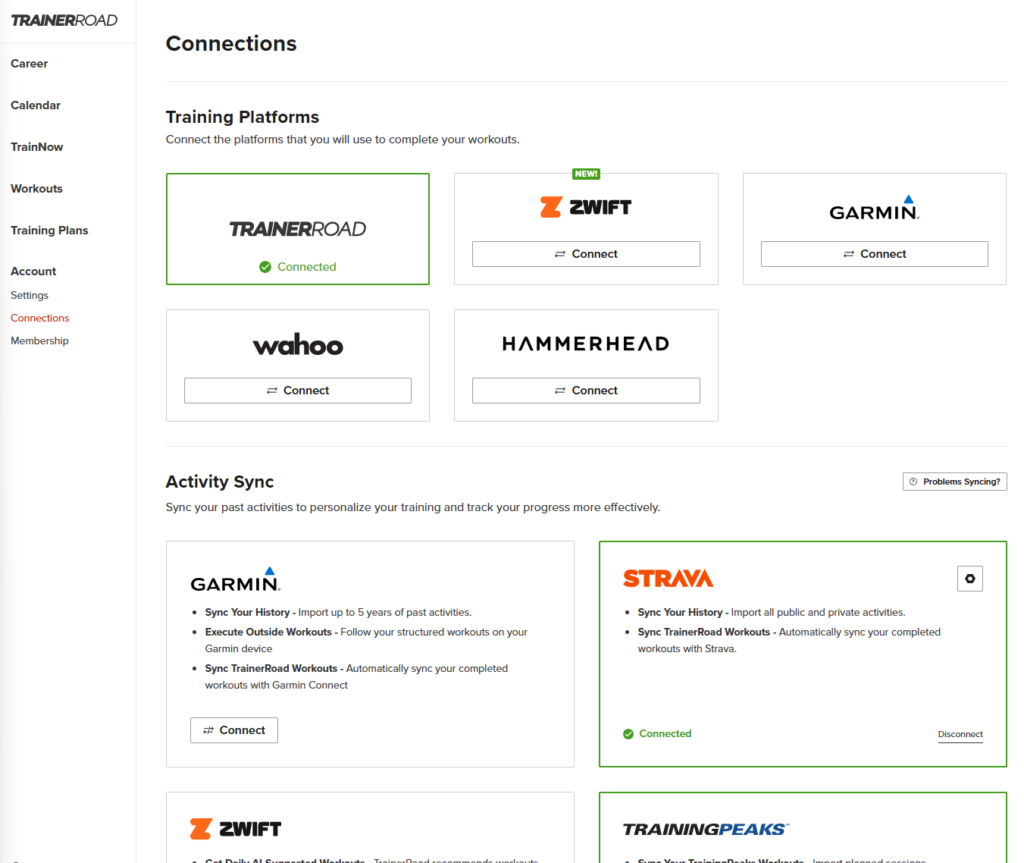
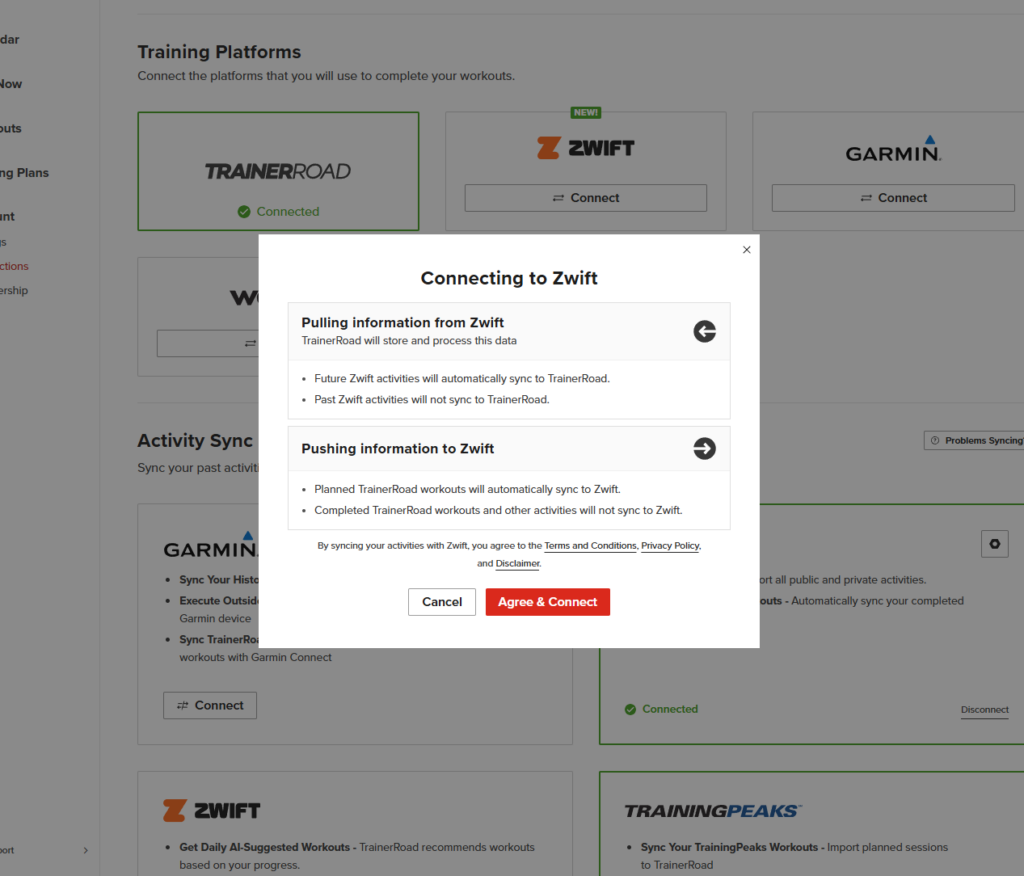
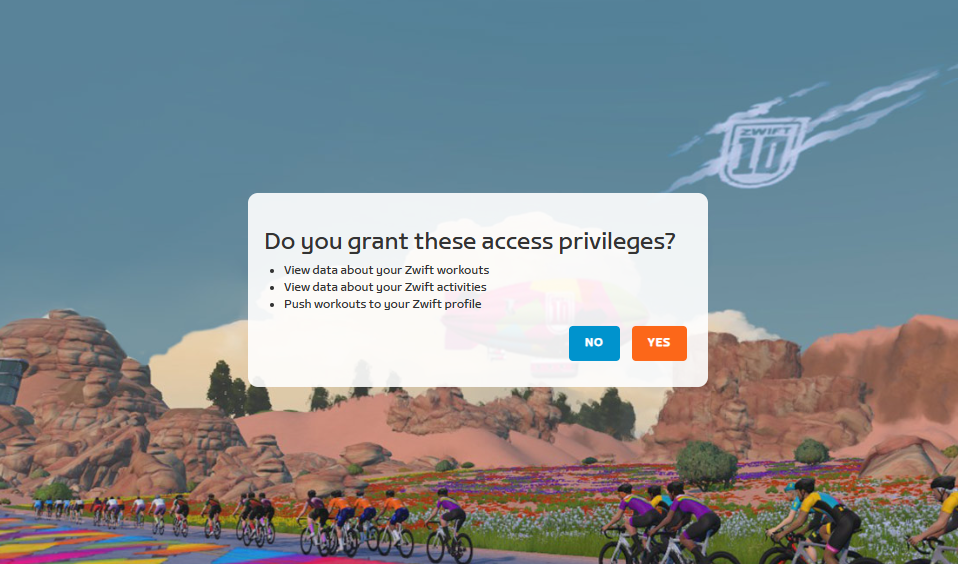
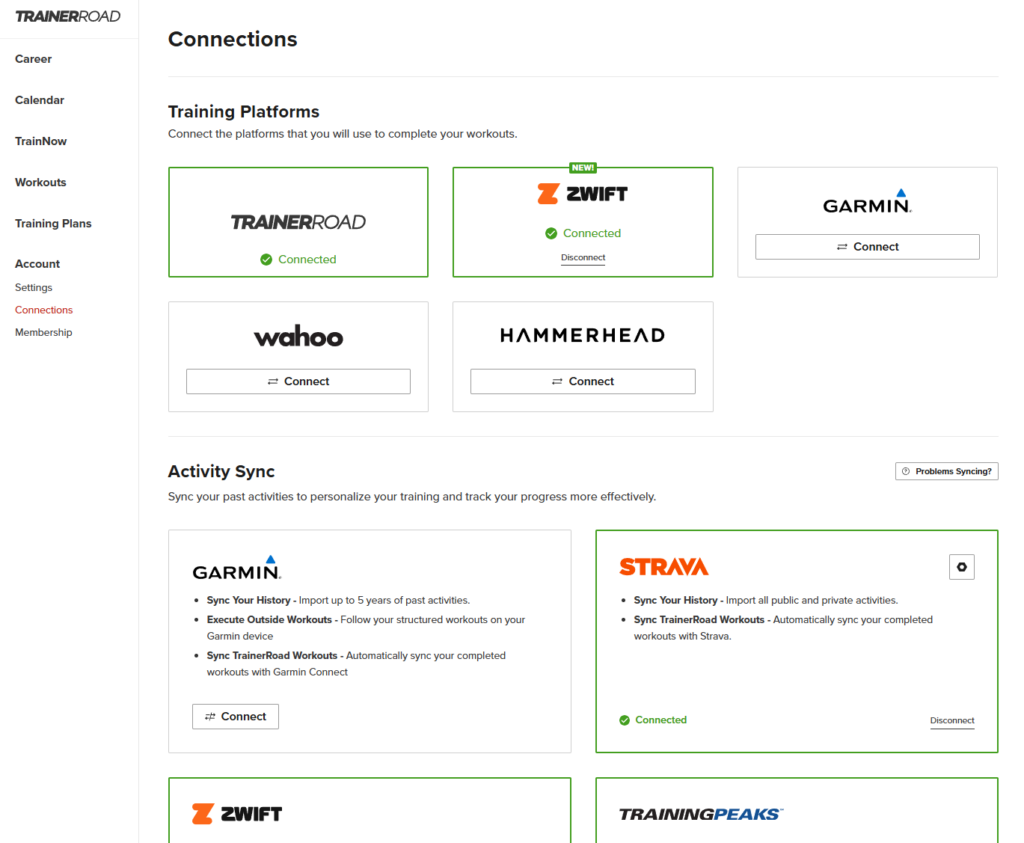
Although TrainerRoad has an app, connecting your account is done via the Trainer Road website (trainerroad.com). Visit the site, create or log into your account, then connect it to Zwift under Account/Connections: Zwift. I actually got a Zwift-related popup when I signed into my account, which made it easy:
Using TrainerRoad in Zwift
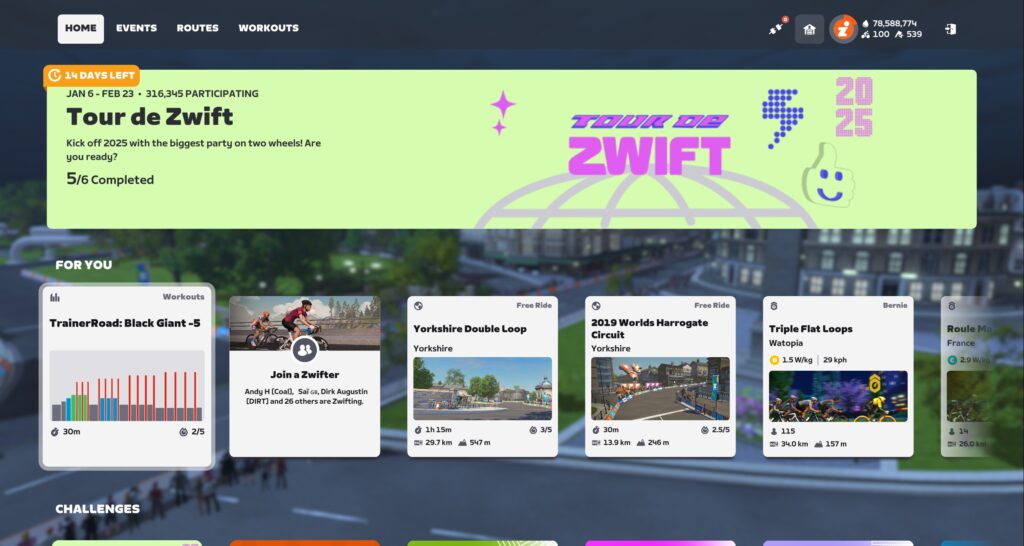
Once you’ve connected your TrainerRoad account to Zwift, your scheduled TrainerRoad workouts will automatically show up on your home screen’s “For You” carousel:
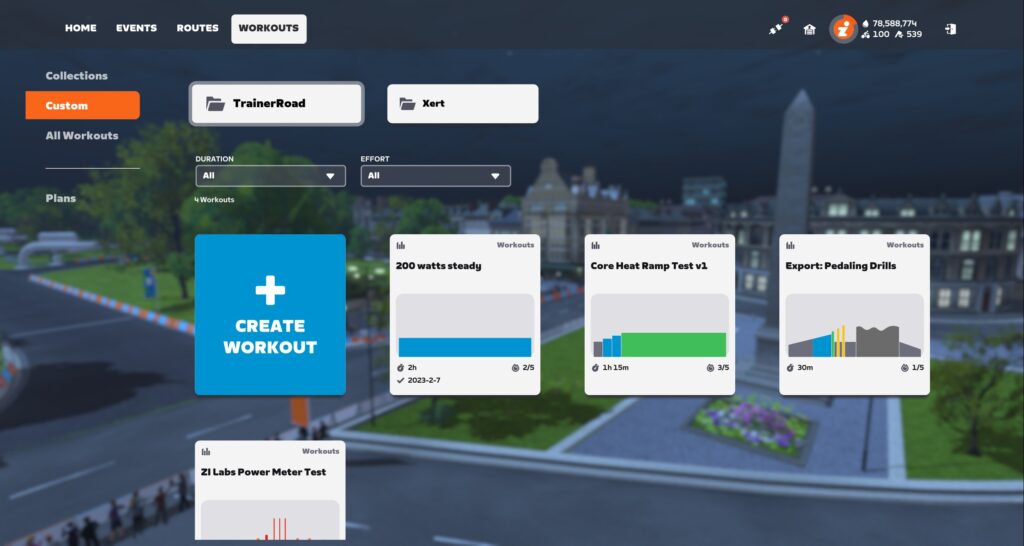
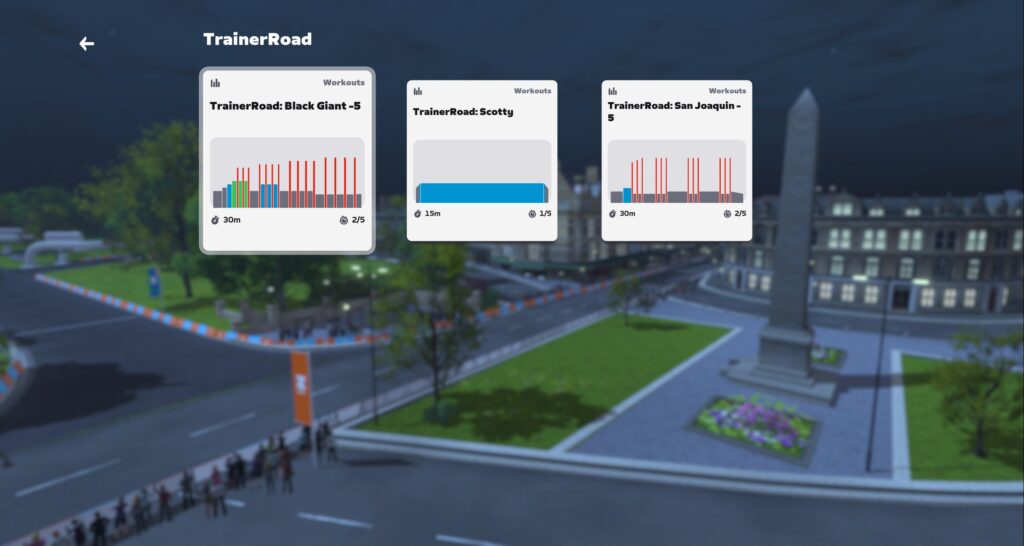
You can also find TrainerRoad workouts under Workouts>Custom>TrainerRoad:
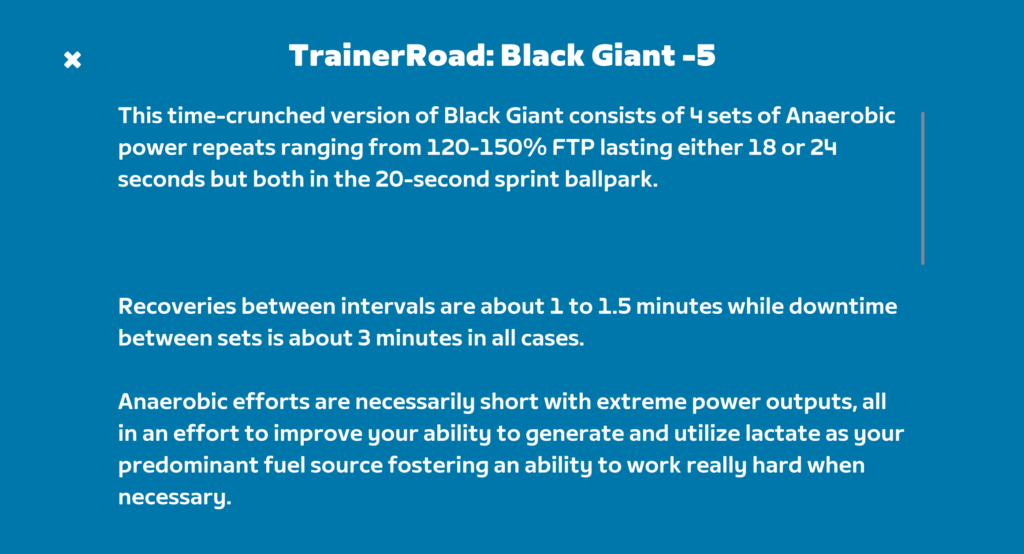
One tip: if you’re like me and you like to read the details of your workouts before starting them, be sure to click the description text above the “Start Ride” button for the full text. Here’s an example of what you may say see when you do that:
Start the workout like any other workout, and execute it from within Zwift. Once you save your session, your data is automatically sent back to TrainerRoad so their system can recommend training plan adaptations.
If you’ve done many workouts in Zwift, you may notice two new features Zwift is rolling out with this TrainerRoad integration: precise power targets and an RPE Scale survey.
Precise Power Targets
Zwift has always rounded power targets in workouts to the closest 5 watts. (For example, if you had a 200W FTP and a 102% power target, the workout would give you a target of 205W instead of 204W). Workouts from TrainerRoad will use precise power targets, rounded to the nearest 1 watt.
RPE Scale
When you finish your TrainerRoad workout within Zwift, a quick survey will pop up, asking you to rate “How did this workout feel?” on a scale of 1-10:
This data is passed back to TrainerRoad to inform their systems and allow for training calendar adaptations.
Which FTP?
One common question when it comes to these Training API integrations is, “Which FTP setting is used for my workouts?” Zwift lets you set your FTP in their system, while partners (like TrainerRoad) maintain their own separate FTP setting.
This is actually an option in Zwift’s Training API: partners can choose to use Zwift’s FTP settings, or the partner’s FTP setting. So far, we’re seeing partners elect to use their own FTP setting, for obvious reasons. That is true for TrainerRoad as well.
This means that as TrainerRoad automatically detects and updates your FTP (you’ll get an email from them when that happens), that new FTP will automatically be used to determine workout targets for TrainerRoad sessions executed within Zwift.
A Few Extra Notes
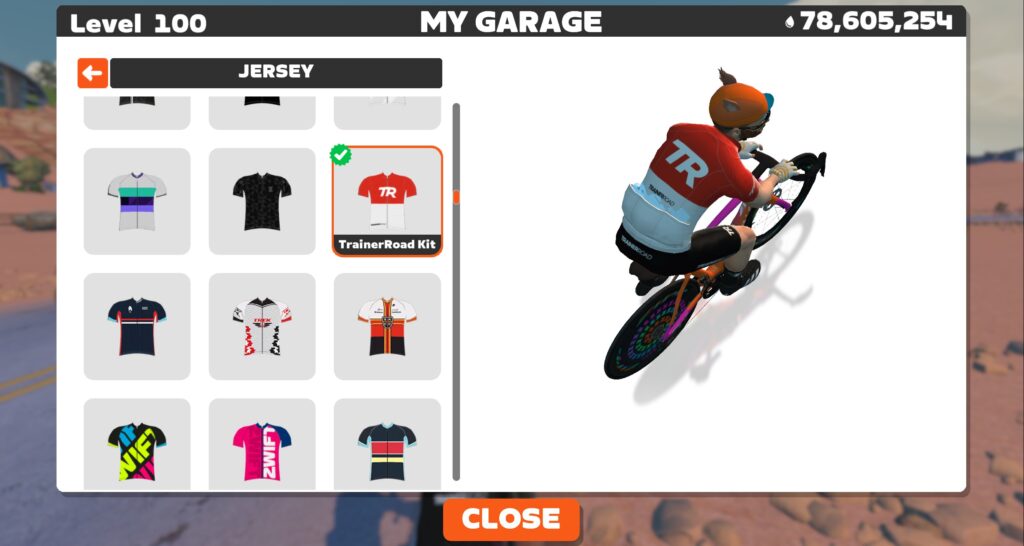
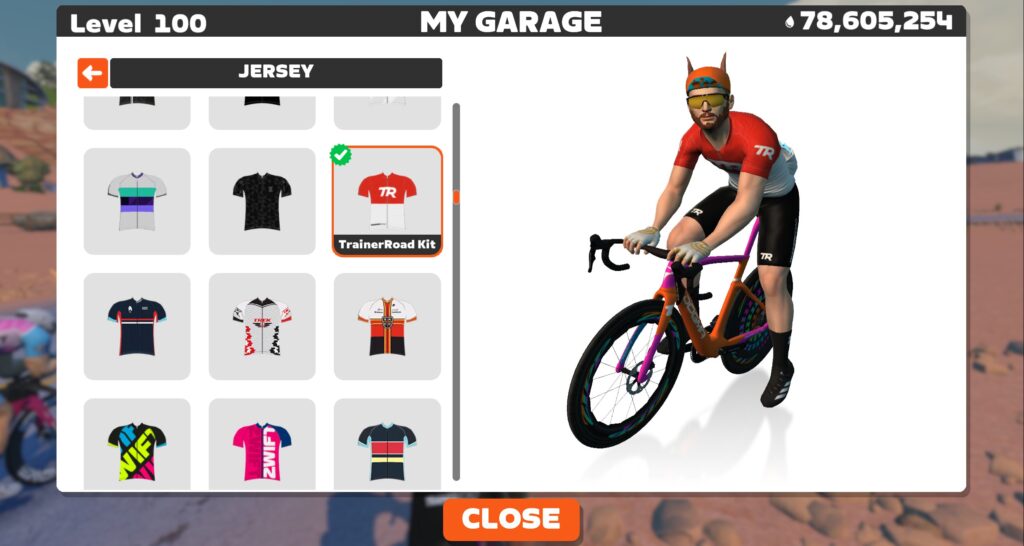
The in-game TrainerRoad kit will be added to your garage the first time you connect your TrainerRoad account to Zwift:
There is a TrainerRoad Club on Zwift, which you can join here.
There is a launch ride scheduled with Zwift CEO Eric Min and TrainerRoad CEO Nate Pearson February 15, 2025, at 4pm UTC/11am ET/8am PT). This ride is open to everyone regardless of whether you have a TrainerRoad account and will be held on one lap of Watopia’s Spiral into the Volcano route (55.8km, 355m elevation). It is an open-paced ride. Sign up here >
Complete List of Training API Partners
TrainerRoad is just the latest to be added to the growing list of Training API partners at Zwift. Here’s the complete list, which will be updated as new partners are added:
How did you get into cycling? I have always been active doing different kinds of sports, from football to cross-country skiing to volleyball. I didn’t really start to get into cycling before 2017, as a prep for a MTB fondo a couple of my football friends got me to take part in. The cycling really took off during covid when everything was locked down, I just started to like it more and more.
How many years have you been racing on Zwift? I remember my very first race on Zwift, and I believe it was the spring of 2018. It was a mess, didn’t have a clue about what I was doing. I believe it was Watopia’s Waistband, signing up in B as a low D rider at the time. Just went with the group that had the most signups, thinking they would go easy in the beginning. I was so wrong about that. It didn’t take long before I learnt about race craft, etc, doing different kinds of races.
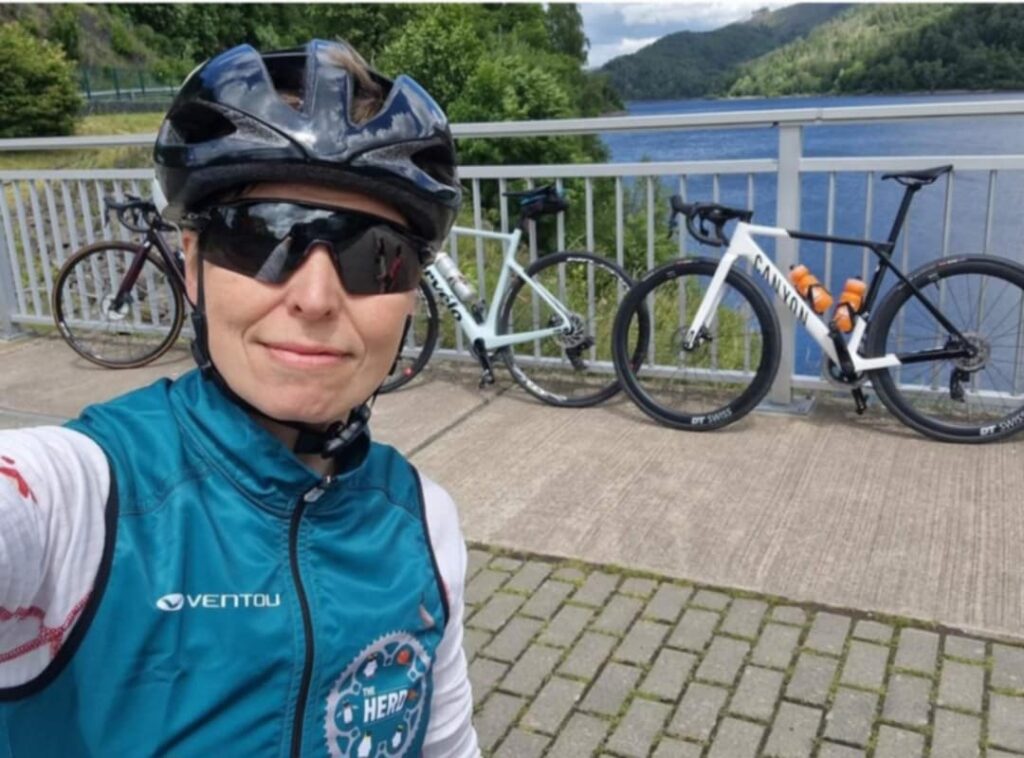
Are you part of a Virtual team? I am fortunate to be a part of two teams. The HERD (also captain of the ZRL team Little Penguins) and SNOW.
What do you love most about racing? The camaraderie amongst us, the way we push each other to reach our best, and most important to me the friendships I’ve been so lucky to have gotten over the past years.
What is your favourite style of race (e.g. points, scratch, iTT, TTT, Chase, duathlon)? I would say points races with sprints and short punchy climbs are the ones that speak to me the most. The tactics aspect of it is something I like. It is also where I feel I have my strengths in races.
What is your favourite Zwift women’s race series? I haven’t done much outside of ZRL, but I would say I do like that kind of race series.
What is your most memorable racing experience, inside or outside or BOTH? Inside, easy. My team became the women’s B world champions in ZRL the very first time they did the playoffs in 2021! The team did amazing and it is still something I am proud to have taken part of. I do not race outdoors but I must say having IRL meetups is the best part. With the HERD ladies I’ve done the Amstel Gold Race fondo twice, and last year we met up in Germany. No doubt this is the best part when it comes to the Zwift platform, meeting all these awesome people would not have happened if it hadn’t been for zwifting.
What is your favourite food to eat post race? I do love to have some chocolate after a hard race, or a chocolate recovery drink.
What advice would you give to a woman entering her first Zwift race? Races take off fast, so be well warmed up and ready to go hard for the first 2-3 minutes. Also, get to know the power ups, how they work, and when to deploy them since they are a big part of the game. Draft like a queen (like some say) and have a great time. Do not be afraid to race, we all started from scratch and it is funny how fast it gets addictive.
Any upcoming race you are looking forward to? It is not any races I will take part in, but I am excited about the next IRL meetup that will happen again this summer somewhere in the U.K.
Where can people follow your racing adventures? They do say if it isn’t on Strava, it didn’t happen. Strava is where you will find me.
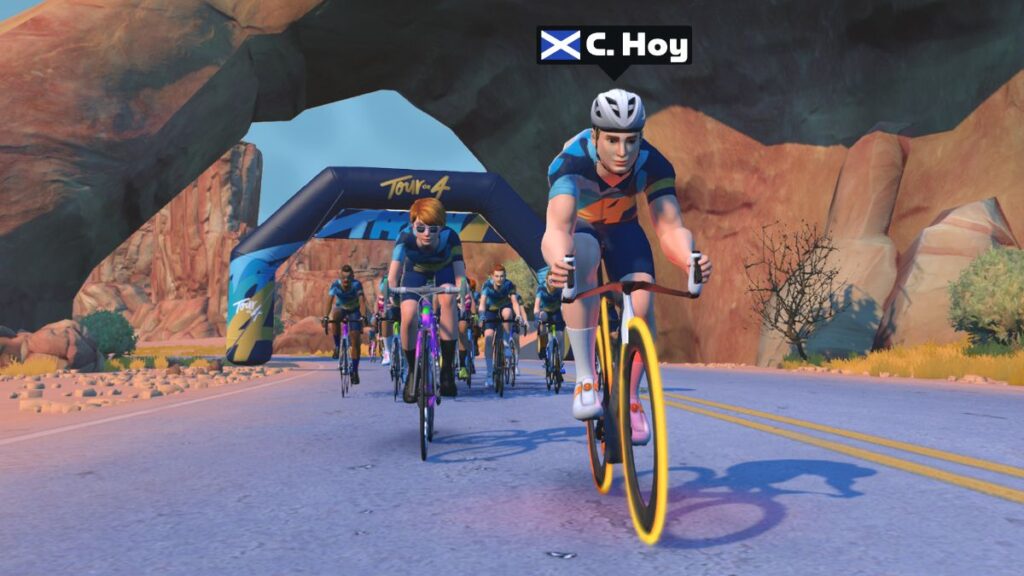
We’ve got a big kickoff ride with Sir Chris Hoy headlining this weekend’s picks. Additional notable events include a Fuego Flats record attempt and of course, Tour de Zwift!
✅ Popular Event ✅ Big Names✅ Kit Unlock✅ Good Cause
The kickoff to Sir Chris Hoy’s Tour de 4 series looks like it will be the most well-attended event on Zwift this weekend, with nearly 1000 riders already signed up days before!
The event itself is simple enough: 45 minutes on Tempus Fugit with no stated pace. What makes it special are the good cause and the guest riders, including Philip Hindes, Duncan Scott, Lucy Charles-Barclay, Sam Laidlow, Freddy Ovett, and of course, Sir Chris Hoy.
Tour de Zwift, the biggest ride series on the platform, is nearing its end, on stage 5 of 6. Hundreds of riders have been turning out for each event, and this weekend we are wrapping up stage 5 with these route options:
Are these races? Not officially, but the front of each ride will surely be spicey. Read about me racing stage 2’s short ride, then ride it at whatever pace you’d like!
I’m a sucker for a record attempt, especially when it requires teamwork. This Saturday the USMeS squad is inviting Zwifters to join them in trying to beat the ZwiftPower record of 7:39 on the 7.1km Fuego Flats Sprint Reverse segment.
All riders will be on the fastest setup in game (Cadex Tri frames with DT Swiss Disc wheels), and drafting will be enabled. The bigger the pack, the faster everyone can go. Good luck!
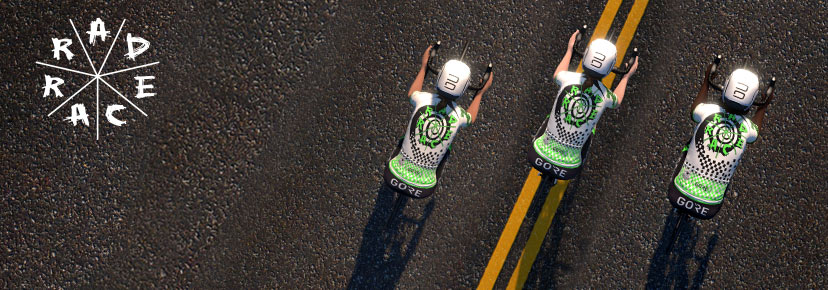
The third and final race in this popular monthly series from RAD RACE has riders tackling 5 laps of Innsbruckring for a total race length of 44.2km with 386m of elevation. As the event description says:
Can you win a prize? Nope. Do we care about your position? Not at all. What matters is having as much fun as possible. So, let’s kick it together!
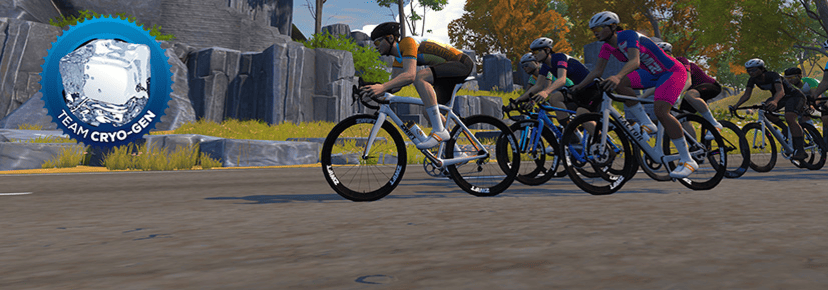
Team CRYO-GEN is hosting a special edition of their weekly Endurance Sunday ride, tackling the 100km 25-lap Volcano Circuit challenge. C and D-paced groups are available.
We choose each weekend’s Notable Events based on a variety of factors including:
Is the event unique/innovative in some way?
Are celebrities (pro riders, etc) attending/leading?
Are signup counts already high, meaning the event is extra-popular?
Does the ride include desirable unlocks or prizes?
Does the event appeal to ladies on Zwift? (We like to support this under-represented group!)
Is it for a good cause?
Is it just plain crazy (extra long races, world record attempts, etc)?
Is it a long-running, popular weekly event with a dedicated leader who deserves a shout out?
In the end, we want to call attention to events that are extra-special and therefore extra-appealing to Zwifters. If you think your event qualifies, comment below with a link/details and we may just include it in an upcoming post!
SRAM-Style Virtual Shifting Options Added for Zwift Play and Click Users
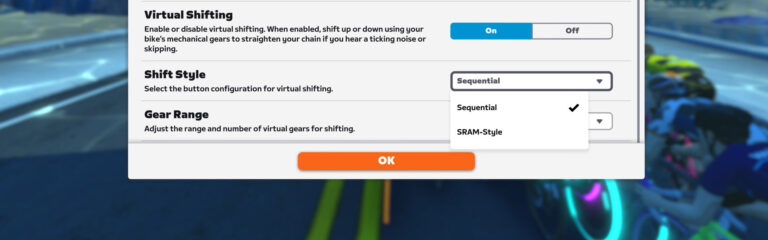
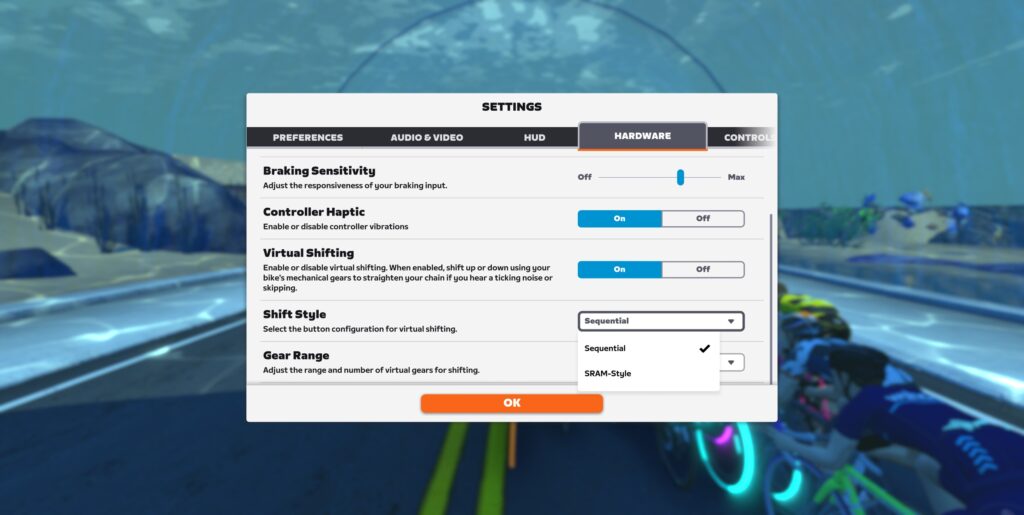
Zwift already supported different shifting styles (Sequential, Shimano Style A, Shimano Style B, SRAM Style) using the Zwift Ride’s controllers, but last week they quietly added SRAM-Style support for users of the standard Zwift Play controllers and the Zwift Click.
Sequential vs SRAM Shift Styles
Zwift Play and Click have only used Sequential shifting up to this point. How does Sequential differ from SRAM Style shifting, you ask?
Sequential: shifting up or down will move the chain on your virtual rear cassette from 1st gear up to 24th gear. It’s like having a virtual 24-speed cassette.
SRAM Style: shifting up or down will move the chain on your virtual rear cassette from the 1st gear up to the 12 gear (since it’s a virtual 12-speed cassette). “Double tapping” – hitting both shift buttons at the same time – shifts your virtual chainring between the large and small rings.
Gear Range Options and Gotchas
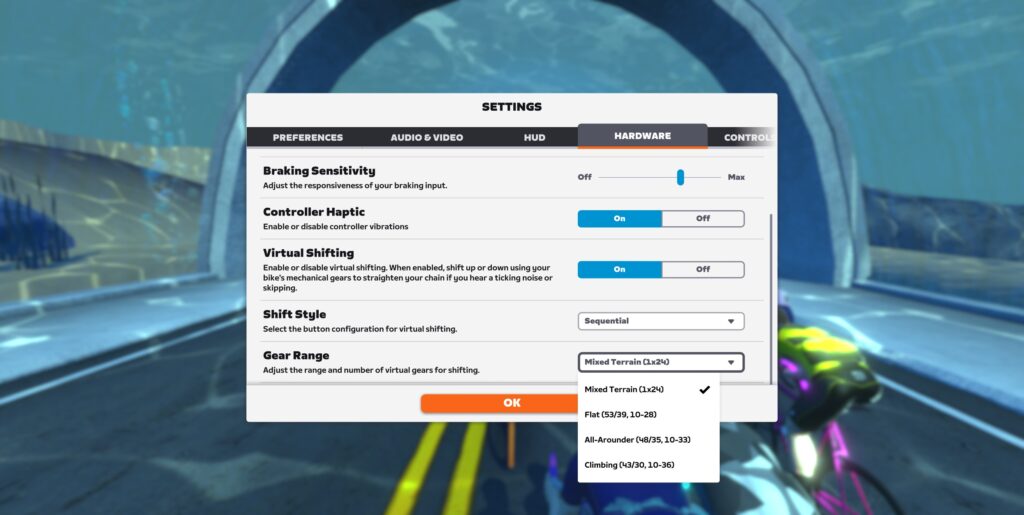
Now, regardless of which shifting hardware you pair (Ride, Play, or Click), you will have four different gear range options:
Mixed Terrain (1×24)
Flat (53/39, 10-28)
All-Arounder (48/35, 10-33)
Climbing (43/30, 10-36)
Note: If you select “Mixed Terrain”, your shifting behavior will be the same whether you select “Sequential” or “SRAM Style” as your Shift Style, since this is a single-chainring setup. The only difference is the HUD shows “Gear X” with Sequential style, and “Gear 1-X” with SRAM Style.
As the names imply, the Flat, All-Arounder, and Climbing gear ranges are best suited for particular types of terrain. The Flat range assumes you’re riding on flat, fast roads, and thus gives you lots of gears in that range. The Climbing range gives you much smaller front chainrings and big “granny gears” on your cassette, so you can find that perfect gear on climbs. And the All-Arounder range is somewhere in between.
Choose “Mixed Terrain” if you want the maximum range of gear ratios, with fairly even spacing between each gear, without needing to think about shifting chainrings. Choose one of the other options if you want to use SRAM-style shifting and have your overall gearing and shifting experience more closely emulate IRL mechanical shifting.
Note: if you choose Sequential shifting but choose the Flat, All-Arounder, or Climbing gear ranges, your experience will be less than optimal. In my opinion, Sequential shifting should only be used with the Mixed Terrain (1×24) setup. This is because Sequential shifting basically sorts your available gear ratios, then shifts you between those ratios with each shift, magically swapping you between the large and small ring as well as shifting your cassette. The result? Uneven spacing between gears.
Example: Sequential shifting using the Flat (53/39, 10-28) gear range would mean shifting from 10-11 is a gear ratio change from 2.60 to 2.75, while shifting from 11-12 is a ratio change of 2.75 to 2.79. Those are two very different ratio gaps!
Want more detail? Here is the actual gearing each scheme emulates, according to Zwift, along with the calculated gear ratio of each combination.
Mixed Terrain (1×24)
This gear range basically behaves like a single 55-tooth chainring in the front, with a 24-speed cassette in the rear with a massive range between 10-73 teeth!
Cassette
Gear Ratio
1
0.75
2
0.87
3
0.99
4
1.11
5
1.23
6
1.38
7
1.53
8
1.68
9
1.86
10
2.04
11
2.22
12
2.40
13
2.61
14
2.82
15
3.03
16
3.24
17
3.49
18
3.74
19
3.99
20
4.24
21
4.54
22
4.84
23
5.14
24
5.49
Flat (Standard)
Small Ring
Big Ring
Cassette
39
53
28
1.39
1.89
26
1.50
2.04
24
1.63
2.21
20
1.95
2.65
18
2.17
2.94
16
2.44
3.31
15
2.60
3.53
14
2.79
3.79
13
3.00
4.08
12
3.25
4.42
11
3.55
4.82
10
3.90
5.30
All-Arounder (Compact)
Small Ring
Big Ring
Cassette
35
48
33
1.06
1.45
28
1.25
1.71
24
1.46
2.00
21
1.67
2.29
19
1.84
2.53
17
2.06
2.82
15
2.33
3.20
14
2.50
3.43
13
2.69
3.69
12
2.92
4.00
11
3.18
4.36
10
3.50
4.80
Climbing (Sub-Compact)
Small Ring
Big Ring
Cassette
30
43
36
0.83
1.19
32
0.94
1.34
28
1.07
1.54
24
1.25
1.79
21
1.43
2.05
19
1.58
2.26
17
1.76
2.53
15
2.00
2.87
13
2.31
3.31
12
2.50
3.58
11
2.73
3.91
10
3.00
4.30
Why No Shimano?
The Zwift Ride controllers can support Shimano-style shifting since they have two shift buttons on each controller. The Play and Click controllers, however, only have a total of two buttons (one on each controller), which means they can only support Sequential or SRAM-style shifting.
Tour de 4 2025 Ride Series with Sir Chris Hoy Announced
Today Zwift announced that they’ve joined Sir Chris Hoy’s Tour de 4 as a founding partner, with rides to be held on the platform until August 2025. Zwift will also match all charitable donations made by the Zwift community up to £50,000 to help in the battle against prostate cancer.
The Tour de 4 is an initiative launched by Sir Chris Hoy to change the perception of people living with stage 4 cancer and to raise vital funds for cancer charities across the UK. Tour de 4 also aims to help connect those affected by cancer.
“Tour de 4 is all about bringing people together and Zwift is the perfect platform to do this,” says Hoy, a 6x Olympic Champion and Level 70 Zwifter. “I get so much out of my Zwift rides, meeting and engaging with a brilliant community. I’m particularly excited to have a few special guests confirmed for the 8th so come and join us if you can – you never know who you might end up riding alongside!”
Event Schedule
Sir Chris Hoy will be joined on the February 8th kickoff ride by special guests including Philip Hindes, Duncan Scott, Lucy Charles-Barclay, Sam Laidlow, and Freddy Ovett. There are already over 800 riders signed up!
Designed as a Saturday social ride, the group will roll out of the pens at 10am UTC/5am ET/2am PT for a 45-minute spin around the Tempus Fugit course on Watopia. Sign up for the February 8th event >
Zwift rides will run weekly on Saturdays at 10am UTC/5am ET/2am PT until the end of May before switching to a monthly cadence through the summer months of June, July and August. Each Tour de 4 event on Zwift will be held on a different route, and all rides are open-paced and 45 minutes long.
This event series is building up to September 7th, when thousands of cyclists will gather together in IRL Scotland for the final event of the Tour de 4.