

If your Zwifting is interrupted by a power outage, computer reboot, or Internet problems, you may “lose” your current ride without being able to save it properly.
It’s also possible that everything may seem to be working fine, but after your session, the saved ride never shows up on Strava, and signing into Zwift.com shows your ride as a “partial ride.” This indicates Internet connection issues at some point in your ride which prevented your device from sending data to Zwift’s servers.
Take heart – all is not lost! Zwift continuously saves your activity progress on your device and sends the data to their servers. Regardless of what happens with the server connection, you can always retrieve your local file (unless you’re using Apple TV) and upload it to Strava or any other service.
Note: you cannot upload the file from your computer to Zwift.com to get full “credit” for your ride within Zwift – meaning the ride in question will probably show as a “partial” on Zwift.com forever.
Retrieve Your Activity on Zwift for PC/Mac
Each of your rides is saved on your computer at %USER%\Documents\Zwift\Activities\ as an industry-standard .fit file. On PC, they are saved at C:\Users\<Username>\AppData\Local\Zwift\Activities\.
Just find the ride in question (files are named by ride date) and upload it to Strava or any other service.

Retrieve Your Activity on Zwift for iOS and Android
There’s a hidden feature on Zwift for iOS and Android that lets you easily access your list of ride files and attach them to an email. Here’s how it works:
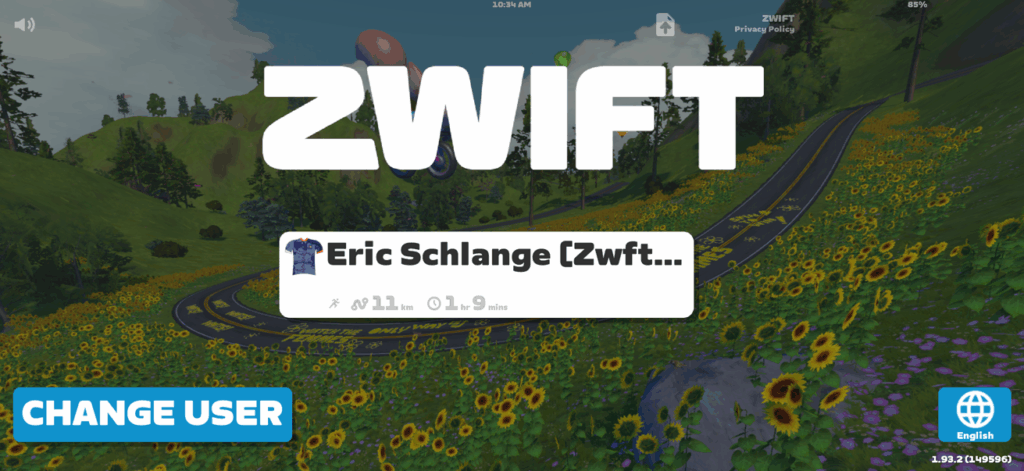
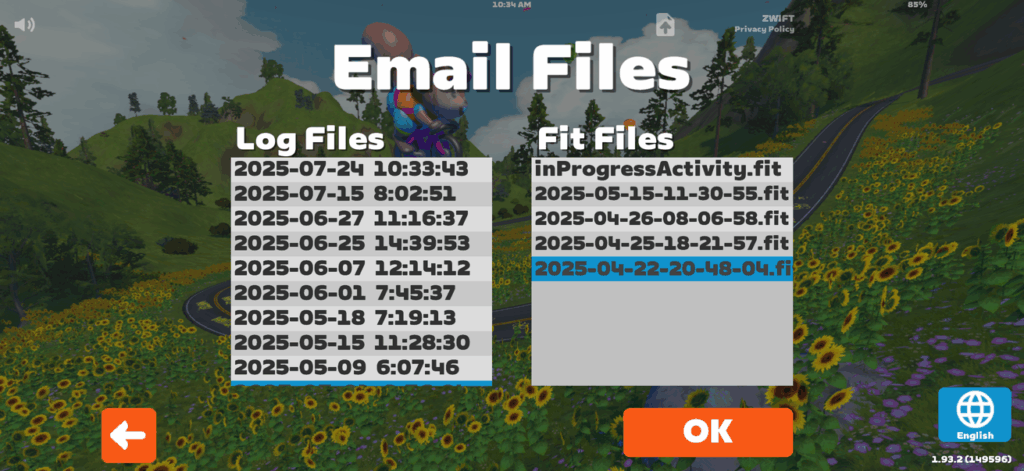
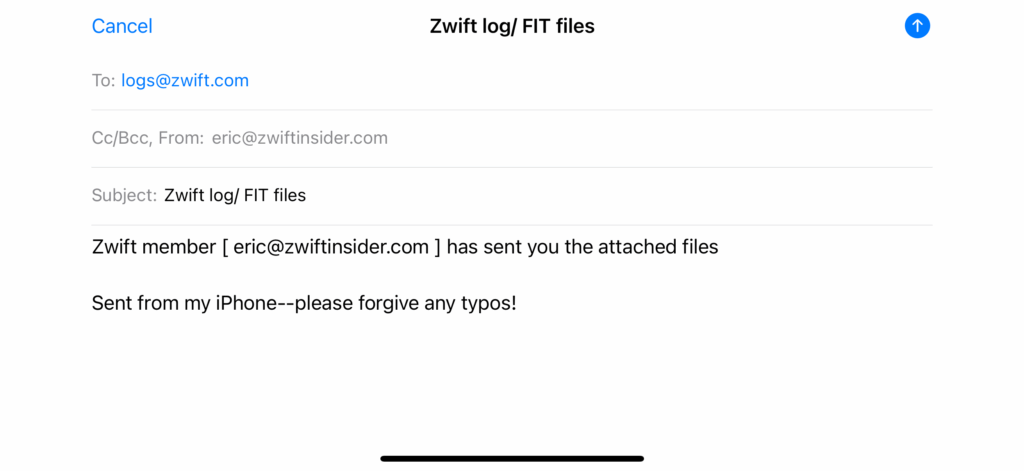
Retrieve Your Activity on Zwift for AppleTV
Unfortunately, there is no way to access the local .fit file on AppleTV if something goes wrong. If you find you’ve finished and saved your Zwift ride and it’s not showing up on Strava, it’s possible the upload failed even though the activity saved on Zwift’s side. Try visiting zwift.com/sign-in to download the ride file, which you can then upload to Strava.
Downloading from Zwift.com
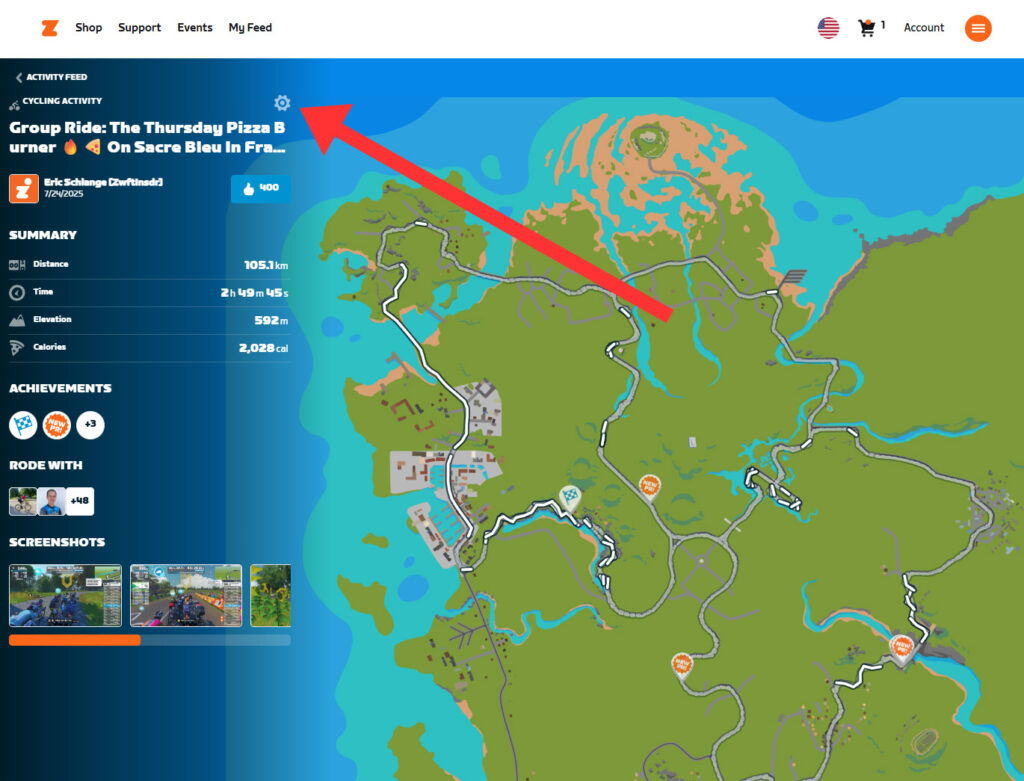
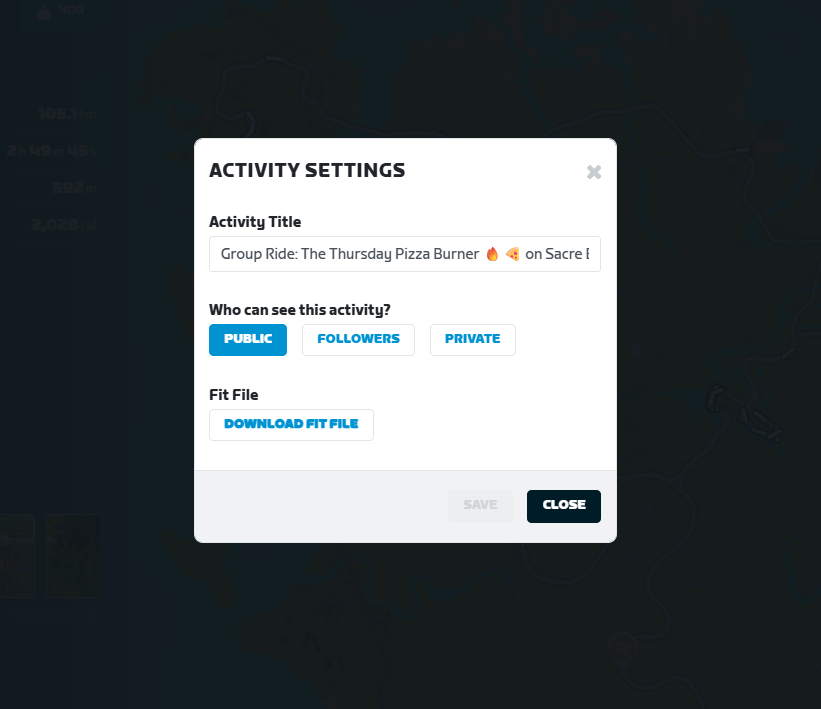
If for any reason you need a copy of your .fit file from Zwift’s servers, it’s easy to access. Log into your account at zwift.com/sign-in, navigate to your activity, then click the gear icon. From the popup, click “Download Fit File”:
Fix Uploading Errors with FitFileTools.com
If you get an error when attempting to upload your .fit file to Strava or another service, the file is corrupted in some way. In that case, head over to fitfiletools.com and fix it using their tools. (Hint: the “Corrupt Time Fixer” is often the solution.)
Wrapping It Up
It can be a real bummer to finish a Zwift ride only to realize it didn’t save properly. Happily, following the simple steps above will let you post your ride to Strava or other services. As we know… if it isn’t on Strava, it didn’t happen!
Questions or Comments?
Share below!



Oh wow, I wish I had seen this months ago… So many lost workouts I could have saved. This is going to be bookmarked
Thanks for this. My GPU crashed at the very end of a ride (I was coasting down after climbing a hill and was actually off the bike and toweling it down). I couldn’t see the screen (no GPU means no display) to close the app and the companion app wasn’t letting me end the ride no matter how long I held the stop button, so I had to do a hard reboot of the computer and fix the GPU.
I was super bummed because I’d finally hit level 5 on my TT bike and put in a couple hundred m toward my climbing upgrade. First time I’d had this happen in 5+ years of Zwifting, so it was nice to see that you’d just written an article about this.
I had vague recollections of using some software to fix .fit files before seeing this, but I just downloaded the .fit file from zwift.com and saved it over the broken .fit file (after trying and confirming that it couldn’t be manually uploaded). Manually uploading the downloaded .fit file was super fast and easy, so I didn’t mess with trying to fix the old one.
I was glad to see that my streak was still active (that ride got me the animated Scotty), and I had all my upgrade stats from the failed ride.
The iOS “hidden” email method absolutely does not work. Tried it multiple times and have never had any luck.
Interesting. Works fine for me… just did it to confirm!
Is there anything you need to do after emailing the files?
Upload them to whatever platform you’re using, I guess?
A path to get a FIT file back into Zwift:
I had a power outage a literal 30 seconds before I was done with a Zwift ride.
I have a Wahoo Kickr Core so I also have a Wahoo app on a phone to do spindown. Wahoo app let’s you upload a FIT file and that then goes to your Wahoo account.
SO my steps where:
a- I emailed myself the FIT file from the Zwift PC
b- I downloaded the FIT file from my email on my phone
c- went to Wahoo app on phone and uploaded the FIT file
d- In Zwift Companion App connected Wahoo account
Power outage SNAFU ride is now in Zwift and looks to me just like it would if I had completed the 90 minutes going around Loch Loop. Voila.
Your mileage may vary but I don’t see why success is not had across hardware and software and Garmin, Hammerhead, Wahoo, which is the crux of the deal in that you have to be able to connect your Zwift to one of those.
something has changed. Neither of my rides today show up in the activities folder. One was a computer crash, but the other everything went normal. do they save in a different spot now?
Yes, a recent update moved them on PC to C:\Users\\AppData\Local\Zwift\Activities\
cool. Thanks!
WOW , yes I’m using Apple TV , got half way up Mt Fuji , power outage enough to shut everything off . Signed back on , its like I never rode half way up 🤣. I call that a technical flat tire . Change the tire, get back on the bike and finish the ride . So was using the Tron to upgrade level 4 . Will use S-Works SL8 at L-5