

I’ve worn many hats after 20+ years as a self-employed tech guy. One of my favorite hats has been photographer. I’ve shot portraits, products, weddings, food, landscapes… you get the idea.
Nowadays, though, most of my photos are taken with an iPhone out on the bike. These photos really only see the light of day on my Strava profile. Some are taken so I can remember that moment in time, while others are taken so I can share the experience with my Strava followers. I upload pics from my Zwift sessions for the same reasons.
Just like “real” photography, getting a good shot on Zwift isn’t as easy as pushing F10. You’ve got to pay attention to lighting, angles, background, etc. It’s a more restricted environment, but one with plenty of possibilities. And while it may seem silly to some, pushing the limits of these possibilities is fun for many, including myself.
So here it is: your definitive guide to shooting and sharing good Zwift screenshots.
How to Shoot: the Basics
Taking the Shot
There are three ways to take a photo in Zwift:
- Your computer keyboard: press F10 to snap a shot.
- Zwift Companion app: scroll the action buttons at the bottom of the map screen until you see the camera (last button on the right). This is the only way to take a photo on AppleTV.
- In-game action bar: in iOS/Android, just tap the screen to get this pop up.
What’s Your Angle?
The first thing you can do to make your photos more interesting is to change camera angle. The default angle on Zwift is great for zwifting, but completely uninteresting for screenshots!
On a computer, just hit a number key to change it:
1: Default 6 o’clock view
2: Third person view
3: First person shooter perspective
4: To the side front-left of the rider
5: Rearview from the right of the rear wheel
6: Head on to the rider
7: Spectator view
8: Helicopter view
9: Bird’s eye view (PC/Mac only)
0: Drone View – use the arrow keys, +, and – keys to move and zoom camera (PC/Mac only)
On Zwift Companion or iOS/AppleTV/Android look for the eyeball button to click and change the camera angle. Here’s what each camera angle produces:


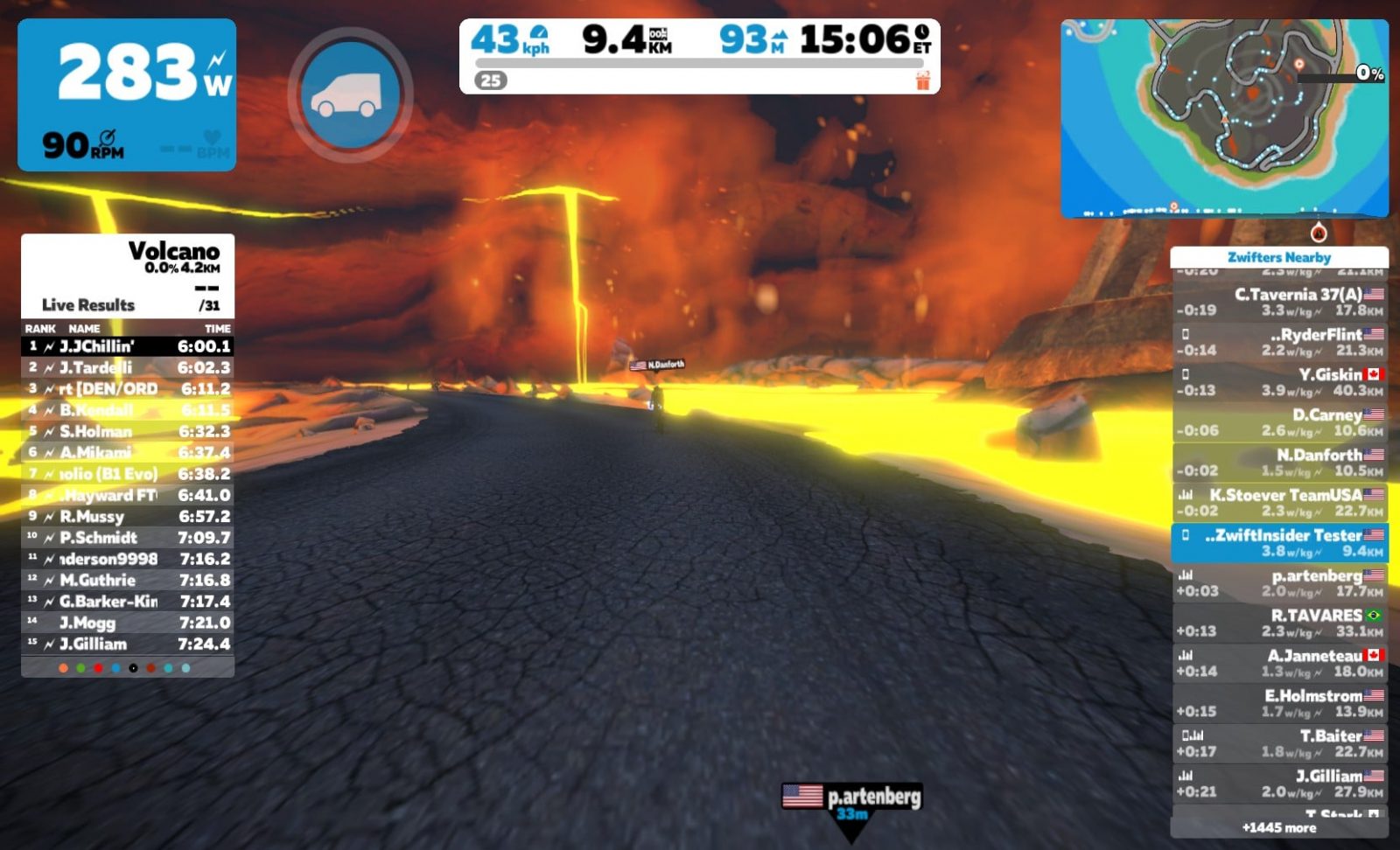

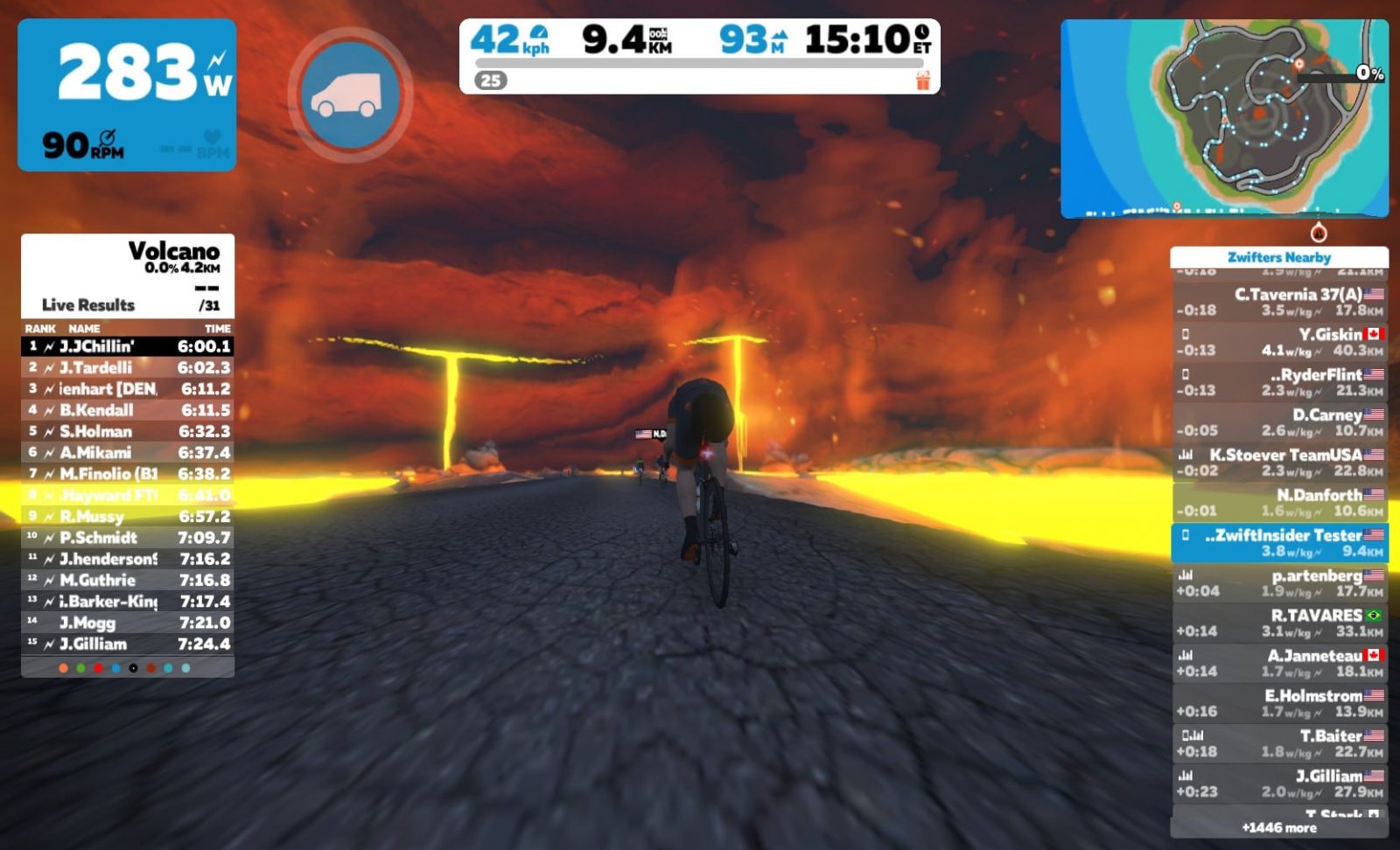


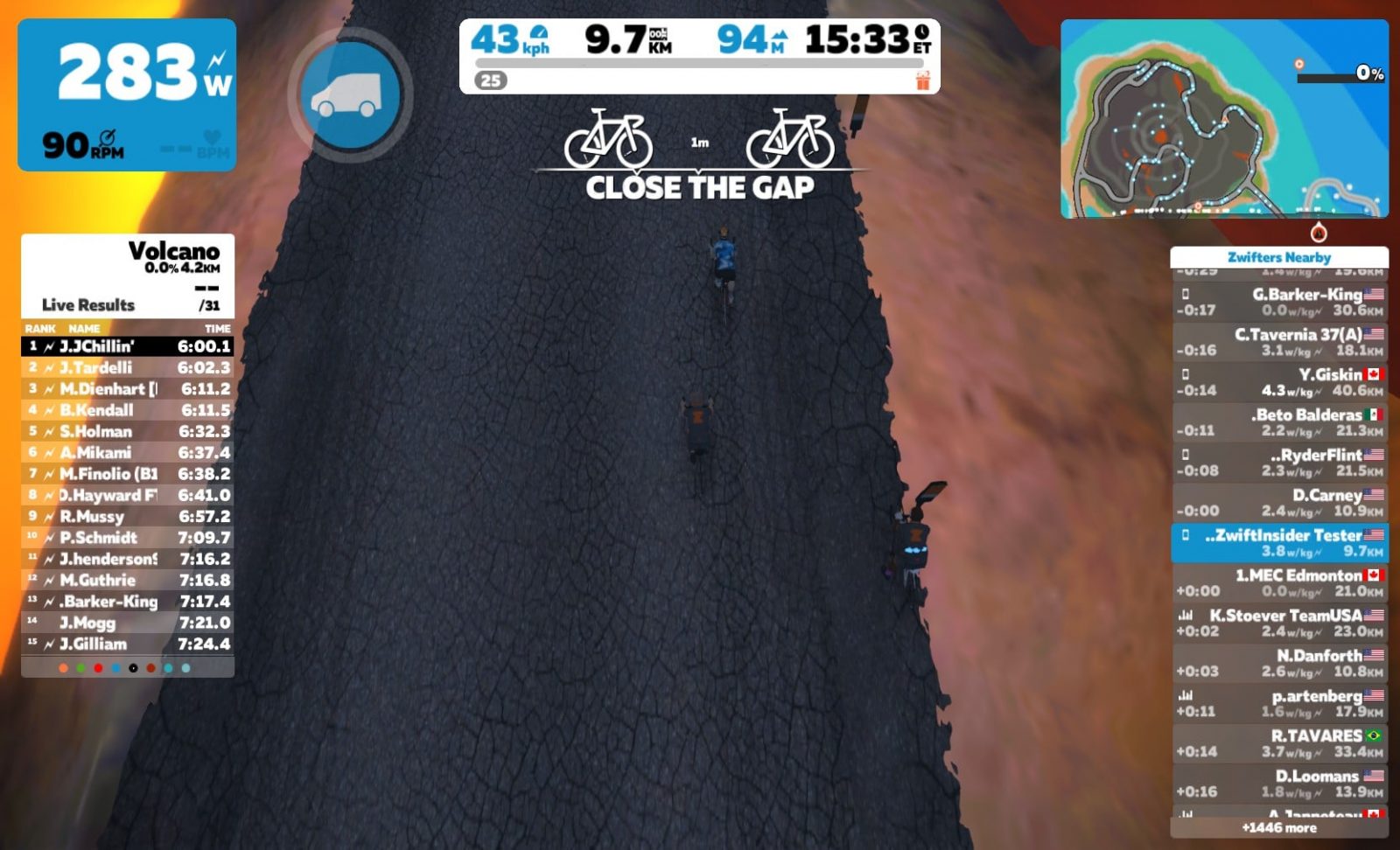
Light Up Your Life
Any photographer worth their screen cap will tell you lighting is always a top concern. Photography is just capturing light, after all. Zwift shots also require good lighting, but for most shots it basically comes down to the difference between your rider being in the shade (bad) or full light (good).
Here are two samples for you. Notice how the second picture of each pair is much more interesting, as the subject of the photo is well lit.
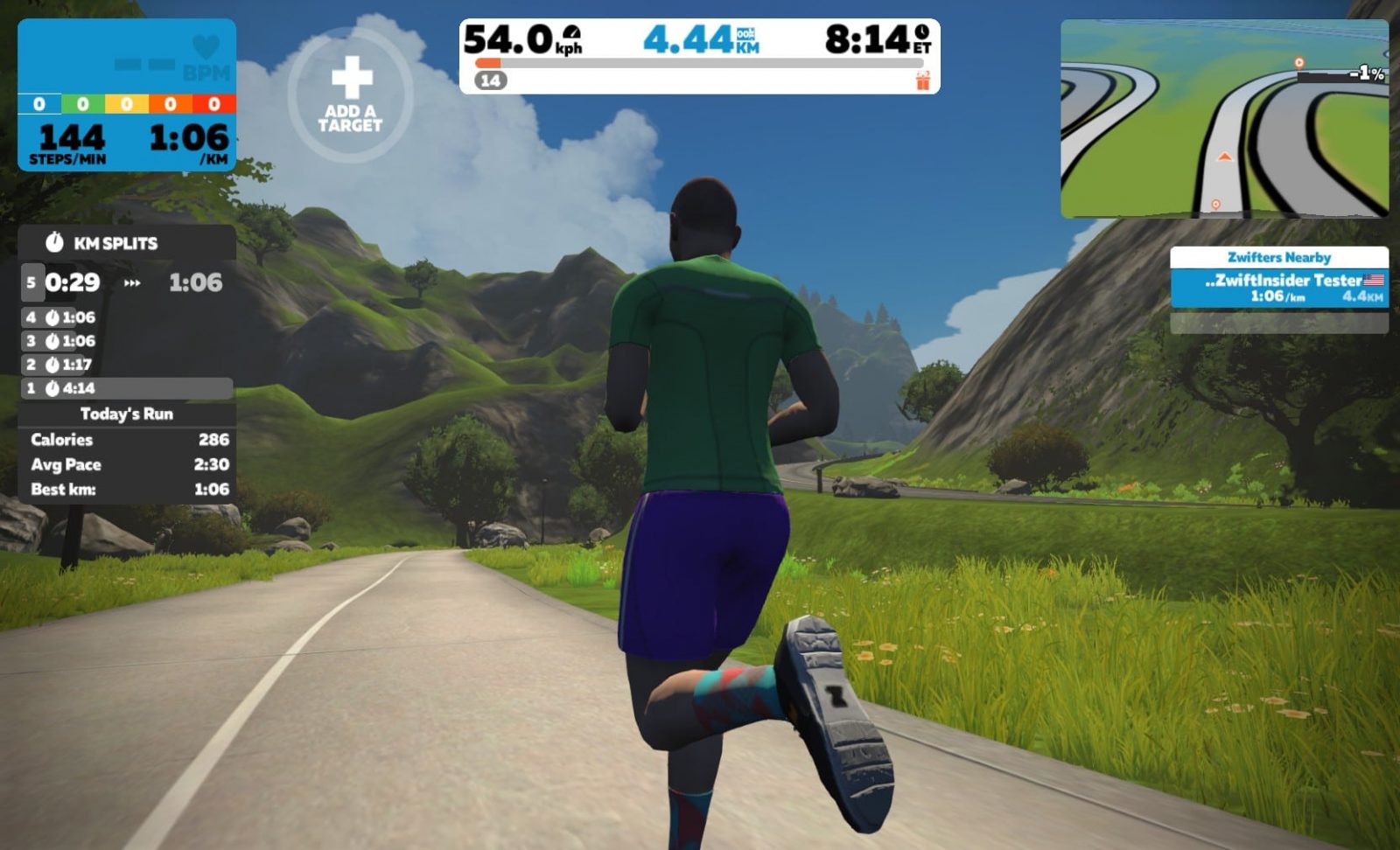
Runner is shaded, not good 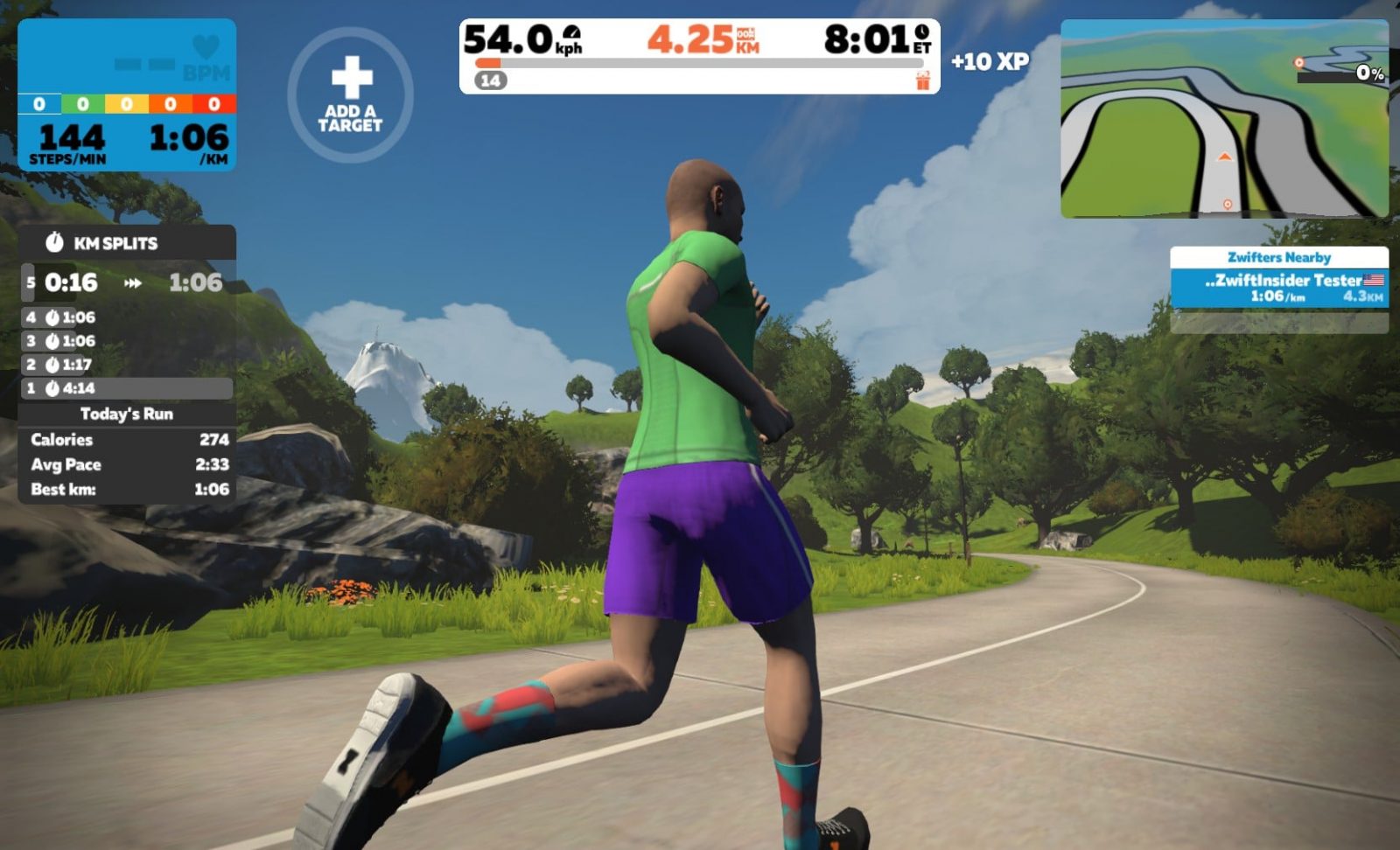
Runner is lit, very nice
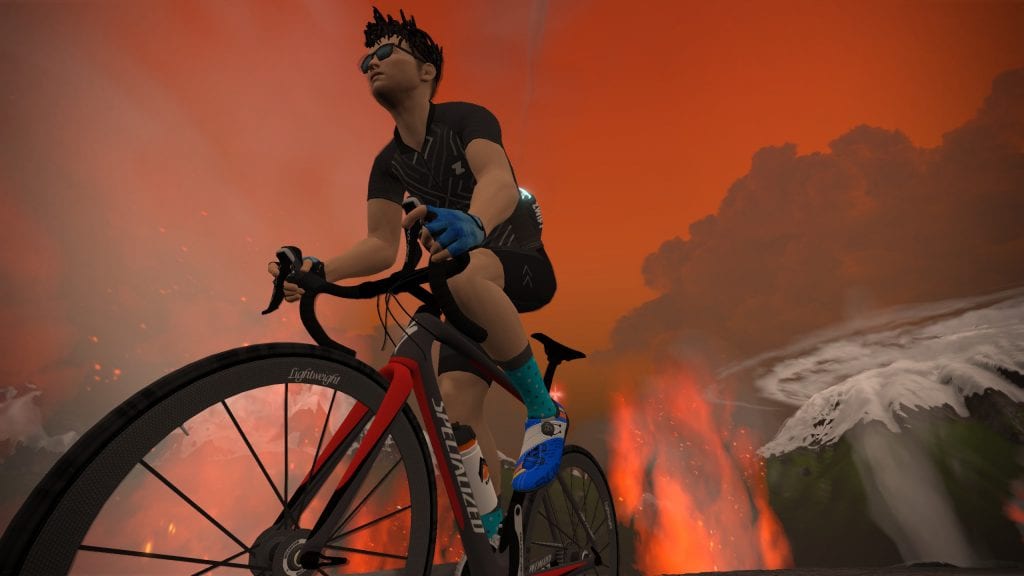
Rider is shaded, not good 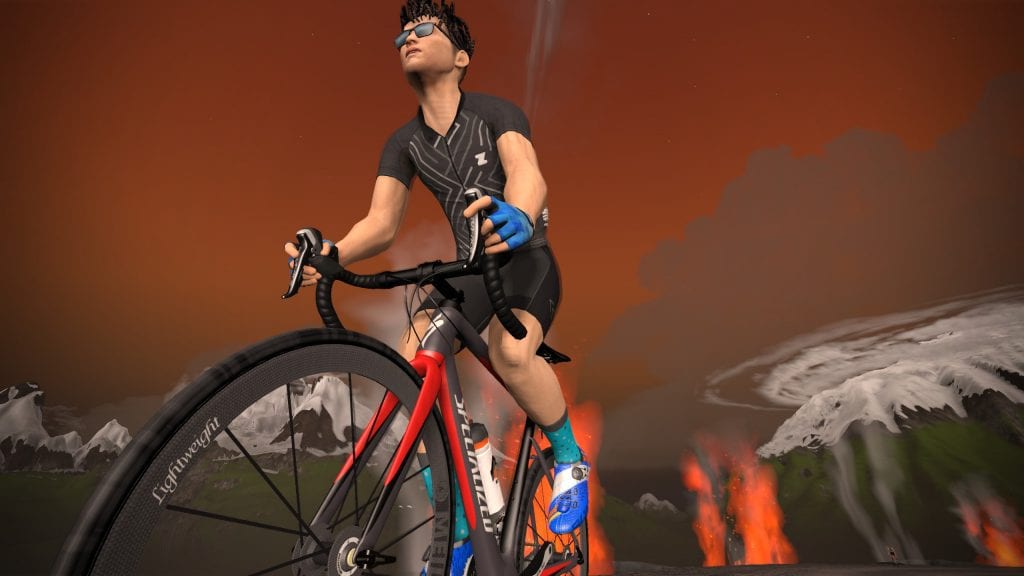
Rider is lit, very nice
Of course, the lighting challenge on Zwift is that you can’t move lights around to get the look you want! And some courses like New York have a lot of foliage or buildings which create spotty shade.
If you’re really chasing a good shot, you may need to flip a u-turn or take multiple shots to get one where your avatar is lit the way you’d like. The good news is, you’re not having to pay for extra film!
Advanced Shooting Tips
Using the Drone Camera
If you want a real pro Zwift pic, you’re going to be on a computer with a keyboard so you can hit 0 and move the camera yourself.
Tapping 0 puts you in “drone view” where you can use your four arrow keys to move the camera up, down, left and right. Additionally, hitting the – or + keys will zoom in and out.
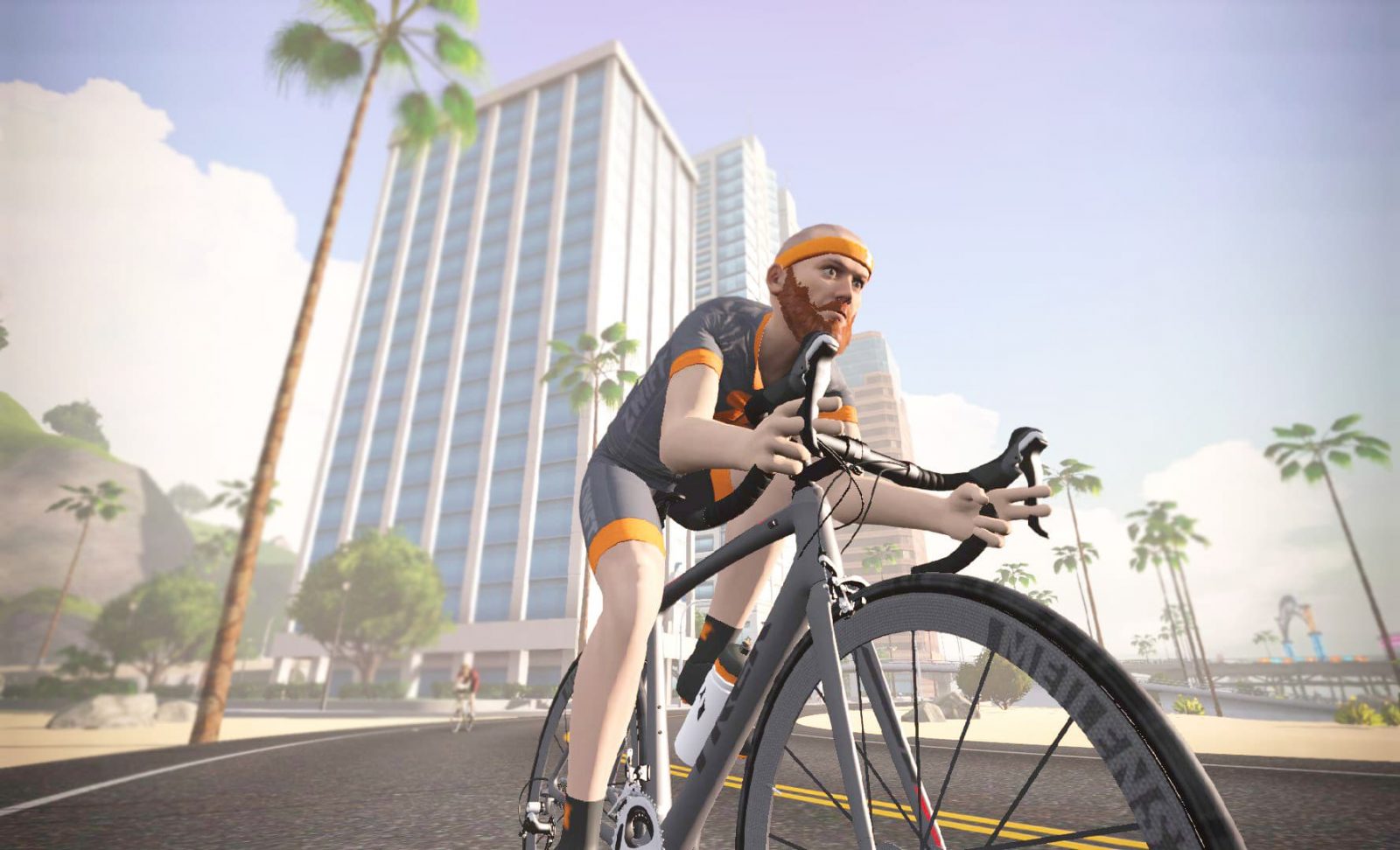
Once you get comfortable with this setting it is very easy to use, and that’s good because the angle of your shot can make all the difference. I’m partial to low angles, taken from near street level. Here’s an example:
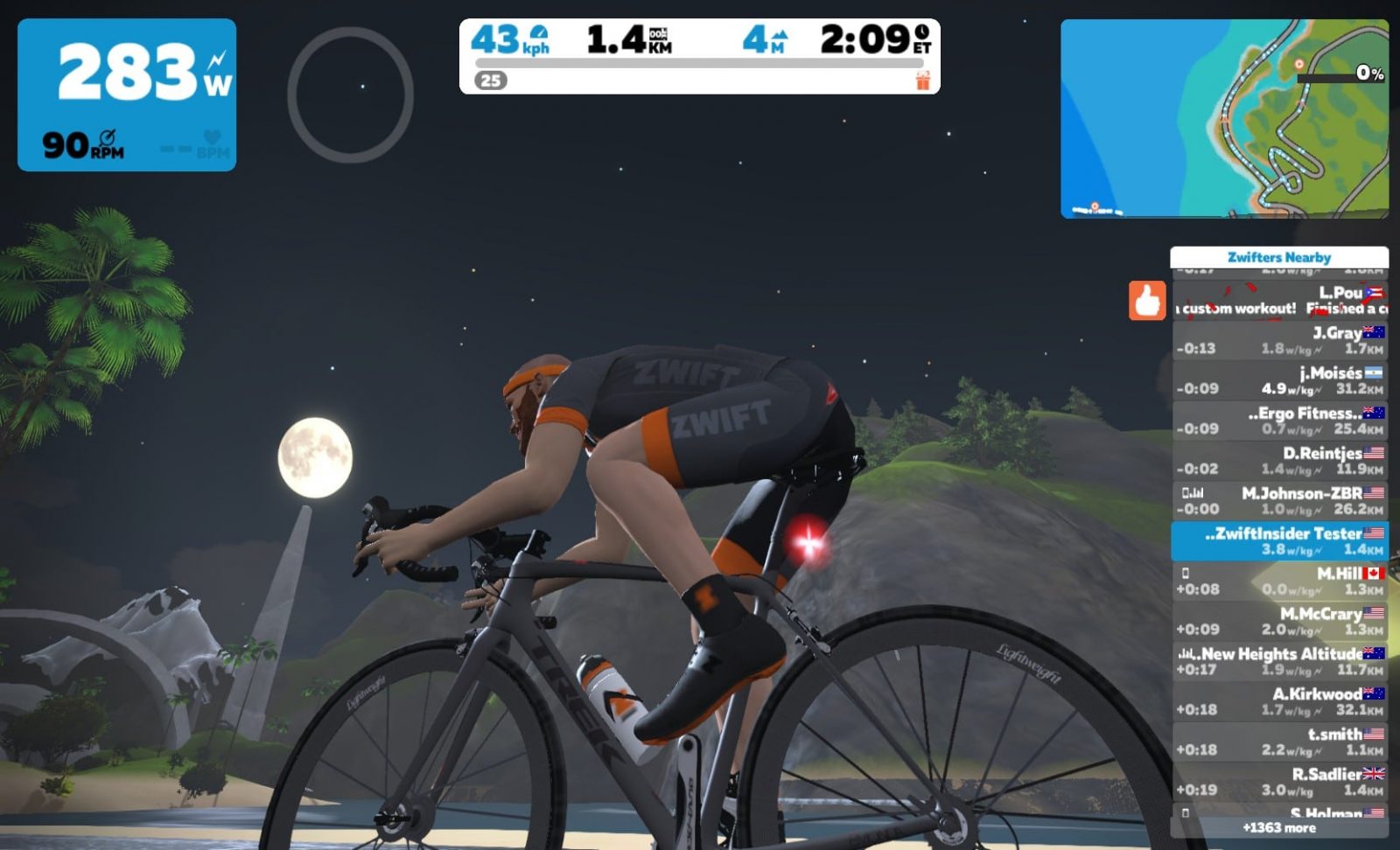
I’ve found in drone mode the camera doesn’t usually want to go low if you just hit the down arrow. But if you hit the up arrow first for a bit, THEN down, it will go lower than it would before! Give it a try.
Clean Is In
Unless you have a reason for displaying the various on-screen metrics, “clean” shots look much cooler. But you can only take clean shots if you’re using a computer or Zwift Companion! Shots taken using the iOS/Android versions of Zwift always include the HUD.
Sharing Your Shots
Where Pictures are Stored
If you use a computer to Zwift, but take a photo using Zwift Companion, it will be saved to the computer which is actually running the game as well as your mobile device.
If you’re running Zwift on AppleTV, your screenshots taken with Zwift Companion will be saved only to your mobile device.
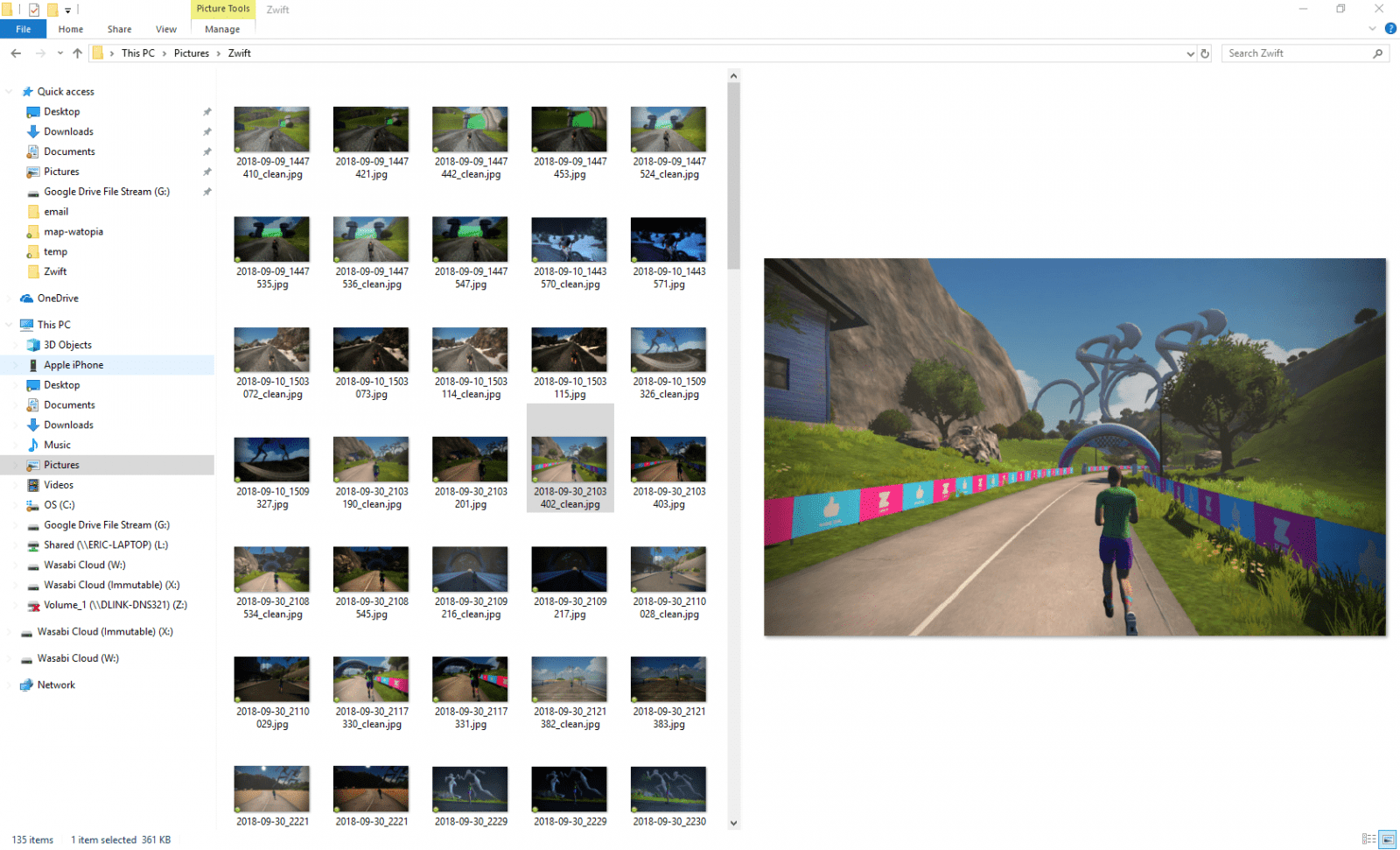
On Windows, photos are stored under Photos/Zwift. Here’s what my folder looks like:
“Image Uploading” Setting
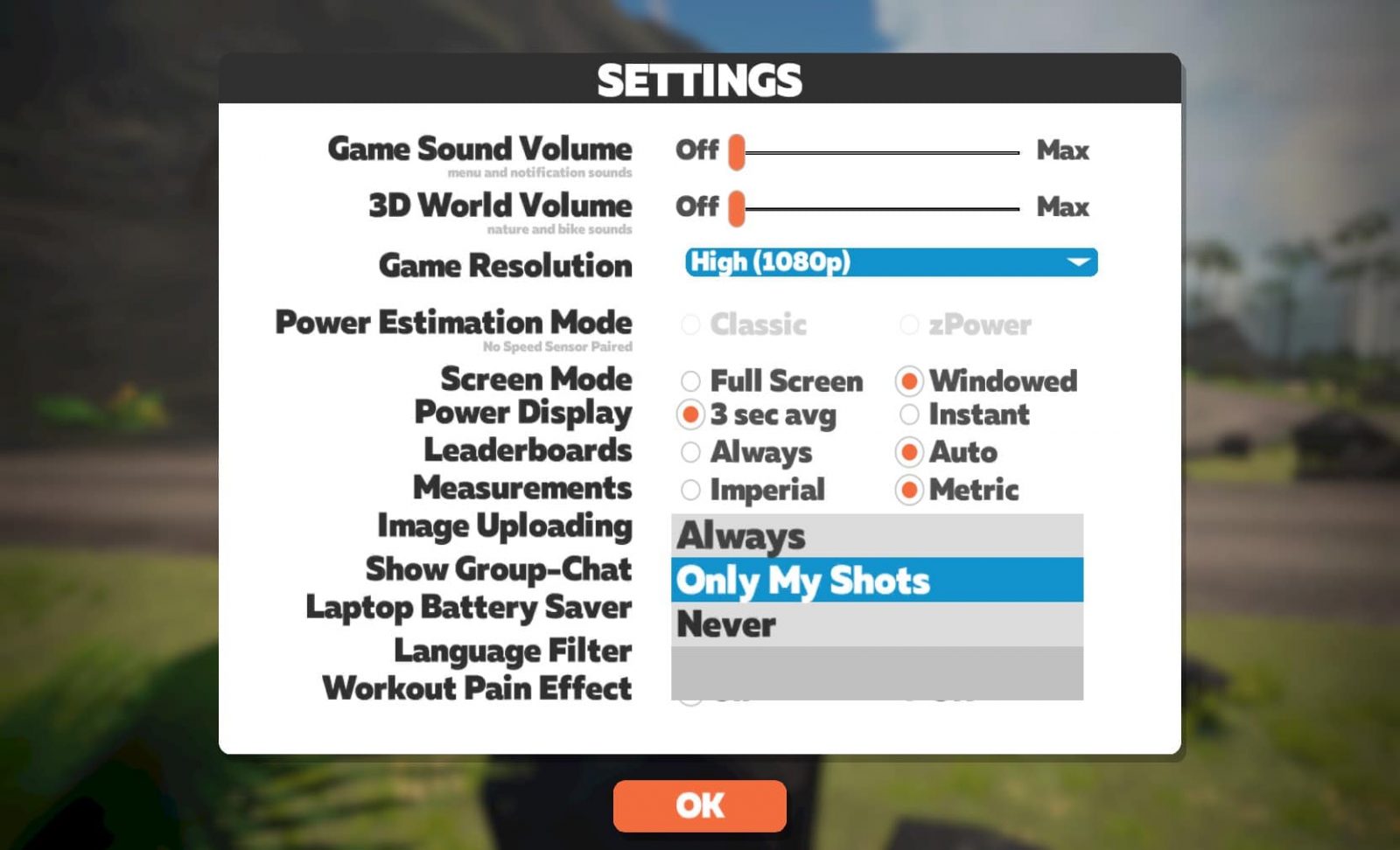
By default Zwift takes some snapshots as you ride and uploads them to Strava. You can change this behavior through the Settings menu so it only uploads the photos you take (my preference), or never uploads photos.
Important: if you choose “Never” for this setting, you will not be able to take pictures from within game on your computer! You will however still be able to take pictures using Zwift Companion.
Selecting Photos to Share
Select which photos to save to your Zwift activity and Strava when finishing your activity:
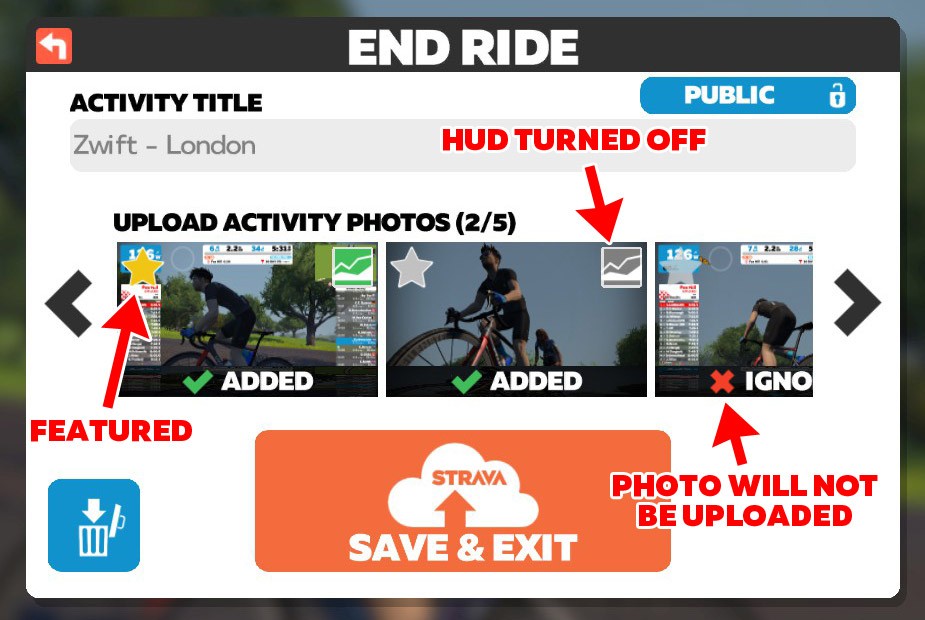
Select up to 5 photos on the ride saving screen. Click in the top-right of a photo to toggle between saving the clean version, or the version including the HUD. You may also select one photo as the “featured” photo, indicated by the star in the corner.
Changing the Strava Highlight Photo
Strava will choose the first picture you upload as your activity’s “highlight” photo. (If you’re on a computer, the photo you star when saving the activity will be the Strava featured photo.)
If you’d rather use a different shot (this is often the case), simply edit your activity, clicking the photo you want to highlight, and choose “Set as Highlight Photo”.
Your Tips Welcome
Got any other tips for Zwift photographers? Share them below!


Where does Zwift store the screenshots when running Zwift on an Android Tablet? Wanted to be able to share photos elsewhere but cannot find them at all in my tablet file structure
Hi! I have a Quick question, I can’t find the answer anywhere… I just took like 100photos during my last ride, but the end, I got the clean version only at ~20 Photos, the rest are all with HUD only, no clean version. Is there a limit of clean photos saved or am I doing something wrong?
thanks
Hello, is there a limit to taking photos using F10 in laptop? It seems to stop working after you’ve taken some amount of photos.
Yes, there’s a limit. Not sure what it is – 30 or so? Which is really 15, because pics are doubled up, one with the HUD and one without.
But you can continue taking pics via the Companion app…
@Eric Schlange Is this a Zwift limit or a windows limit? I have looked everywhere for a way to turn this limit off and I find no solution.
If it is Zwift do we know why (other than the Zwift mystique?)
How do I hide the on-screen menus/info when taking pics on a Windows 10 laptop?
Zwift saves a “clean” version of each pic you take, along with one that has the HUD. See instructions above for turning off HUD when uploading pics after your ride is done.
I use and Apple IPhone wired to a screen for Zwift and I’m not seeing the same options to only include photos I take. Please advise
How do you do do video
Check out this post: https://zwiftinsider.com/video-how-to-livestream/
Took several photos using Zwift Companion app (on Android phone – Moto G6), but these all came out black and so I discarded them. It seems to be a long-standing issue and I’m looking for advice about how to fix it. Any advice? The Zwift session is on an Android tablet (Huawei MediaPad M5) and I was following a workout.
Hi Eric.
We have been trying to get a photo to automatically upload at the end of a ride with the side bar and header, into Strava from Zwift. We have tried selecting the star on the left corner and the square in the RH corner. Other riders we are with simply end their ride and a photo with the side and top bars appear on Strava.
Hope you can help
Regards
Steve
Is there a correlation between the graphics level your device is running the game in and the level of detail in the photos you take? My photos seem better but maybe that’s just the difference between video and an image?
Yes. It takes photos at whatever resolution, detail level, etc your device is running. What you see is what you get!
In my last 4 runs in zwift, 3 pictures have been taken automatically at 34:20 and one at 31:12… is it a customizable option or pure coincidence?
Thanks for this – didn’t know about the drone view.
Odd question, if I wanted to use an image I took of myself on Zwift as a book cover, does anyone know if there are copyright issues as far as Zwift is concerned? I’ve searched briefly, but can’t find anything regarding ‘ownership’ or ‘fair use’ of such images.
Hi, I don’t get any of those menu options, is that an iPad thing or am I missing something?
Are we ever going to get the F10 function to work again?
Works for me—never stopped working.
Thank you Eric. It stopped working for me a few months ago and the functionality never came back.
Every time I take a picture I get the clean version, no problem – but what I am assuming is the HUD version is always just a black box. Anyone know why?
I also have this issue, when finishing the ride, I have to click the graph symbol in the black square to turn off the data and reveal the picture, otherwise just a black square.
I’ve also had random images from other courses included when I have not manually captured the image.
Any updates on why F10 doesn’t work?
I have no idea! I’ve heard this complaint from some users, but it’s working just fine on my three Windows PC’s over here!
Maybe try a re-install?
The problem of Zwift shots not uploading to Strava appears quite sizeable with quite a few users suffering from it to varying degrees mainly since the 2020 October update but some seem to have problems dating back before even then.
https://forums.zwift.com/t/in-game-photos-using-f10-not-uploading-since-last-update/512136
I only became truly aware of it around a week ago, I don’t take many shots, when I was looking for a specific shot I’d thought I’d uploaded and made reference to in my Strava activity title. The pic simply hadn’t been uploaded. Checking on the companion app, nope not there either. Zwift.com? Nope. As yet I haven’t checked to see if it’s actually available in my zwift picture file on my PC to manually upload, I’m not that fussed about it, but this is basic functionality that is a shame to be missing from a lot of people’s Zwifting experience.
How di I prevent Zwift from taking its automatic one pic per ride foto?
You can get a clean picture from Apple TV screenshots. You have to use the remote, scroll to the photo to be uploaded after the ride, then when on the photo gently scroll up to the graph icon in the upper right corner of the photo. Deselect that and you get a clean picture.
It doesn’t seem to be possible to turné off the HUD in the pics anymore. How can I do this?
I hope you follow Zwiftart on Instagram. And when you publish use #zwiftart and tag @zwiftart
I somehow broke zwift and went flying in the air