Zwift version 1.108 begins its phased rollout today. This is a minor update, but there are a few new Climb Portals included that we’ll get to ride in the coming months, plus changes to Coffee Stops which regular users will want to know about. See details below…
New Climb Portals
Although not mentioned in the release notes, today’s update includes three new climbs for the Climb Portal. These are the first climbs added to the library since April 2025!
All three are short Belgian climbs known for their inclusion in iconic sprint classics. My guess is we’ll see these on the Climb Portal calendar for April 2026:
| Name | Length | Elevation Gain | Gradient |
| Paterberg | 0.4km | 45m | 11.9% |
| Koppenberg | 0.6km | 63m | 10.8% |
| Mur de Huy | 1.3km | 124m | 9.8% |
In case you’re wondering: yes, these are very short climbs! Look how close together the 10 arches are on the Paterberg:
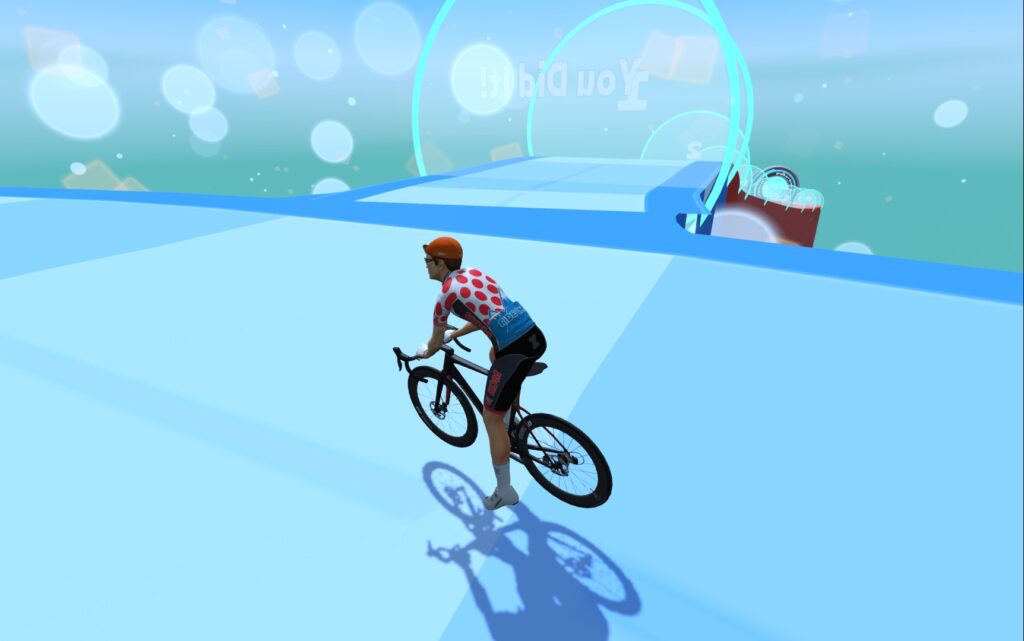
The Paterberg is now the shortest climb in the library, with the Koppenberg 2nd-shortest and Mur de Huy 4th.
Coffee Stop Fixes/Changes
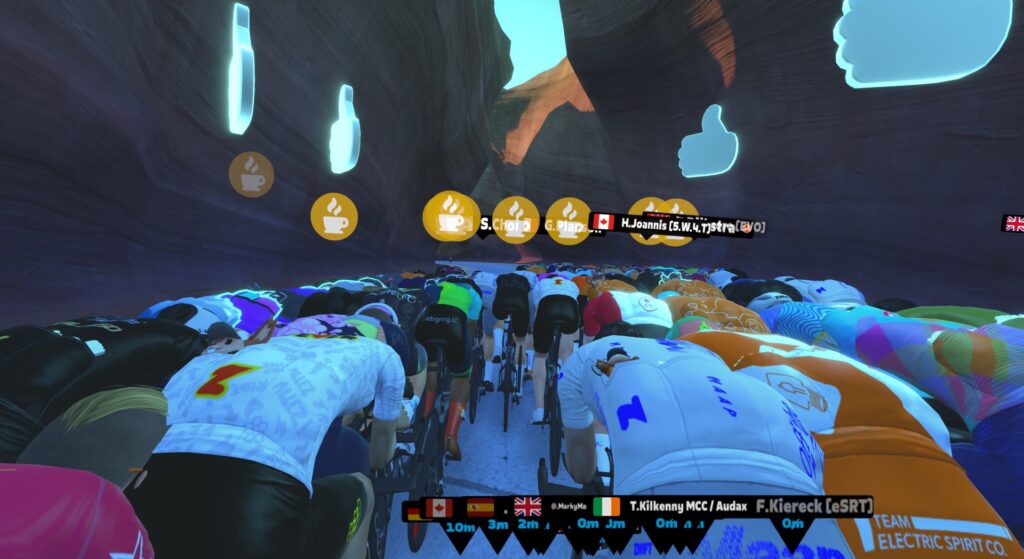
Today’s release, as well as the previous update, contains several changes and fixes for Zwift’s Coffee Stop feature, effectively making it “Coffee Stop v2”. Here’s the full list of what has changed…
Bug Fixes
- Game v1.107: Fixed issues where Coffee Stop was permanently greyed out throughout the activity, but was supposed to be available. (This happened when users jumped from a workout to an event through the ‘join event’ pop-up.)
- Game v1.108: Fixed issues where towing abruptly stopped, and shouldn’t have:
- When triggered before the final 5km of a distance-based event, or the final 15 minutes of a time-based event. Where towing used to abruptly stop when you hit 5km or 15 minutes to go, it will now continue through the end of the Coffee Stop timer.
- When finishing the cooldown portion of an event, the activity automatically transitions into a free ride. If you triggered your Coffee Stop during the cooldown, towing used to suddenly stop right when the cooldown ended and the free ride began. It will now continue through the end of the Coffee Stop timer.
- Your momentum and selected route will now continue after an intersection if your “tow truck” turns onto a different route.
What’s New
- Earlier Availability: The 3-minute Coffee Stop is now available starting at the 5-minute mark, instead of 30 minutes into the ride. It will be available at the 5-minute mark even if you use the 30-second Coffee Stop in those first 5 minutes. (Hurray!)
- Hover Tooltips: If the Coffee Stop icon is greyed out/disabled, hovering over it will now display the reason.
- Activity Reset Logic: Coffee Stop timers and availability are now correctly reset whenever switching between different activity types where Coffee Stops are allowed (i.e. non-competitive group rides, and rides that don’t involve a structured workout), or returning to the Home Screen.
Note: These behaviors remain unchanged:
- Coffee Stop is disabled in all competitive events and structured workouts.
- Full 3-minute Coffee Stops regenerate 30 minutes after the previous one ended.
- You need at least one other Zwifter nearby headed in the same direction.
Windows Folder Relocation
In late-breaking news not mentioned in the release notes, today (February 24) Zwift flipped the switch to begin rolling out a folder change for Windows users.
Zwift files (logs, .FIT files, workouts, prefs.xml, and more) have always been written to \Documents\Zwift on Windows machines, but after this change, they will be written to \Users\AppData\Local\Zwift\ (or whatever folder is designated for %LocalAppData% on your Windows PC). This is being done to better follow Windows standards and to reduce errors caused when cloud storage tools like OneDrive interact with active Zwift files (e.g., error z117).
The folder relocation happens automatically in the background. Once it happens, new activities are written to the new folder, while old activities remain in the old folder.
You will need Zwift Launcher v1.1.15+ and Zwift game v1.107+ installed in order for the change to take place. Check your versions by right-clicking the Zwift logo in your system tray. As of February 24, the change has been activated for a small percentage of users. It should be rolled out to everyone in the coming weeks.
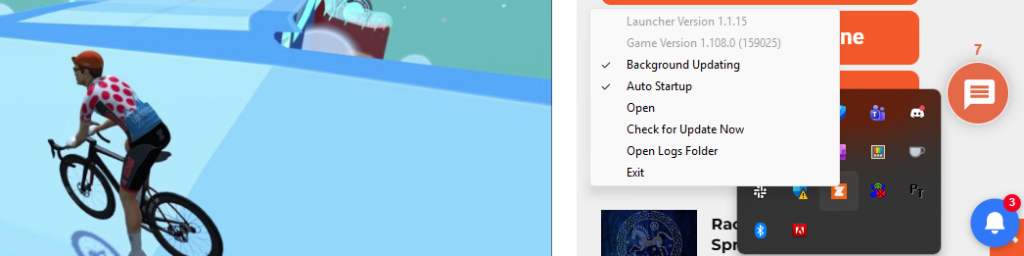
Zwift will force a launcher update in the next month or so, but if you want to update now, download Zwift at zwift.com/downloads and run the installer. (Please note: Updating your Launcher version won’t force the folder change, but it increases your chances of seeing it kick in on your system sooner.)
If you aren’t experiencing any errors running Zwift on Windows, then simply letting the Zwift app do its thing automatically is probably the easiest and smartest move. The folder change should happen with zero intervention on your part sometime in the next month.
See the Launcher v1.1.15 thread for more info >
Revised Strava Activity Descriptions
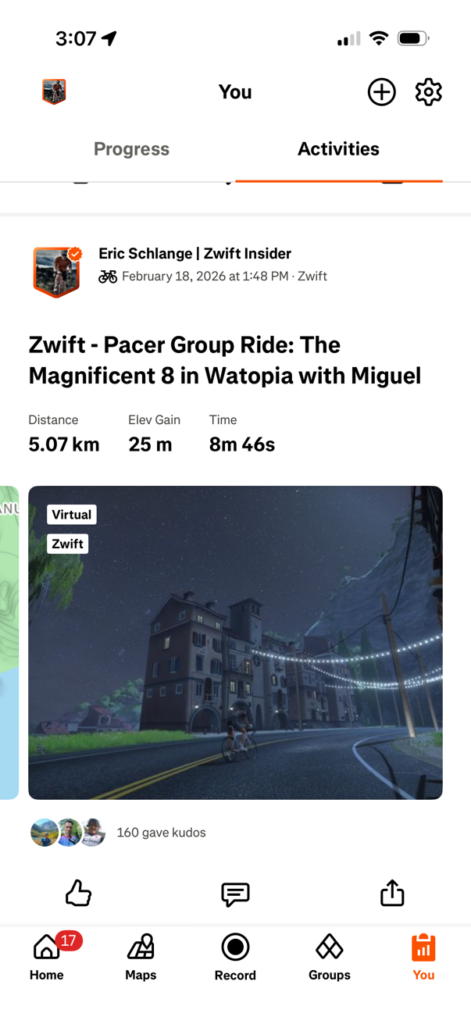
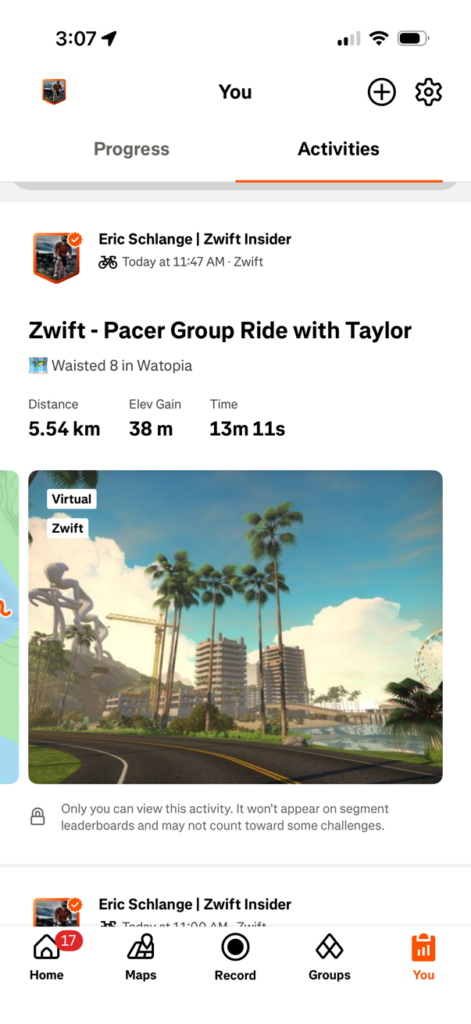
Zwift says, “We’ve simplified how Zwift activities appear on Strava by shortening activity titles and moving the route and world into the description. This change applies only to events, workouts, and RoboPacer rides.”
Here are shots of a Robopacer ride before and after this change. Nice change!
Computrainer Connection Fix
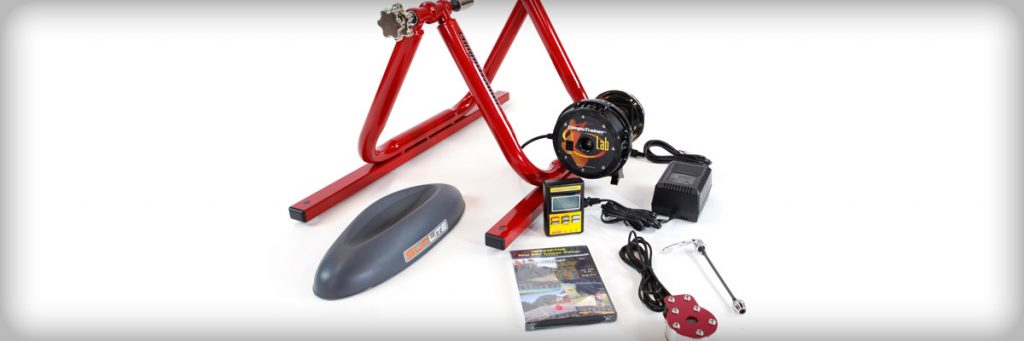
Racermate earned legend status years ago in the indoor cycling community due to their bombproof CompuTrainers. And even though Racermate closed up shop in 2017 (after 40 years making trainers!), there are still a number of Zwifters rolling CompuTrainers.
Unfortunately, back in January, Windows released a driver update for Win10 users that broke Zwift’s connection to CompuTrainer devices. (Or was it a Zwift update that caused the issue? Read the 120+ comment thread and decide.) Whatever the cause, today’s update includes a fix. Zwift says, “Windows: Improved an issue that could cause CompuTrainer devices to not appear in the Pairing screen after a recent Windows Update driver update.”
Release Notes
Zwift supplied the following additional release notes:
- Fixed an issue that could cause the Goal Met notification banner to incorrectly appear in-game.
- Fixed an issue that could cause the level-up visual effect to display the wrong level.
- Fixed an issue that could cause level-up notifications to not appear in the Zwifters Nearby list when riding in Climb Portal.
- Fixed an issue that could cause Apple Watch to appear as “UNKNOWN DEVICE” in the Pairing Screen.
- Fixed an issue that could cause workout arches to render incorrectly in the Watopia volcano.
- Fixed an issue that could cause minor visual discrepancies between the Race Score shown in the Zwift post-ride progress report vs. Zwift Companion. This only affected the display of Race Score – the underlying values were unaffected.
Discuss this update in Zwift’s forum >
Questions or Comments?
If you spotted any other changes or bugs in the update, please comment below!

 wpDiscuz