
Many riders using a PC to run Zwift connect their devices using ANT+ because it’s a simple wireless protocol popular in the cycling world that just works. All you need is a cheap ANT+ stick (see our recommendations here) and you’re ready to go!
Well, usually.
I’m hearing from more and more Zwifters who have struggled to get their ANT+ dongles working on Windows 11. Windows 10 handled ANT+ dongles quite nicely, but Windows 11 sometimes struggles to identify ANT+ sticks as such and automagically install the ANT+ driver.
It varies based on which ANT+ stick you buy, and I don’t have a list of which sticks play nicely with Windows 11 and which do not. Instead, I can only provide simple instructions for getting your ANT+ stick set up on Windows 11 if it’s not automatically happening. Let’s go!
Method One: Windows Update
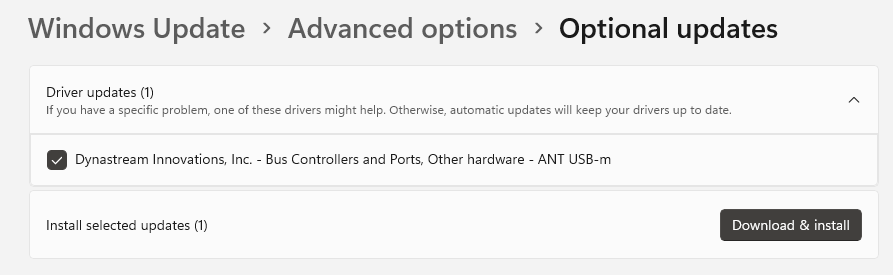
You can use Windows 11’s advanced update option to install the ANT+ driver. Here’s how:
- From your PC’s search bar, search for and Check for updates.
- Click Advanced Options, then click Optional updates under Additional options.
- Expand the list of driver updates, locate the ANT+ driver (it shows up as Dynastream Innovations), select it and press Download and install to complete the process.
If for any reason you can’t find the optional update, follow the next method to install it manually.
Method Two: Manual Driver Install
You can always install the ANT+ driver manually. It’s just a bit more hassle than doing it via Windows update. Here’s how:
- Download the driver directly from us here. (Ideally you would be able to download this driver from an official source like the thisisant.com website, but they hide it behind a login, so we’re providing easy access to it instead.)
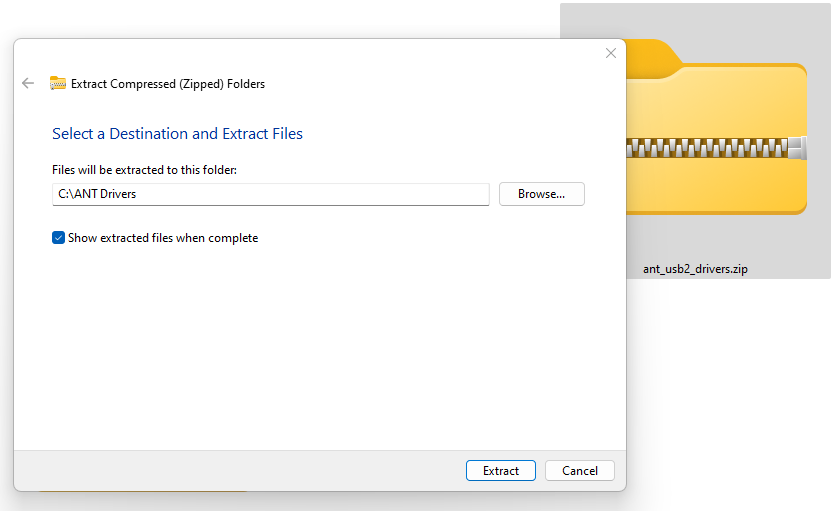
- Unzip the newly downloaded .zip file and place the content into a new empty folder on your PC.
- Plug in your ANT USB-m stick into a USB port.
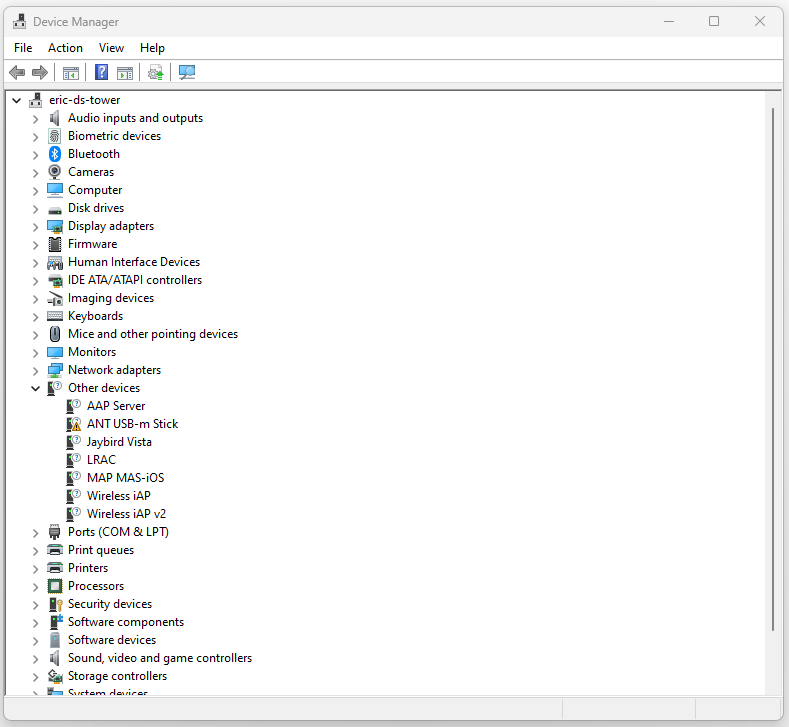
- Open Device Manager (Start Menu > Device Manager).
- Locate your ANT stick under Other devices or perhaps libusb-win32 devices.
- Right-click the stick and select Update driver.
- Select Browse my computer for drivers.
- Browse to the folder you extracted in step 2, click OK, then Next.
Further Reference
If the instructions above aren’t working for you, here’s a page from Garmin describing how to install the ANT+ adapter driver in Windows 11, and here’s one from Wahoo with the same. (Both pages link to their respective hosted versions of the same zip file as we’ve linked above.)
Are you having other ANT+ connection issues? See our post on How to Fix ANT+ Dropouts and Other Connection Problems in Zwift.
Questions or Comments?
Post below!
If you install Garmin Express it automatically installs ant+ drivers
👏
you are a legend.
Is there something similar for using a USB to ethernet for kickr direct connect
No drivers needed for that. KICKR Direct Connect plugs a network cable straight into your router (or even the back of your PC).
Thank you Eric!
This was very helpful.
I had to search and solve it the hard way. Glad you made a easy-to-use guide for all others.
Thank you Eric. I use my employers laptop and have been struggling to get ANT+ working after having it re-imaged. Method 2 worked a treat.
Thanks Eric! Worked perfect on my Surface Pro 9 with Win 11. Much better than other methods I had googled.
Thanks. It really helped. Keep the good work.
Thanks for this, think i’m getting old, as I used to be able to work this sort of thing out for myself. All working fine now.
Thanks Eric worked a treat. Now have my Heart rate back on my new Windows 11 computer.😊
thanks
Is there a way to stop my zwift play controller from connecting to ant+? I want to use a combination of ant+ and BT. My controllers always connect if I use my ant+ dongle but I then loose virtual shifting
hi,
this does not work with the new AMD chips on windows machine
brilliant mate tx … windows update sorted me problemo after window11 upgrade
The manual instructions worked fine on my windows 11 pc using a cheap Anself ant+ usb dongle
Thank you so much for this! I recently upgraded my PC to Windows 11 and it complained about the Ant stick and it not working properly (being recognised). The drivers you supplied sorted it right out! Saved me a penny too!
Many thanks @eric Schlange!
Unfortunately, this does not appear to work with the Microsoft Surface 11 powered by the Snapdragon® X 12-core X1E80100 @ 3.40 GHz (3.42 GHz) chipset. It seems the driver is incompatible with ARM64 systems -while you can select the driver file, it won’t install for your ANT+ dongle. Even attempting installation via Garmin Express, along with all associated ANT+ drivers, proved unsuccessful.
Has anyone here had experience installing ANT+ drivers on an ARM64-based system?
Iwould greatly appreciate any insights or suggestions – thanks in advance for your help!
@JurgenFreund, i ran into the same issue on my Surface Pro with a Snapdragon(R) X 10-core X1P64100 @ 3.40 GHz (3.42 GHz) ARM-based processor today. I have downloaded the ANT drivers from the manufacturer (CoosSpo) and from zwiftinsider and followed the instructions above for manual install, and I get the same “Windows cannot install the drivers” error, even though I manually point it to these drivers.
same here – any solutions?
I have checked many forums and there is no reliable workaround on this issue to date. The more affordable versions of the Surface Pro 11 use an ARM64 architecture for their CPUs (e.g. Snapdragon X) and there is no fully compatible ANT+ driver for this technology. There is a generic, cross-platform (WinUSB) driver around which can be installed manually through Windows Powershell. It is recognized by Windows 11 device manager, but not by applications such as Zwift, TrainerRoad etc.
ANT+ works only with those Surface Pro tablets that use a X86/X64 architecture that Intel CPUs are using. This gives you two options:
1) Upgrade to Surface Pro 11 “Business Edition” with Intel Core Ultra 7 CPU + Windows 11 Professional => expensive (around 2.000 €)
2) Downgrade to Surface Pro 9 with Intel Core i5 or Core i7 CPU + Windows 11 Home => only available 2nd hand and still somewhat pricey at 800€ to.1.000€. I’ve found one with i7 and 16GB RAM with Windows 11 Home for around 900€ in the rebuy shop.
Many thanks Eric, it works \o/
Switching to Windows11 recently from Windows10 laptop. I first tried from Garmin website but searching from the device manager didn’t get any driver’s update or can’t install the .zip; then heading to this page and start with method 2 with the same result but the method 1/Optional updates has already one Dynastream listed… go figure how I didn’t find it earlier.
Perfectly explained!
I had exactly this problem and the driver download offered here solved – thanks!