

Everyone loves a good photo, but moving pictures can be much more compelling, especially in the context of video gaming action.
Zwift rolled out their Video Screenshots feature in the first half of 2023, making it easy for many Zwifters to save video snippets of their activity for sharing on Strava or other platforms. Here’s an example of a video from a recent race:
Read below to learn all about Zwift’s Video Screenshots feature.
Recording a Video Screenshot
The Video Screenshots feature records 15-second video snippets of game play. These snippets are automatically recorded in certain cases, but recording can also be manually triggered.
If you have Video Screenshots enabled, most of the highlights you’ll want to capture are automatically saved. Automatically captured highlights include:
- Taking a segment jersey
- Setting a new PR
- Finishing a challenge or mission
- Gaining a level
- Unlocking an achievement
- Finishing an event
- Completing a workout or training plan
- Completing a new route
- Completing a goal
You can also manually trigger a 15-second video screenshot by clicking the button highlighted below in game or in the Companion app. This will save a recording of the previous 15 seconds of gameplay to your device.
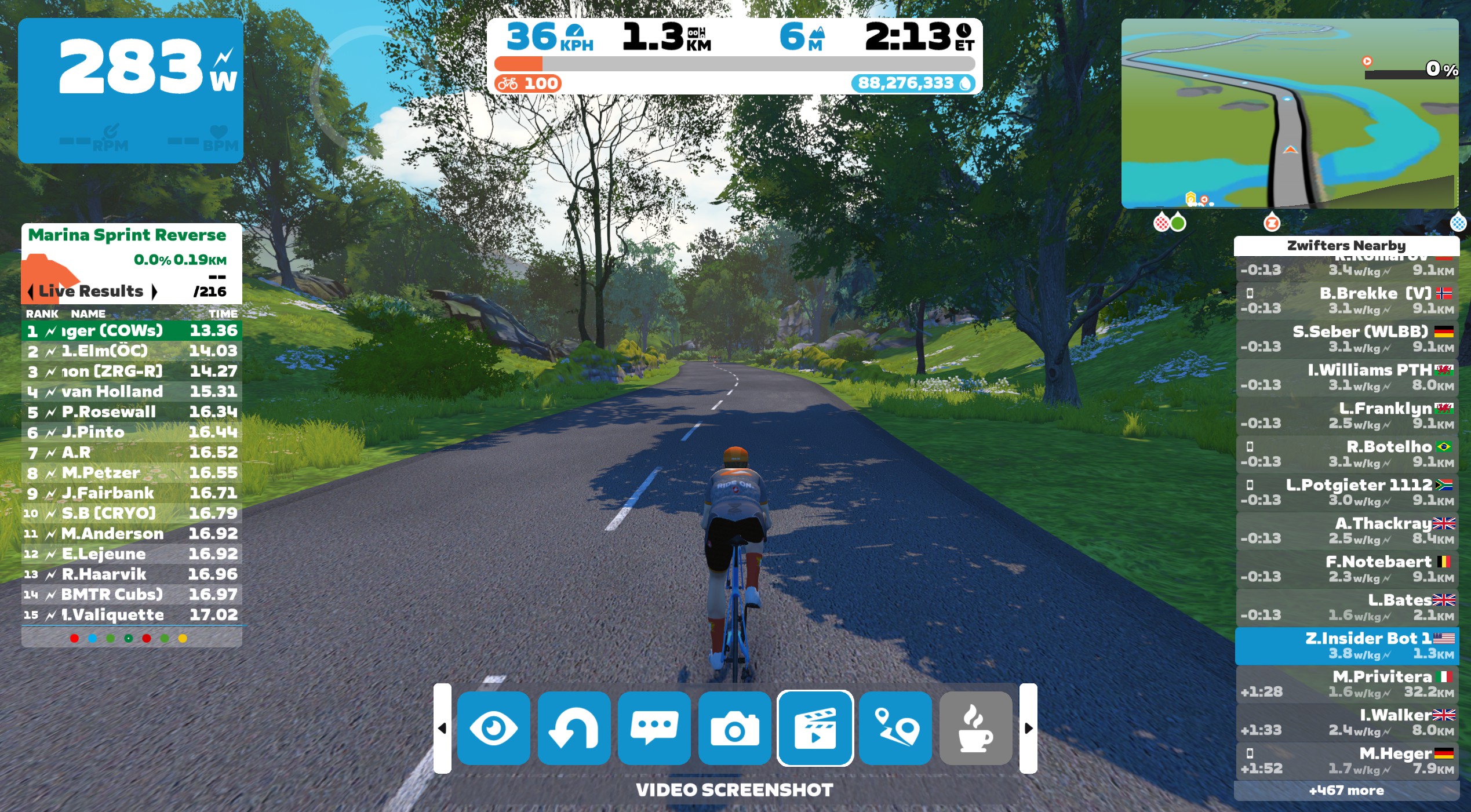
On a PC or Mac, you can also hit F9 on your keyboard to trigger a video screenshot.
Once you click to a video screenshot, you’ll have to wait 5 seconds before clicking to record another.
Supported Devices
Due to the processing power required to record video screenshots, this feature is only supported on higher-powered Windows PC, Mac, iOS, and Apple TV devices. It is not currently supported on any Android devices.
See the “Device Compatibility for Capturing Video” section of Zwift’s support page for details on supported devices.
About the Video Files
Video Screenshots are saved as .mp4 files with H.264 encoding, and are automatically downscaled to a maximum height of 720 pixels regardless of the resolution in which you’re running the game. Audio is encoded using AAC at 48 kHz. Files are typically ~4MB in size.
Video files are saved to the following locations, where you can access or delete them whenever you’d like:
- iOS: Apple Photos app
- macOS: Movies/Zwift folder
- Windows: Videos/Zwift folder
Due to limitations on Apple TV, your video recordings aren’t saved in a location you can manually access. They’re saved to temporary memory in your Apple TV, and will be deleted eventually by the OS.
Uploading to Strava
You can choose up to one video screenshot to upload to your Strava activity, along with up to five photos. This is done on the End Ride screen:
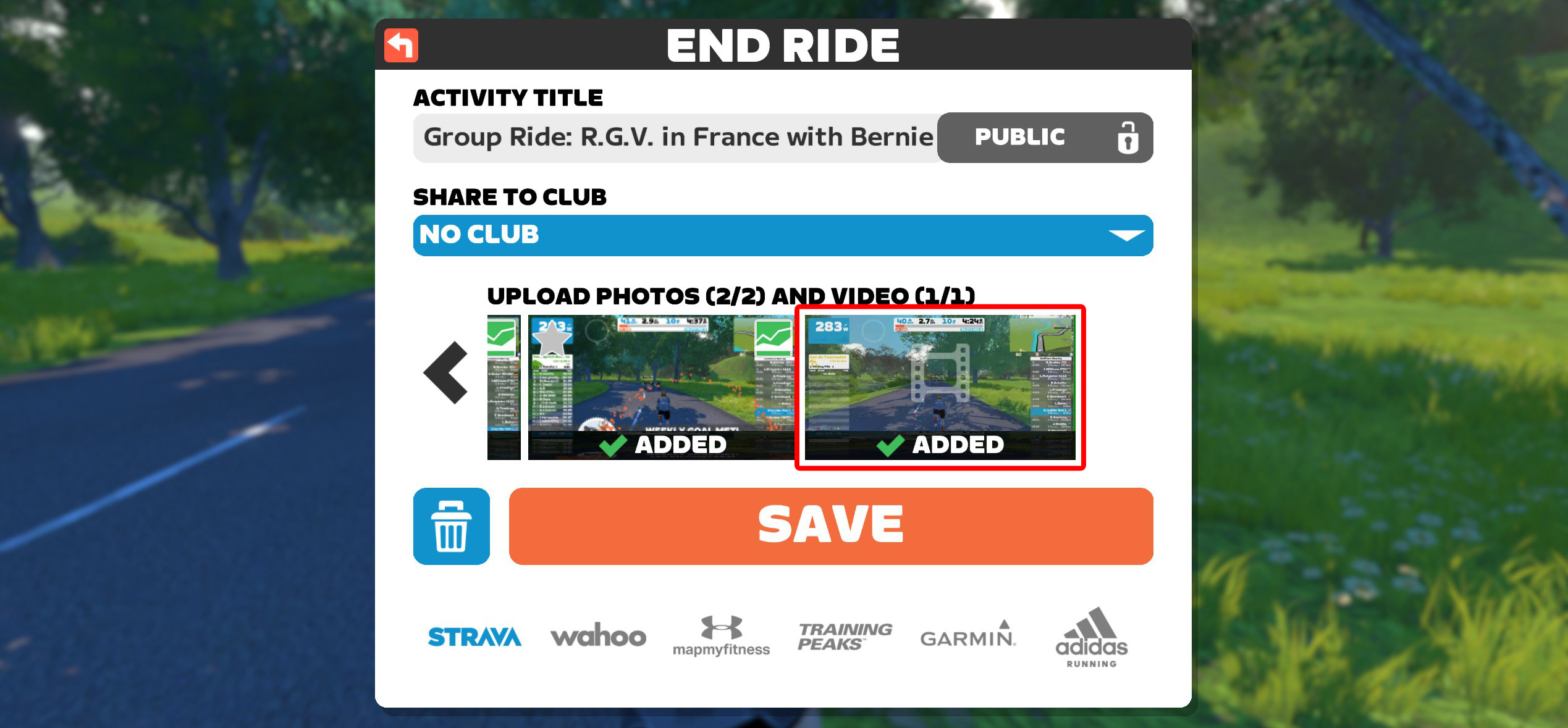
The first video screenshot recorded during your activity will be automatically selected for upload, but you can click to ignore a video and add a different video if you’d like.
Turning Video Screenshots On or Off
If your device supports Video Screenshots in Zwift, you’ll see an option to enable/disable the feature under Settings>Preferences:
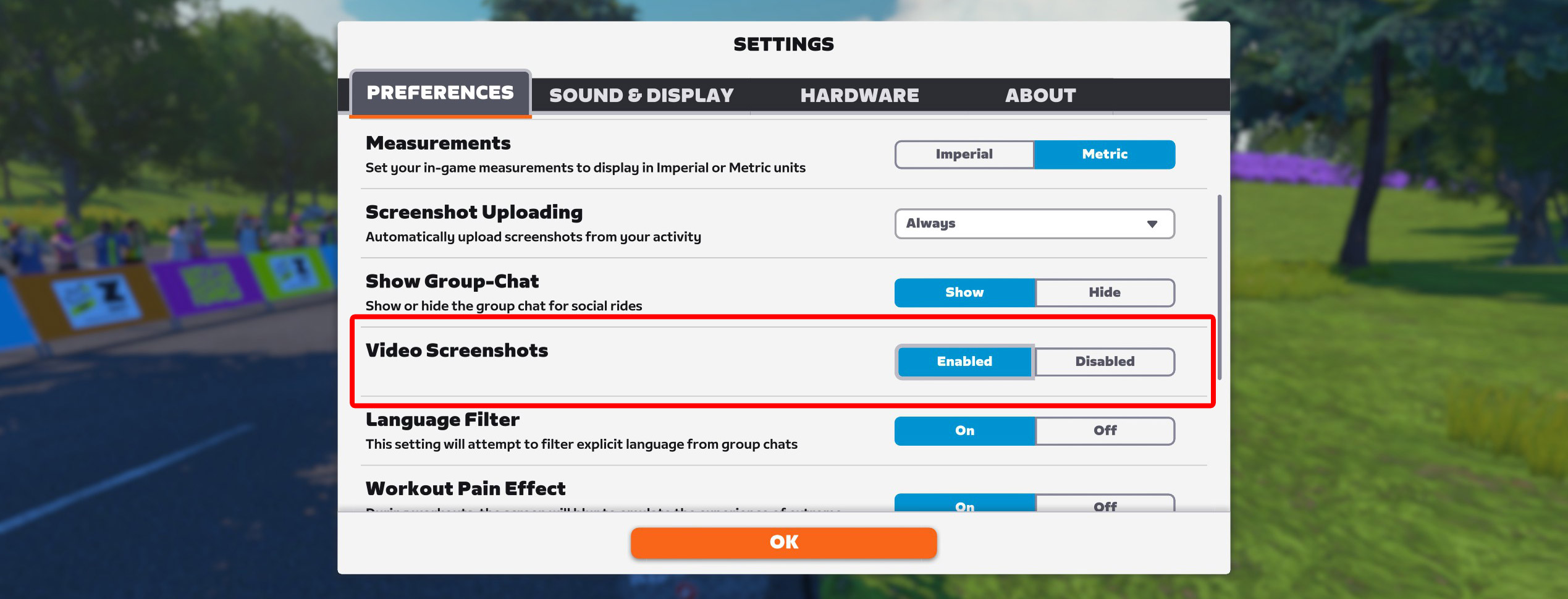
The option is enabled by default, but you can disable it if you’d like.
A Note about CPU Usage on Windows
In tests on multiple Windows PCs, we’ve seen Zwift’s CPU usage increase by around 20% when Video Screenshots are enabled:
If you have a strong enough PC this shouldn’t impact your game experience, since the Video Screenshots feature is multi-threaded and won’t use the same CPU core that Zwift heavily uses for gameplay.
That said, riders on weak or overloaded systems may see an impact. If you notice your system performs poorly with Video Screenshots enabled, simply disable it.
Questions or Comments
Do you use Zwift’s Video Screenshots feature? Got questions or comments about how it works? Share below!

These have never worked on my Apple TV. Must be an older model.
Mine either!
It sort of works on my AppleTV. The automatically captured clips show up when I end a ride, and the selected one says its uploaded to Strava, but 95% of the time I don’t get the full video, or maybe its corrupted. On Strava, the video won’t play at all on my phone (Android), and on Macs and PCs it plays about 3/4 of the way through and then hangs up. Every once in a while I get the full video, and those will play on my phone.
I turned this feature off, it has a significant impact on PC performance even when it is not being used. Mr Higgin’s would have a more detailed explanation of course.
following Zwift’s assessment, my machine lacks in performance for video recordings. interestingly, if I manually record Zwift riding with other apps, it doesn’t noticeably increase the high base load caused by Zwift. So, I don’t get their argument, unless their video recorder is as hungry as the rest …
This feature isn’t on apple TV
Will this ever be supported on Android?
In my case, it seems to work, but the video does not appear either in Companion or in my feed on the web. Also, neither video nor the screenshots are uploaded to Strava, although the images appear in my feed of Zwift. Is there something that you have to configure in order to automatically upload to Strava? Because the videos are recorded in my computer.
Are you selecting particular images and videos to be uploaded to Strava when you save your ride?
Hi.At the end of the activity and before saving it, I select the videos and images to be saved. Only the images appear in the feed in Companion and Zwift.com, not the videos. None appear in Strava. I’m guessing that maybe some option is preventing that.
Seems odd. I’d reach out to Zwift support.
Thanks
Funny that today for the first time, the image saved after the activity was uploaded to Strava automatically. No sign of the video neither in Zwift nor Strava.
Czy znaleziono rozwiązanie na puste pliki video oraz brak publikacji na strava?
Laptop, Ryzen 7, Ram 64GB GPU RTX4070
I have exactly the same issue. The video button behaves correctly but no actual video created, only an empty file inside zwift video folder. Please, did you solve your problem? Thanks.
Sorry, my problem was with the automatic uploading. In my case in the Zwift folder I have de videos automatically recorded.
I have the same issue. Did you find a solution? My videos were working correctly until a month ago but now are saving as empty files.
I use Apple TV and have noticed that recording video seems to “jump back” 5 – 6 seconds from the spot I tapped record. For instance I might tap record as I enter a turn, but the video records much earlier than the desired spot on the route.
As explained above – when you hit record it saves the previous 15 seconds.
Automatic screenshots caused my zwift to crash on Windows 11 with a monster machine the code doesn’t work with some hardware combinations, and I’d suggest to anyone to turn it off if they experience any problems.
I went to turn this back on (after upgrading PCs) and couldn’t find the setting to turn this back on. Did Zwift get rid of this?