

We occasionally hear from Zwifters complaining that new features or achievements on Zwift aren’t working as advertised. The main reason this happens? Running an outdated version of the game.
Here’s how to check your installed Zwift version and update to the latest available version.
What Is the Latest Zwift Version?
Zwift maintains a page showing current versions for each platform.
Checking Your Version
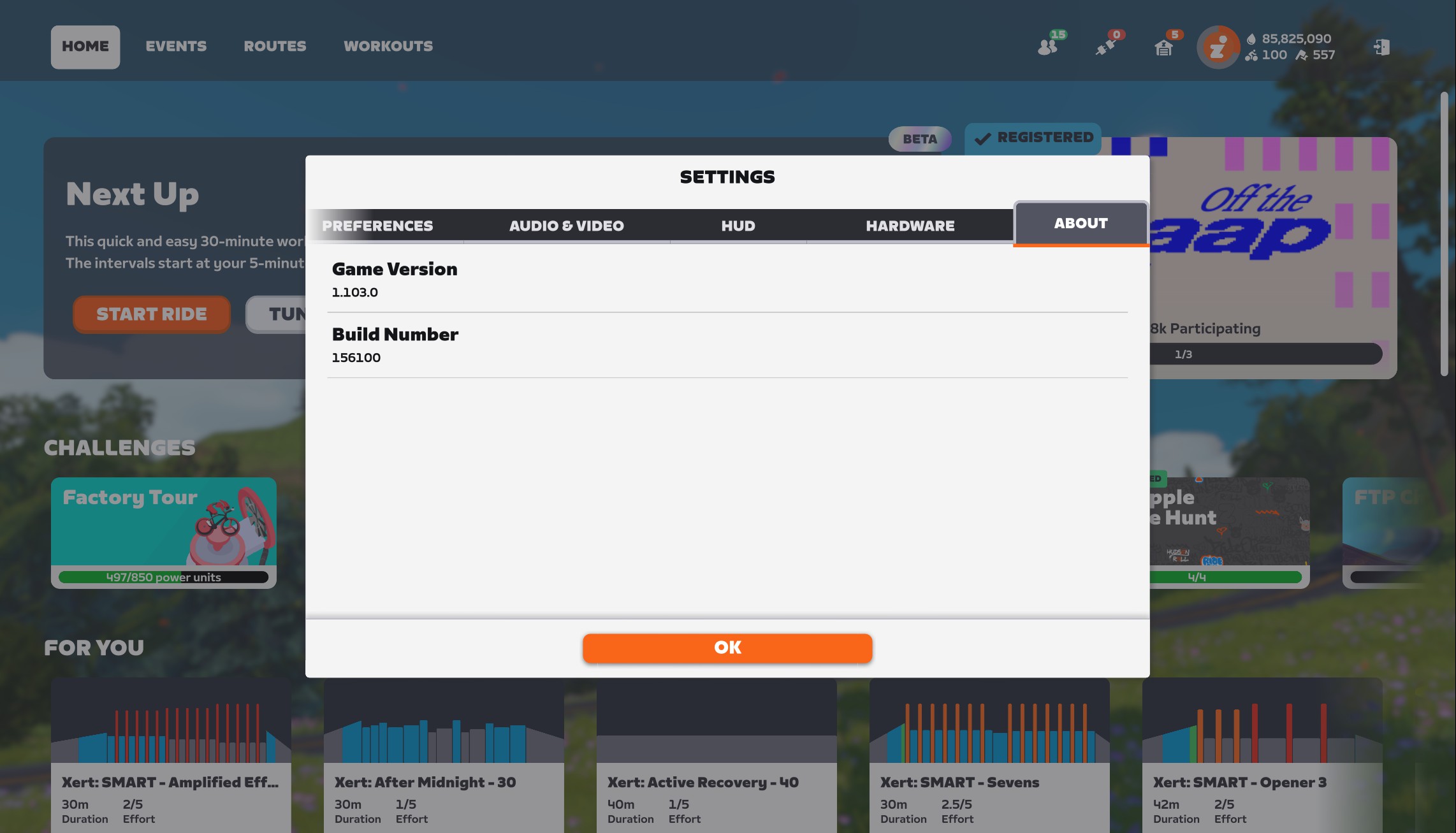
The simple way to check your currently-running Zwift version on any device is to visit My Settings>About:
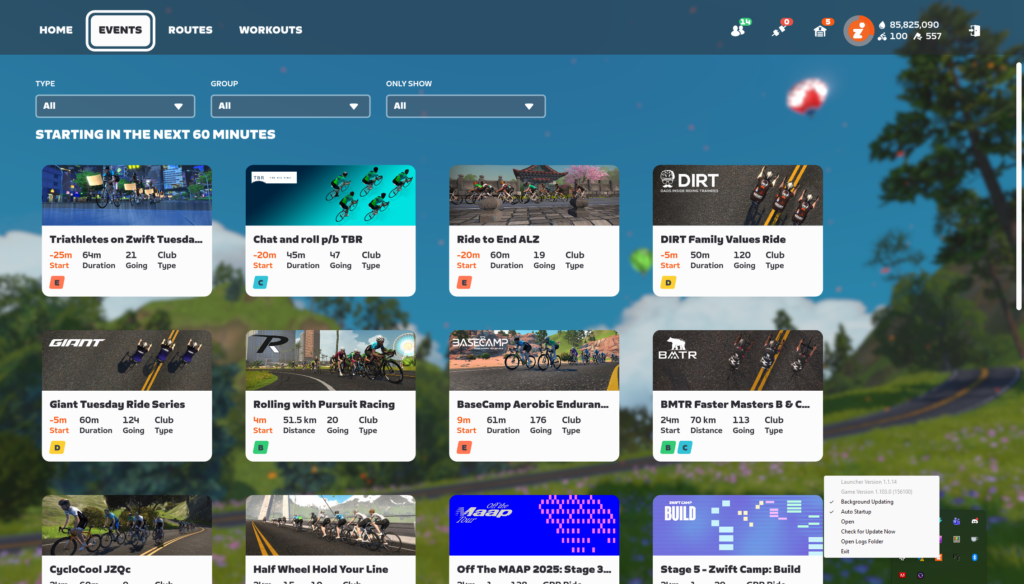
On PC, you can also right-click the Zwift icon in your taskbar to learn which version of the game and launcher you are running. This can be done even if Zwift isn’t actively running:
How to Update Zwift
Keeping Zwift up to date is quite simple, and usually automatic, depending on how your device is configured. Settings vary by device, so here are some specific tips…
Windows PC
- Any new updates will be installed when you next launch Zwift.
- Recommended: right-click the Zwift launcher which appears in your system tray (usually at the bottom right of your screen, near the clock) and make sure “Auto Startup” and “Background Updating” are both checked. This will download updates automatically without your intervention, so they can be quickly installed the next time you start up Zwift.
- If you want to manually check for an update, right-click the Zwift launcher and click “Check for Update Now.”
On a Mac
- Just launch Zwift and it will update for you!
On AppleTV
- Open the App Store and go to your “Purchased Apps” list. Select Zwift. If the app needs an update, there will be a button you can select to update it.
- Recommended: enable automatic updates by going to the Settings menu, selecting “Apps,” and making sure that “Automatically Update Apps” is turned on.
- Also Recommended: shut down the Zwift app or your entire AppleTV when you’re done with your day’s session. This unloads it from memory and ensures that when you start your next Zwift session, you’re using the newest version installed on your AppleTV.
On iOS Devices (iPhone or iPad)
- Go to the App Store, tap your profile icon at the top-right, and you should see a list of available updates. If Zwift appears in the list, tap the “Update” button beside the Zwift icon to download and install the most recent update.
- If you aren’t seeing the latest Zwift update, or want to make sure you haven’t missed an update, pull down on the screen which shows all available updates. This will force your device to look for all available updates, which will often bring up recently-added app updates that weren’t already listed.
- If you want your apps to update automatically, go to Settings>Apps>App Store and enable “App Updates” under “Automatic Downloads”.
On Android Devices
- Go to the Play Store, tap your profile icon (top right), and go to Manage apps & device>Updates available. If your version of Zwift is old, it will appear in this list. Tap the “Update” button beside the app to download and install the most recent update.
- To enable automatic updates, open the Play Store and tap your profile icon (top right) then Settings>Network Preferences>Auto-update apps. From there, you can choose to auto-update apps over any network, over Wi-Fi only, or never.
Forcing a Zwift Update
Zwift has maintained a biweekly release schedule for the past few years, with updates typically released on Tuesday mornings around 8:30am Pacific Time.
These rollouts are phased, so the update isn’t available to everyone immediately. Zwifters have asked if there’s a way to force a Zwift update, but unfortunately, there is no approved method for doing so. The timing of phased releases is tied to individual Zwift accounts, so chances are you’ll receive each update at approximately the same day and time every other week.


One thing is I used to get updates on Tuesday, around Noon MST. Now it’s Thursday before I receive them. I’m on a Mac running Tahoe (26.1). Was there a recent schedule change?
My biggest frustration is trying to figure which event-only route badges I still need. I have 319 out of 319 badges right now, only missing the Everesting extra credit badge. But I read somewhere on the comments here there are 323 total badges. No idea if that’s right,
Agreed. I wish Zwift would list all the event-only routes that have badges under “Achievements” so we could easily see which ones we need…
My list based on info from Zwift Insider & zwifthacks. Some are not yet available.
Thanks. So 331 total badges is the number today. I guess finding the event-only rides is all part of the hunt.
Event-only routes should not have badges and route with badges should not be event-only. Zwift should clean up this mess.
I feel like it’s 320 at present. I am at 317. I don’t yet have Everesting, Marathon, or Olympian (sub 5:00 mile) as extra credit badges.
I don’t understand why Zwift couldn’t add an option to force an update to allow enthusiast to try the new features asap.
Usually companies that use phased rollout still offer the option to force an update since most people won’t use it and will wait for the notification. There are so few people updating early that it doesn’t have much impact on the rollout.
Now some people are already using the new checkout page, while some people are still using the old page, but there was no version update this week, so I don’t know what happened. Is the new checkout page function in grayscale testing?
Hi Eric. I just bought a Zwift Ride bike and paired it with a brand new Tacx Neo2T. I’ve had a lot of “slippage” while free riding. For example, im grinding up a 12% steep hill and all of a sudden, without even changing gear (virtual gears), i lost half the resistance. It usully last less than 1 second but its just enough to be quite annoying. In a race, its enough to make you lose the pack… Ive read on the Zwift Forums that im not the only one whos experienced this problem. Any idea if Zwift is working on a fix ? No problem when doing a workout in ERG mode by the way… only when free riding or racing. Thanks ! A proud “zwifter” since 2015 !
I don’t know if Zwift is working on anything with this, but it sounds like a firmware issue Tacx/Garmin needs to fix – since it’s unique to their trainer. Have you reached out to Garmin support?
I’m wondering whem zwift is going to introduce “Flanders” in the game, all those heroic short climbs like the Paterberg-Kwaremont-Berendries-Muur…etc. also the whole pre season of roadcycling situates in Belgium for as long as we know it, hell… cycling originated in flanders, with sometimes 3 races in flanders every week, it would be iconic to have it in zwift ? All the little turns that builds up to the narrow roads with the repeated short climbs makes racing in it great…. when the fatigue builds up you will get some great races in it.
Time to make it happen 🤟🇧🇪
Since the latest update my Companion app isnt working properly? It doesnt go into game mode?