

Hopefully this is useful for more people like me who had an old Bkool Classic in a corner as they couldn’t use it.
Last week I purchased a Bkool trainer through Wallapop (Spanish second-hand app) and it didn’t get recognized by anything like Zwift or other simulators (even the BKOOL software itself). In the beginning I thought it was broken, as my ANT+ receiver didn’t get any information about it. What a bummer.
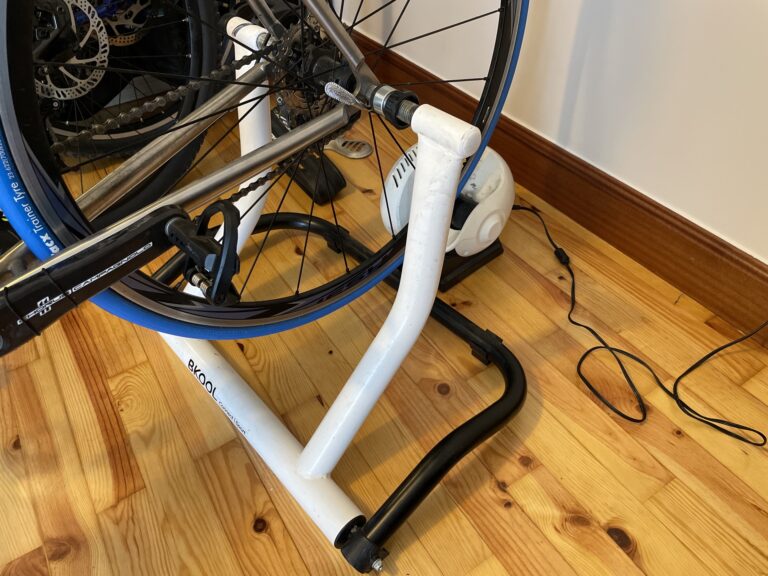
Usually, if you have a Bkool trainer, you’ll probably need to upgrade your ANT+ FE-C protocol before you can use it with Zwift, and this is done by using the “Bkool toolkit” app. The problem is that Bkool stopped being very “kool” as it doesn’t support old trainers like mine anymore. This means if you have one you would only be able to use it as a traditional “dumb” trainer, no more resistance change, only one speed.
In my case, the trainer didn’t have ANT+ FE-C because this protocol didn’t even exist when the trainer came to the market. Obviously, Bkool does this to force you to buy a newer model, even though yours is perfectly capable of dealing with modern software.
What is a smart trainer?
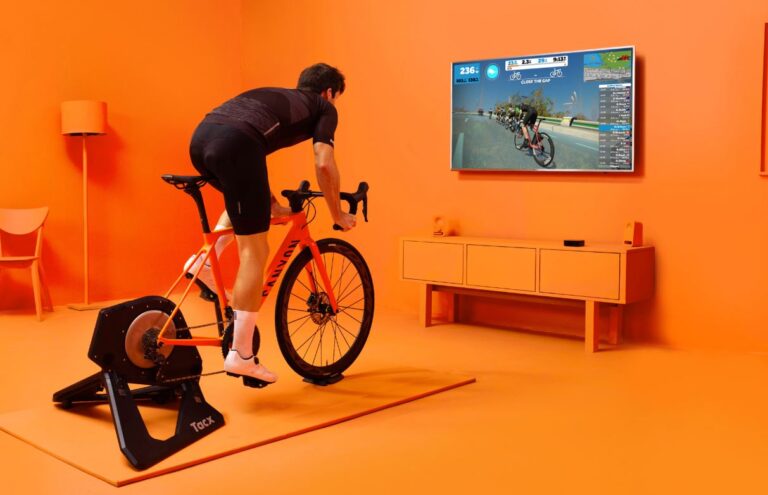
A smart trainer is, like a normal trainer, a stationary device attached to your bike which offers resistance to mimic the real world, but with the added benefit of allowing the resistance to be controlled by software. Let’s say you begin to climb a hill, then the resistance will go up and you will have to pedal harder, just like when riding outdoors. Software like Bkool or Zwift offer 3D worlds where you can move your own bike and train like if you were outdoors. Pretty cool stuff.
How to upgrade an Old (Pre-August 2014) Bkool Trainer
Because I won’t give up on stuff like this, I did some research and found an older version of the Bkool software that was able to update the firmware of old trainers for a limited time. This software is no longer available on the Bkool website.
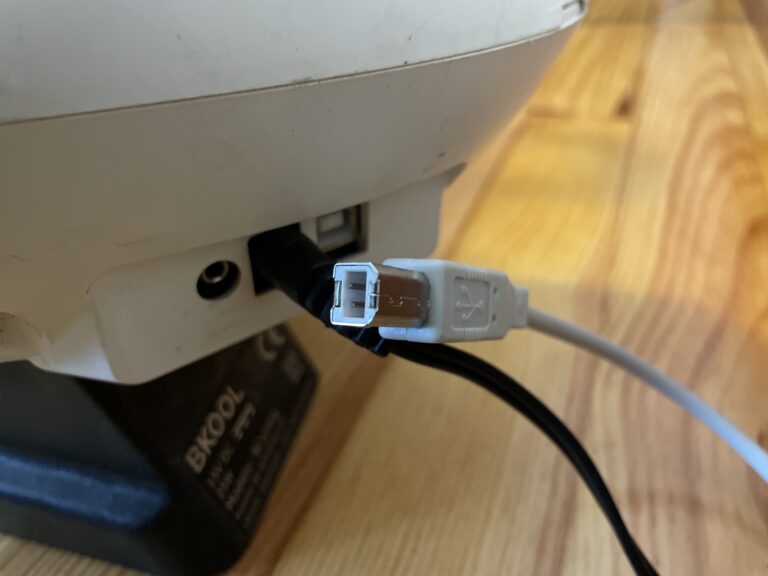
Okay, let’s do it! First of all, you’ll need a USB-B cable to connect the trainer to your computer and a Windows computer.
Then, follow these steps:
- Be sure you have a valid Bkool account and your computer doesn’t have any other Bkool software on it.
- Download this older version of the Bkool Indoor software for Windows, install it, but DON’T RUN IT YET.
- To avoid the software from updating to the latest version, go to the Bkool website and find out what the latest version of the Bkool Indoor/Simulator is (right now it’s 5.64).
- Replace the contents of the
C:\Program Files (x86)\Bkool Indoor\BkoolIndoor_Data\StreamingAssets\version.batfile with the latest version (5.64in our case). - Switch on the trainer, connect the ANT+ and the USB-B and run the Bkool Indoor application.
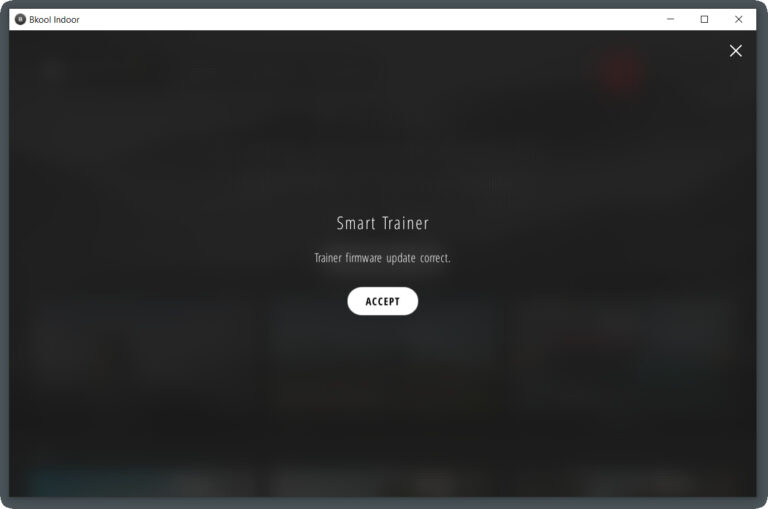
- Bkool Indoor should ask you to upgrade the firmware of your trainer. Upgrade it (if it fails, just restart the application and try again).
Connecting to Zwift
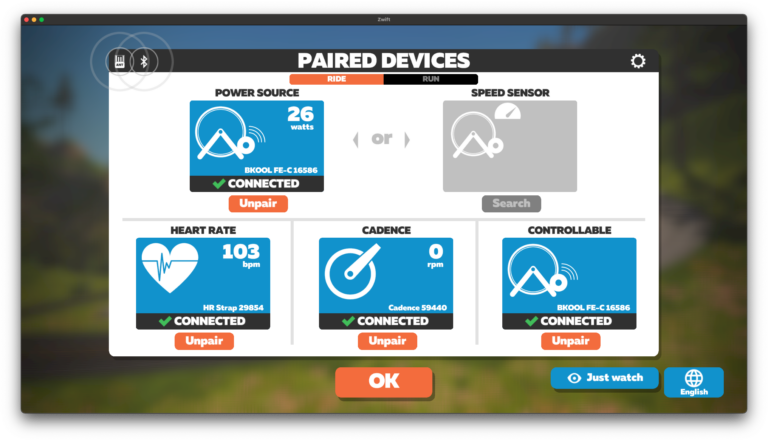
If everything goes fine, your trainer should have ANT+ FE-C up to date. Open Zwift and enjoy!



there will be a lot of ZRL new winners after this…
I have a bkool that worked flawlessly out of the box. – it was new; maybe thats where you went wrong.. but alas Bkool is the worst “smart trainer” right behind the chinese kickr clone.
this is 2 grades lower that you really are. if you think you are an A on a bkool, you’re really a C.
My bkool smartpro 2 read 30-50W lower than my kickr core
its not too bad til you hit 200w, then over that, it overtstates incrementally; at 800w+ its about 200 over. (mines a smartpro2 also)
I spoke to bkool about the calibration, and if it can be looked at, and or firmware – they said its not going to change – it is what it is. * i think coz it works better with thier software – not zwift.
PLUS. you can trick it into more watts on how to ride it, i wont write how to do it, coz we’ll get a lot of champs appearing on bkools.
i should add, i have and use a Kickr, which was a reality hit.
Just an update to this as I’ve just received a BKool trainer that was 2nd hand and was disapointed that wasn’t talking with Zwift.
Follow the instructions as given, however, you will need to download the new version of the software as well. Find the new version.dat file (it’s in straight program files now, not the x86 folder) and copy the alphanumeric string from that into a notepad. Make a note of the version number in the software, it’s not the same as the one given in the link in these instructions anymore.
Uninstall this new version then install the old version from the link in the instructions (windows won’t trust it so you may have to click “more info”, then “run anyway”) open version.dat in notepad again, and write 5.80 on the first line (or whatever is the latest when you read this), then paste the alphanumeric key into the second line. From then on it should work like the instructions say, although it took me 3 attempts to get it to log in, find the trainer and connect to it via USB.
Which is the current alphanumeric key? I’m trying right now to do these steps.
Thanks!
nevermind. it worked what u said thanks
would you mind to make a video instead of writing the instructions? It would be easier. Thanks
Hey! Thanks for the additional details! My Trainer is being recognised and can be used with ERG mode with zwift just fine, but it can only be discovered but not paired with the new bkool software on my laptop (ANT+ Antenna with an extension cord right next to the trainer at middle height). So I wonder if I even need to update my firmware since it is working fine with zwift. Though I wanted to try out the bkool software as well. The other thing is, that I have a Mini USB port and something that looks like a USB Type B but the center piece is missing. So I guess it is broken? I did manage to put a Type B USB cable in it, but my Laptop doesn’t recognise it and so the steps I followed here didn’t do anything. But it seems to work fine with the older version of Bkool as well. Now I don’t know if I should ive up on it, since it works with zwift. Then again, why does the new Bkool app see it (so I guess the firmware is up to date) but won’t connect? You know the little circle to the left of the name stays red…. Does anyone have an idea what I could try? I am in touch with the support, but they keep telling me to make sure, there is only one connection. I put every other device than my laptop in Flight mode or put it in a different room, I have no idea what else to try. This is the name the new bkool software when it finds it but doesn’t connect for some reason: bkool classic de27.
how to prevent bkoll updating the old version to new version pop up
worked perfectly for me on a classic from many years ago. Just follow instructions.
Hi. I downloaded the older version and changed version.dat as advised. However, when I then run for the first time and try to login I get ‘Error connecting to multiplayer server’ every time and no option to do anything else. Even a password reset get the same error.
Anyone else had that?
me pasa lo mismo ¿alguna solucion?
Hola! Tengo un bkool classic en la plataforma bkool me lo detecta,pero con el Zwift,no.Hay alguna solución?
this guideline doesn’t work anymore.
Did you find a solution ?
Hello. I downloaded the older version and changed version.dat as advised. However, when I then run for the first time and try to login I get ‘Error connecting to multiplayer server’ every time and no option to do anything else. Even a password reset get the same error.
Anyone else had that?
What can I do?
Tnx
Hello, yes now we all have the error and therefore the method is no longer available.
Did you find a solution to resolve the problem?